You can periodize RIR, rep ranges, and sets for any exercise in your program, whether the program was created using Smart Generation, built from scratch, or modified by adding or swapping exercises.
Once an exercise is part of your program, its targets can be adjusted across cycles.
You can open any exercise within a workout to adjust:
Number of sets
Rep minimums and maximums
RIR targets
These targets can be set for a single cycle, multiple different cycles, or the entire program.
Let’s say you used MacroFactor Workouts to generate a program, but then added or swapped an exercise. You may notice that the new exercise does not have auto-populated sets, reps, or RIR targets like the rest of your generated program.
This does not mean the exercise cannot be periodized, you just have to make a few manual adjustments because you’ve now customized the program.
To add targets:
Go to the Workout tab.
Select the program you want to edit.
Navigate to the exercise you want to add targets to.
Select inside the cycle box.
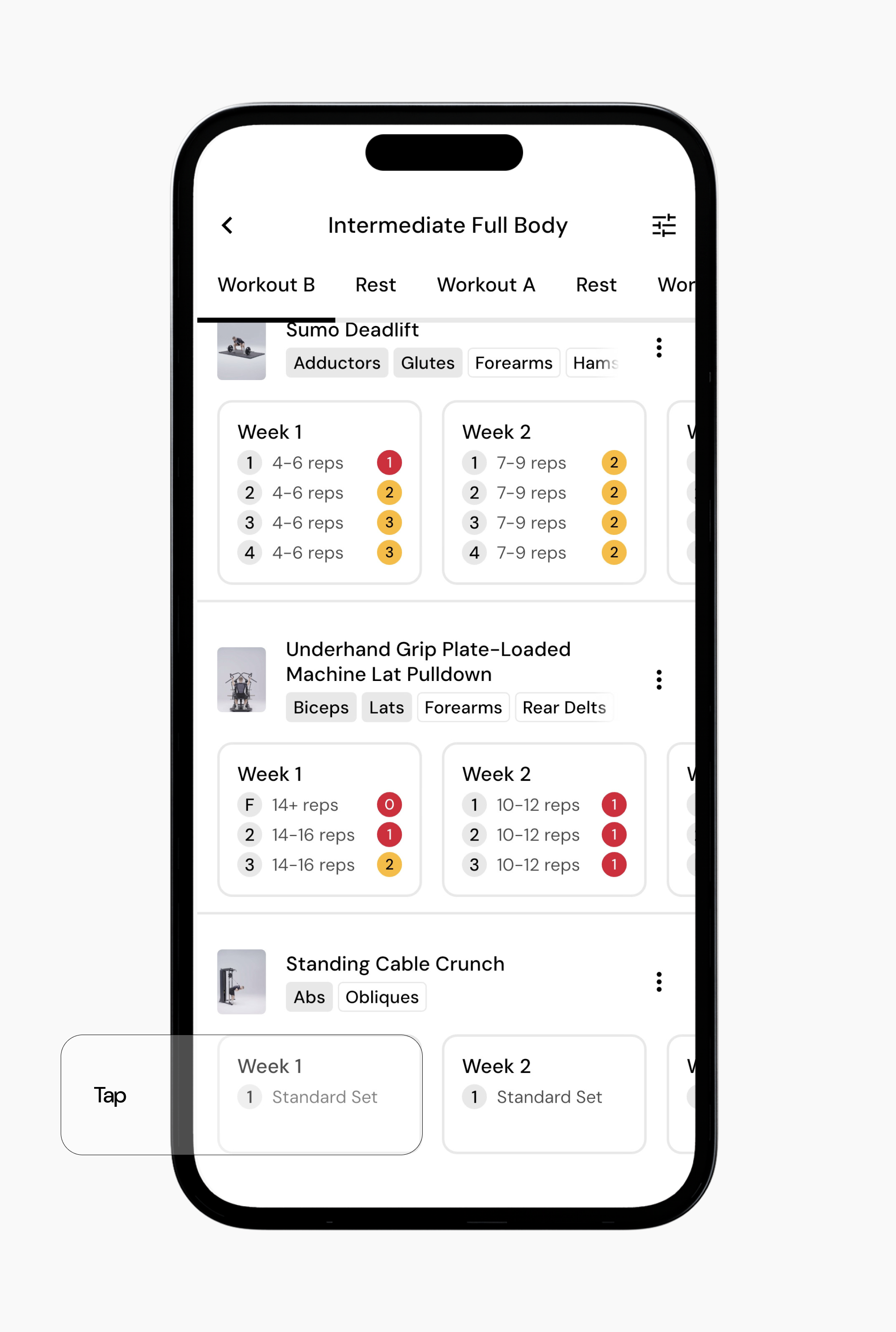
Adjust the sets, reps, and RIR as desired.
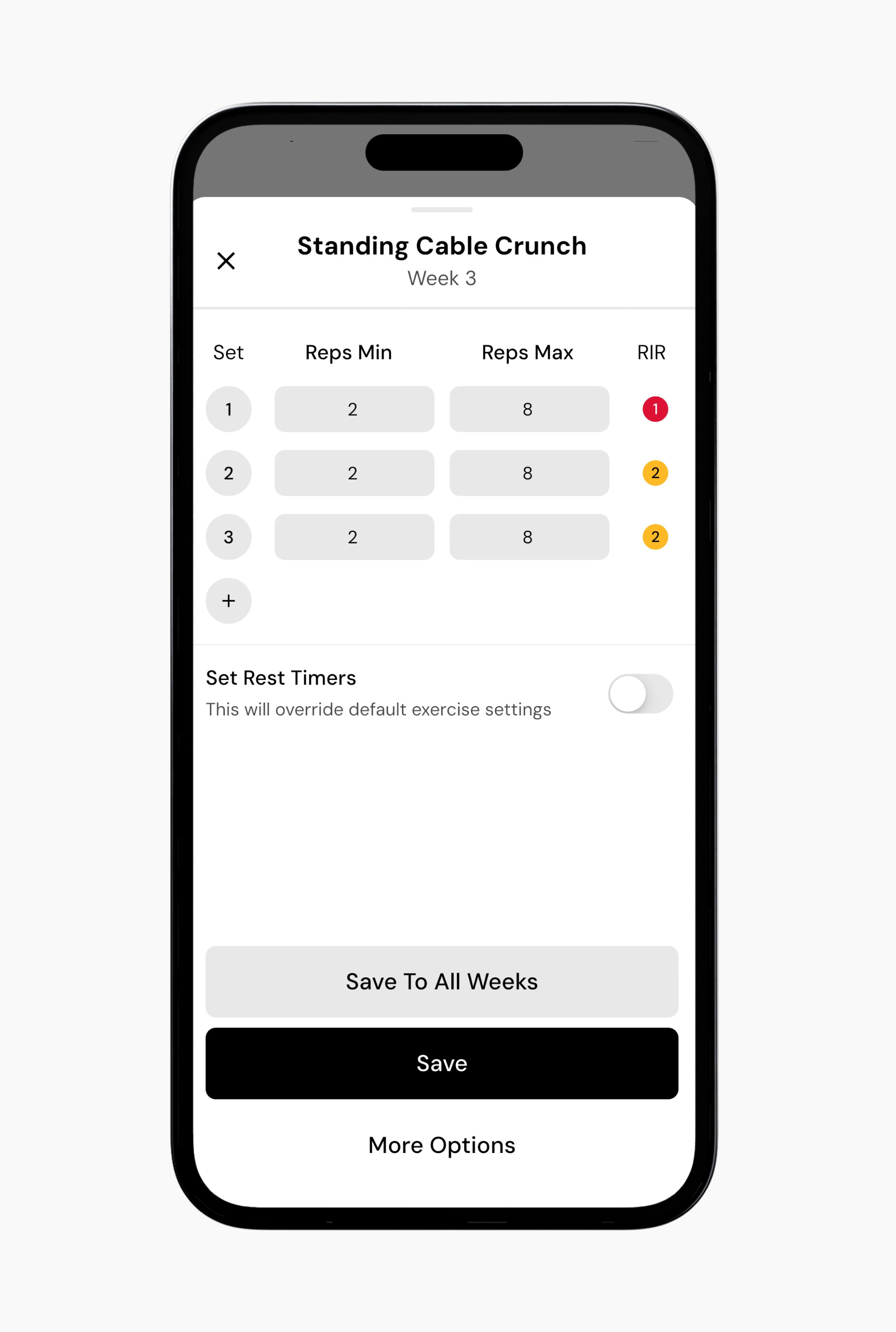
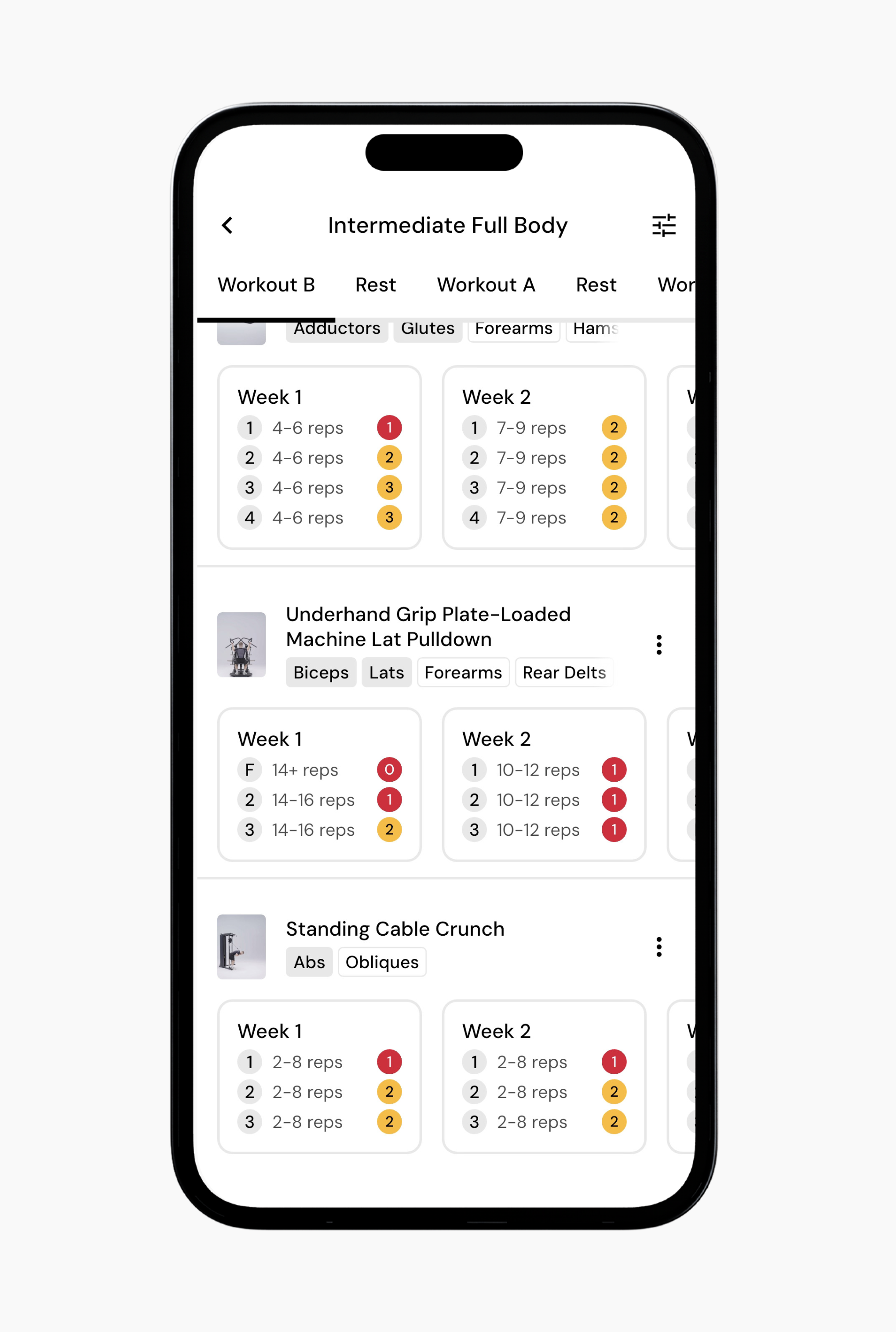
Tap Save or Save to All Weeks.
If you haven’t yet, I highly recommend reading this detailed post on building a program from scratch. It goes into more detail about targets and set types.
Go to the Workout tab.
Select the program you want to edit.
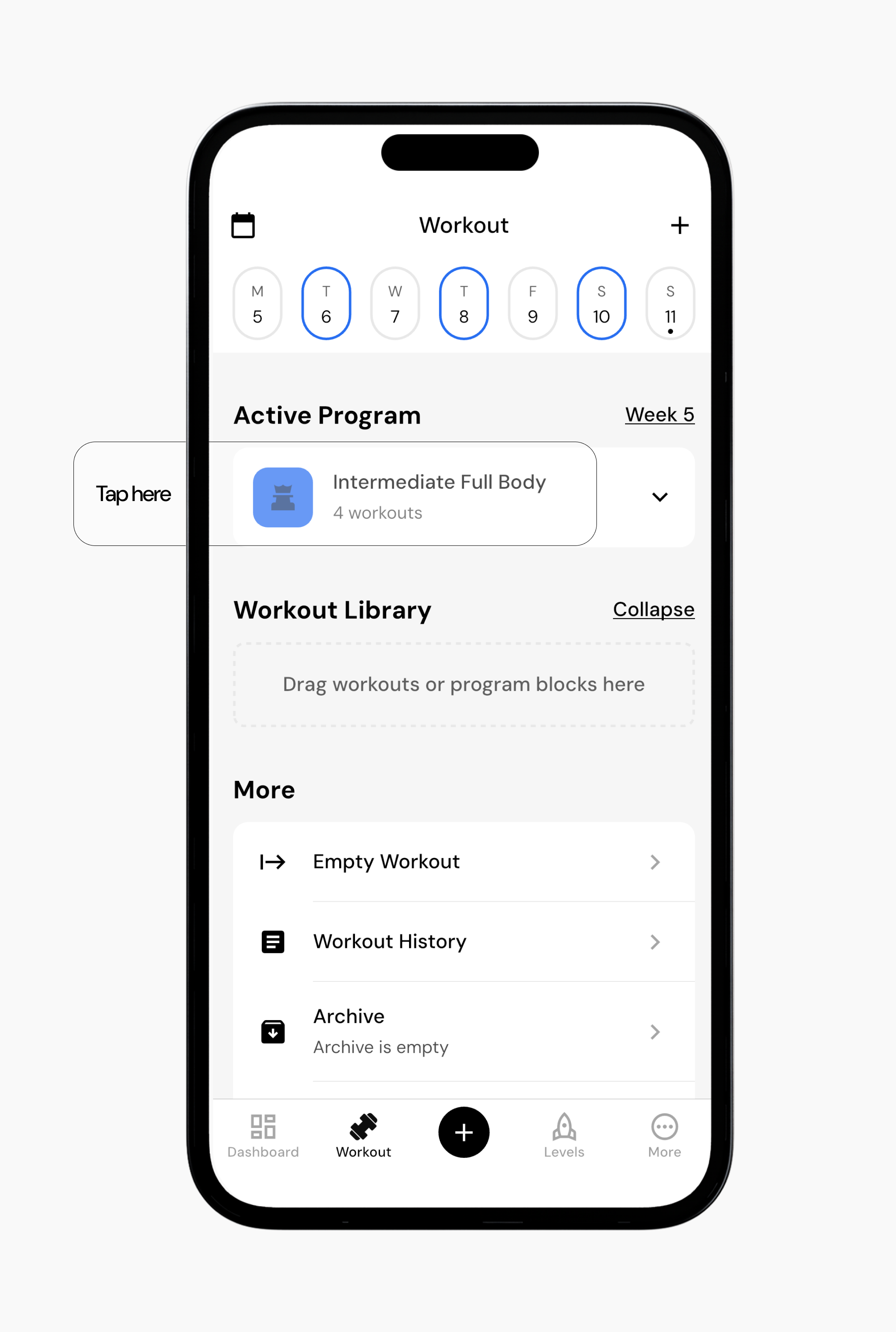
Navigate to the exercise you want to add targets to.
Select inside the cycle box.
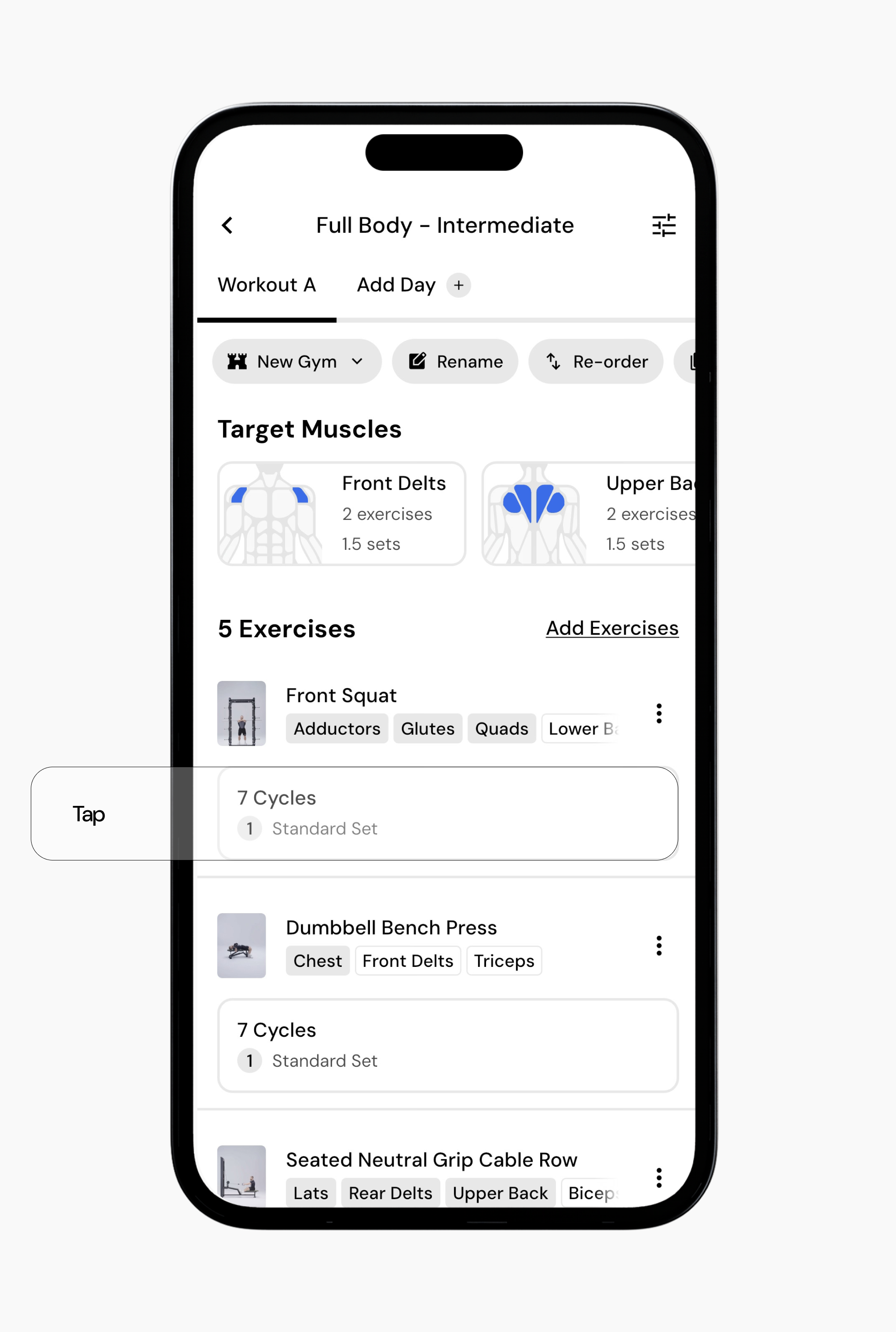
Adjust the sets, reps, and RIR as desired. This is also where you can change set types, like adding myo reps, failure sets, or drop sets.
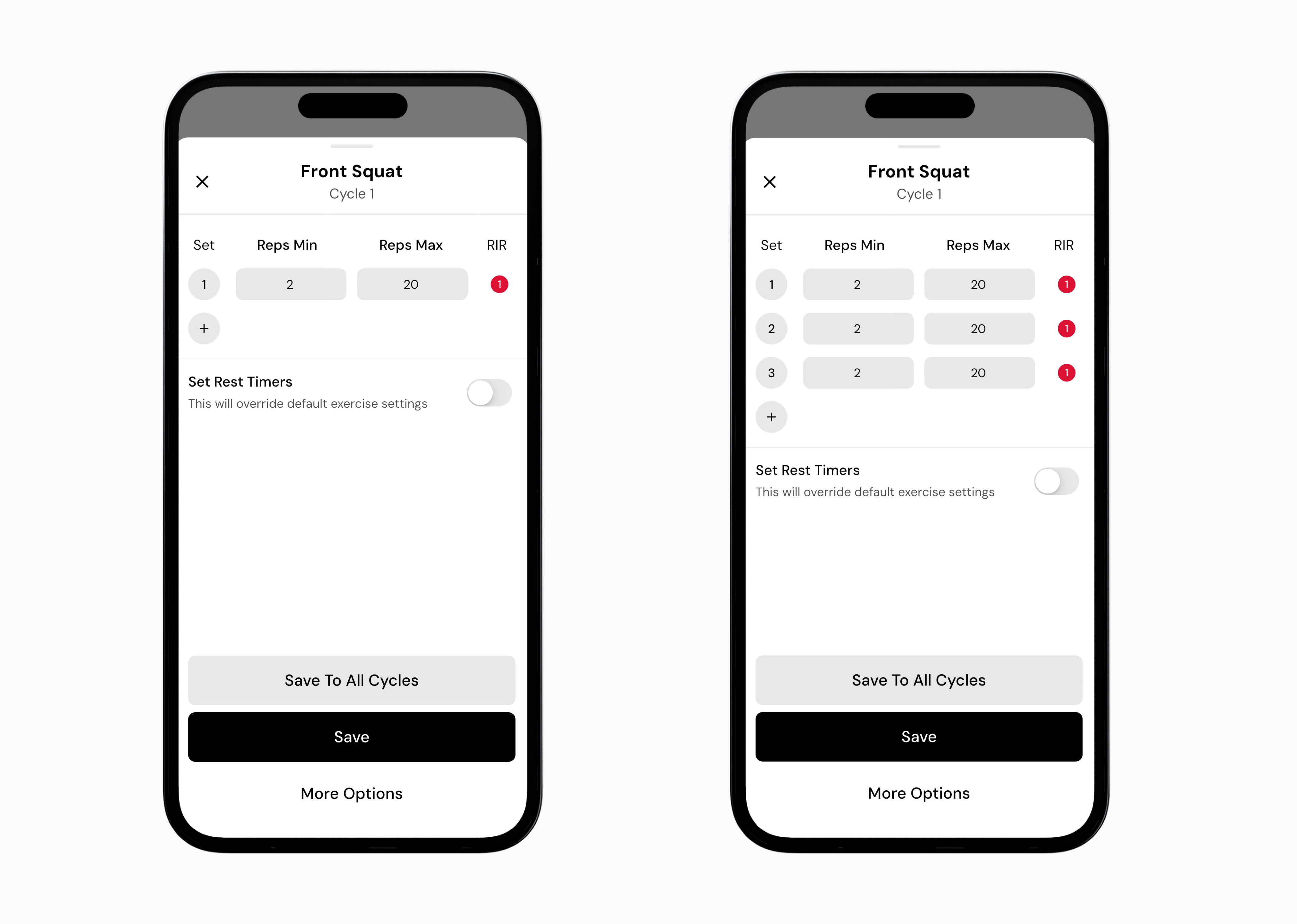
Tap Save (see below for explanations of the available save options).
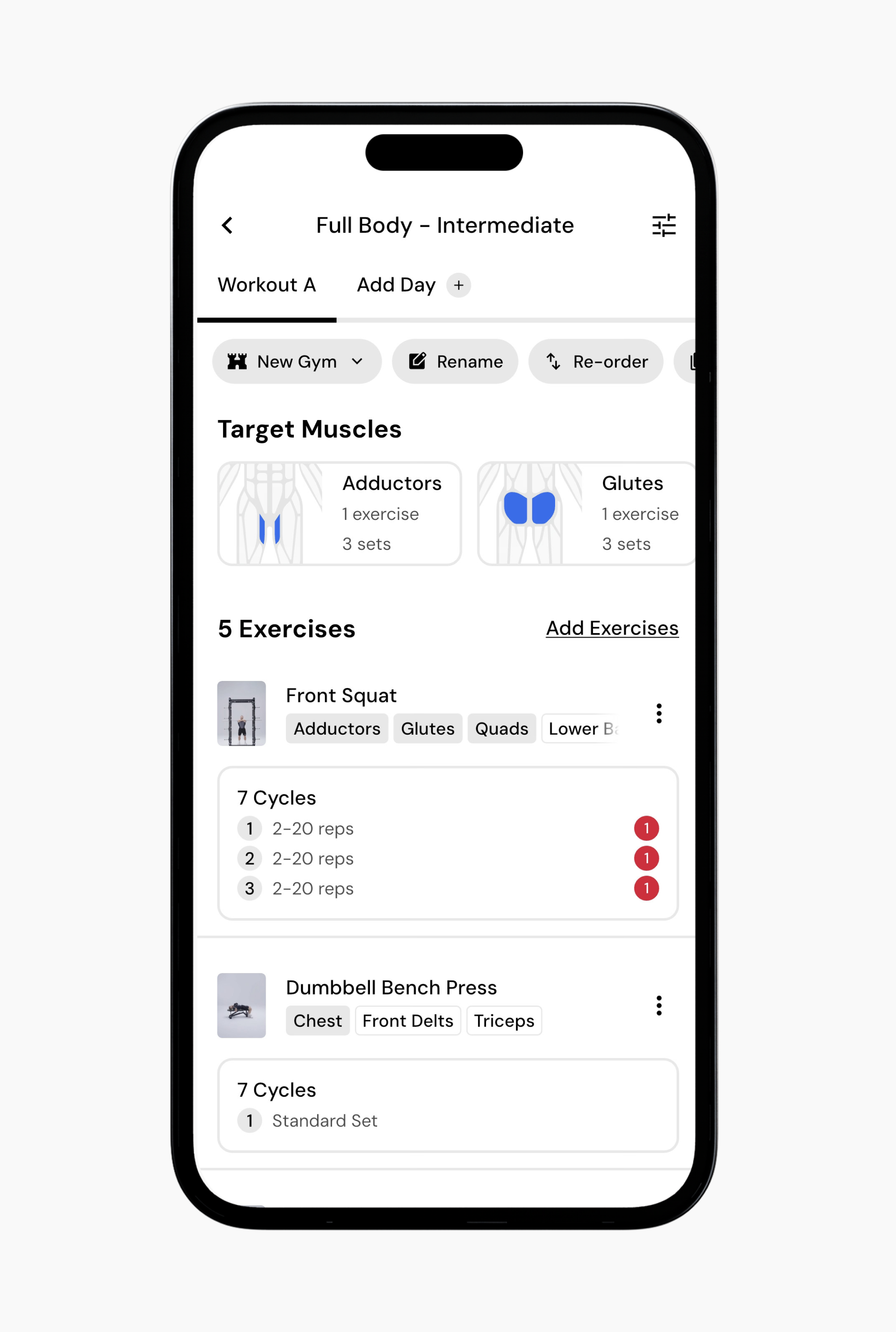
To enable periodization so targets populate across all weeks:
Tap the settings icon in the top-right corner.
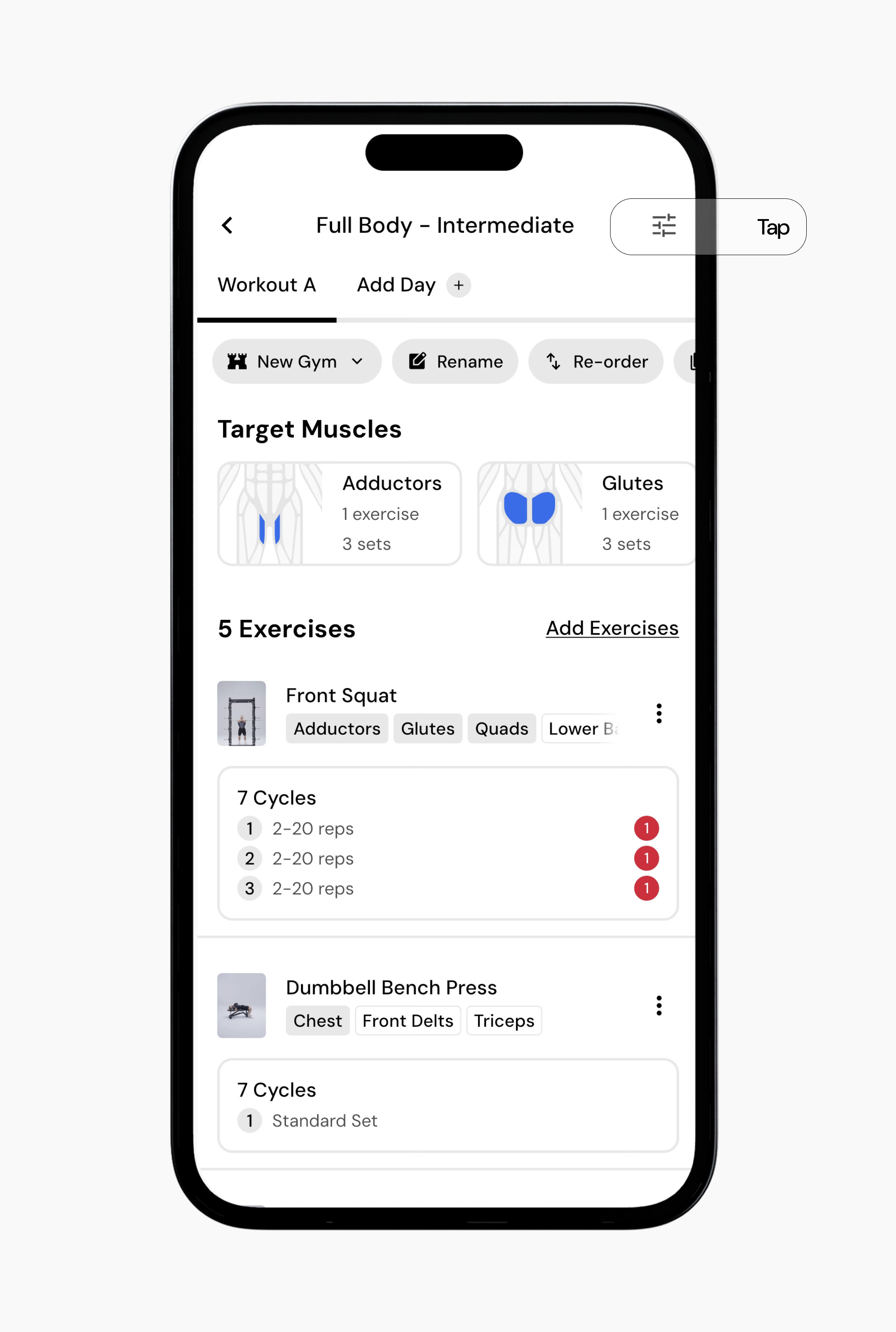
Toggle Periodization on.
Once enabled, you will see cycles auto-fill for exercises.
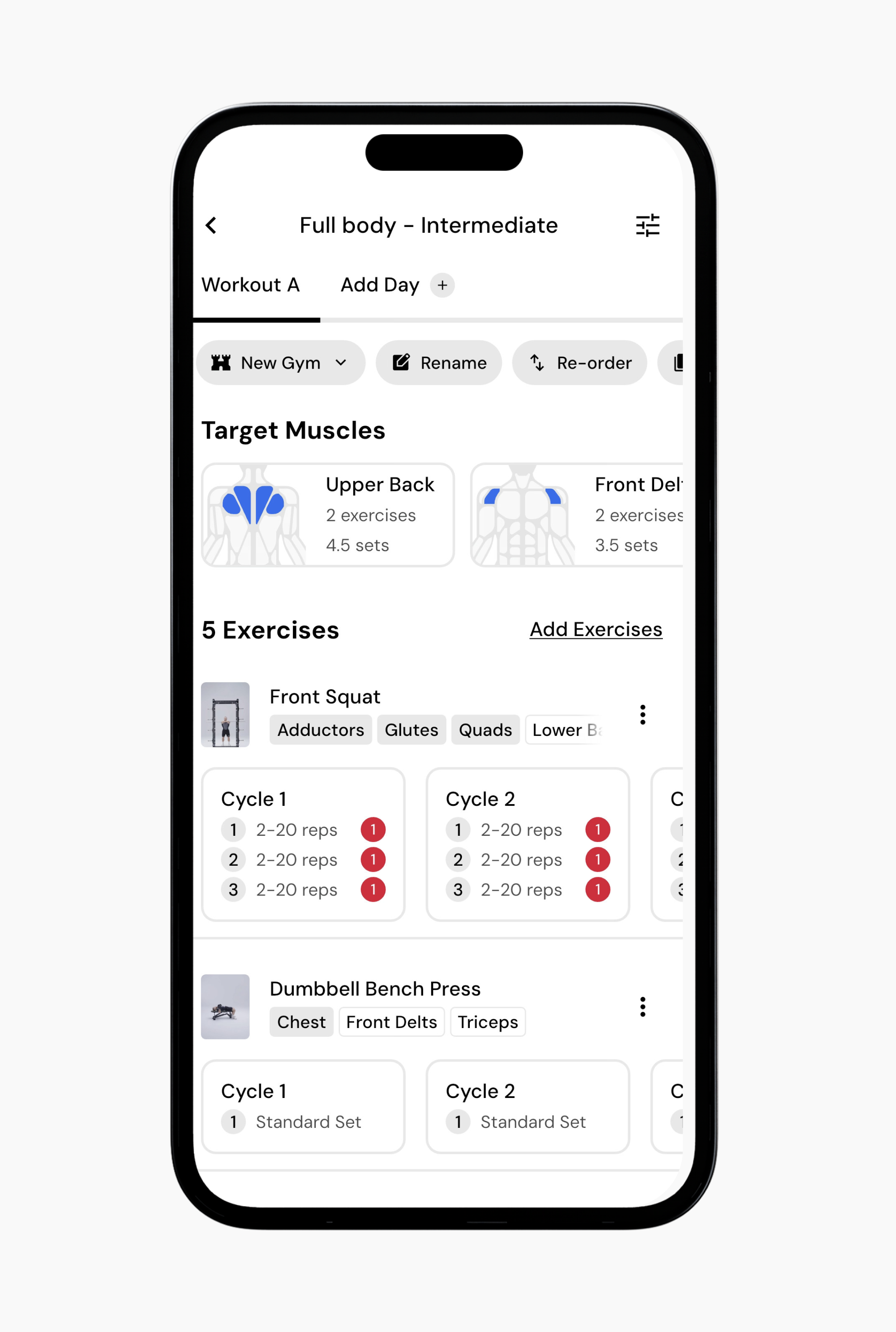
You can also save all targets, reps, and RIRs for other exercises (see below for an explanation of target save options).
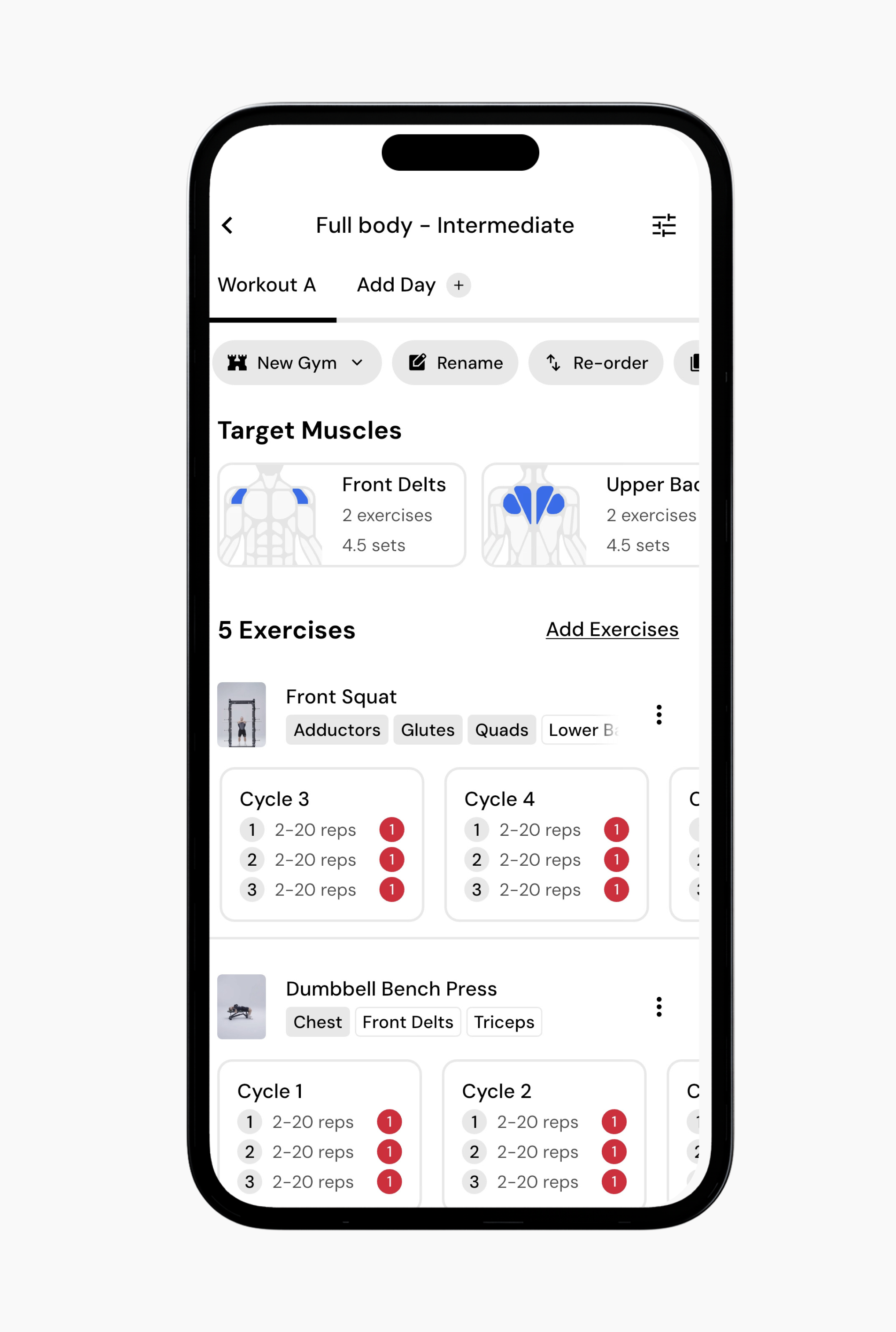
Now, let’s say that in week 3, you want to change things up.
You can do that without changing the rest of the program:
Go to the Workout tab.
Select the program you want to edit.
Navigate to the exercise you want to adjust.
Scroll through the cycle weeks and select the cycle box of the week you want to modify (for example, week 3).
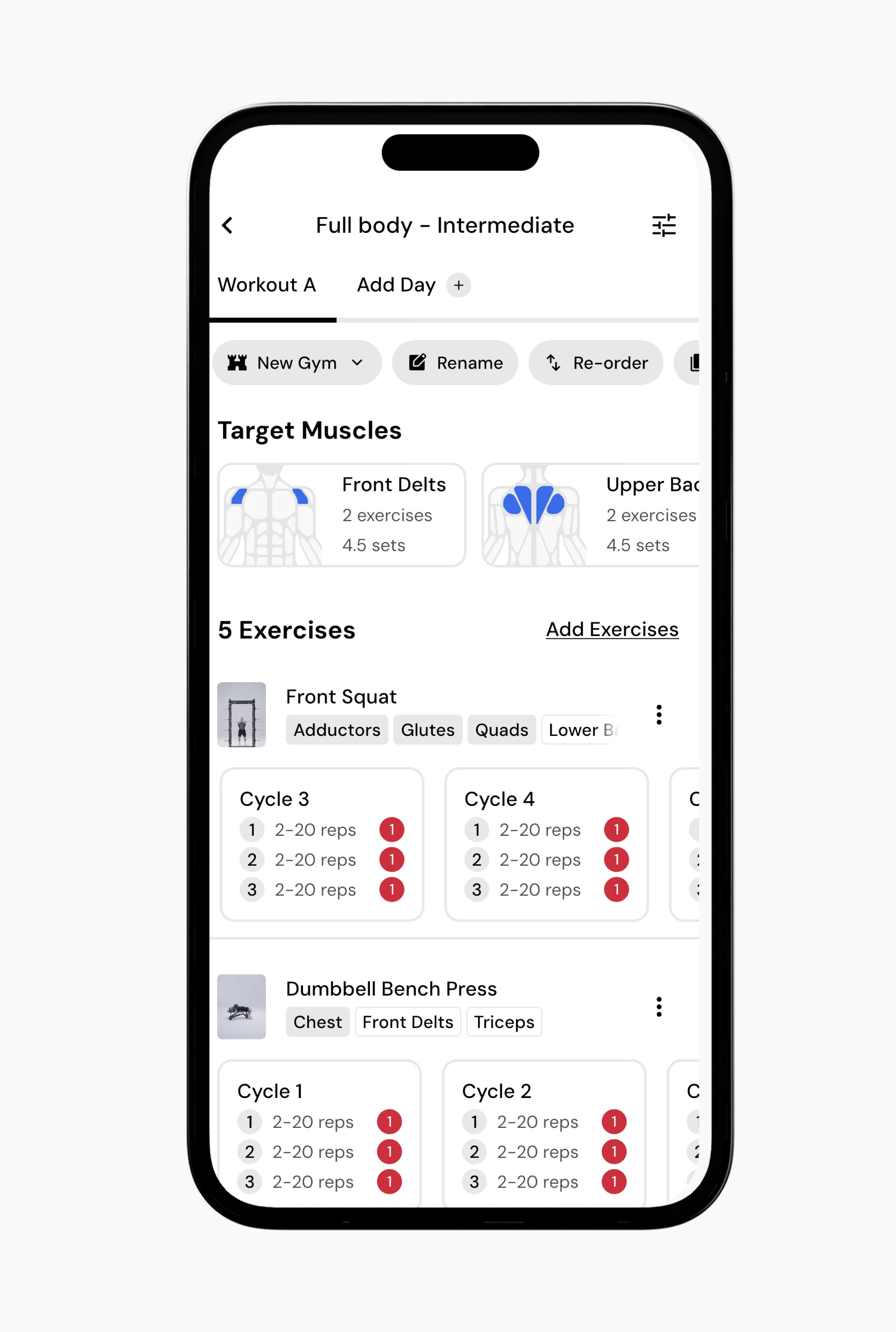
Edit the targets for that cycle.
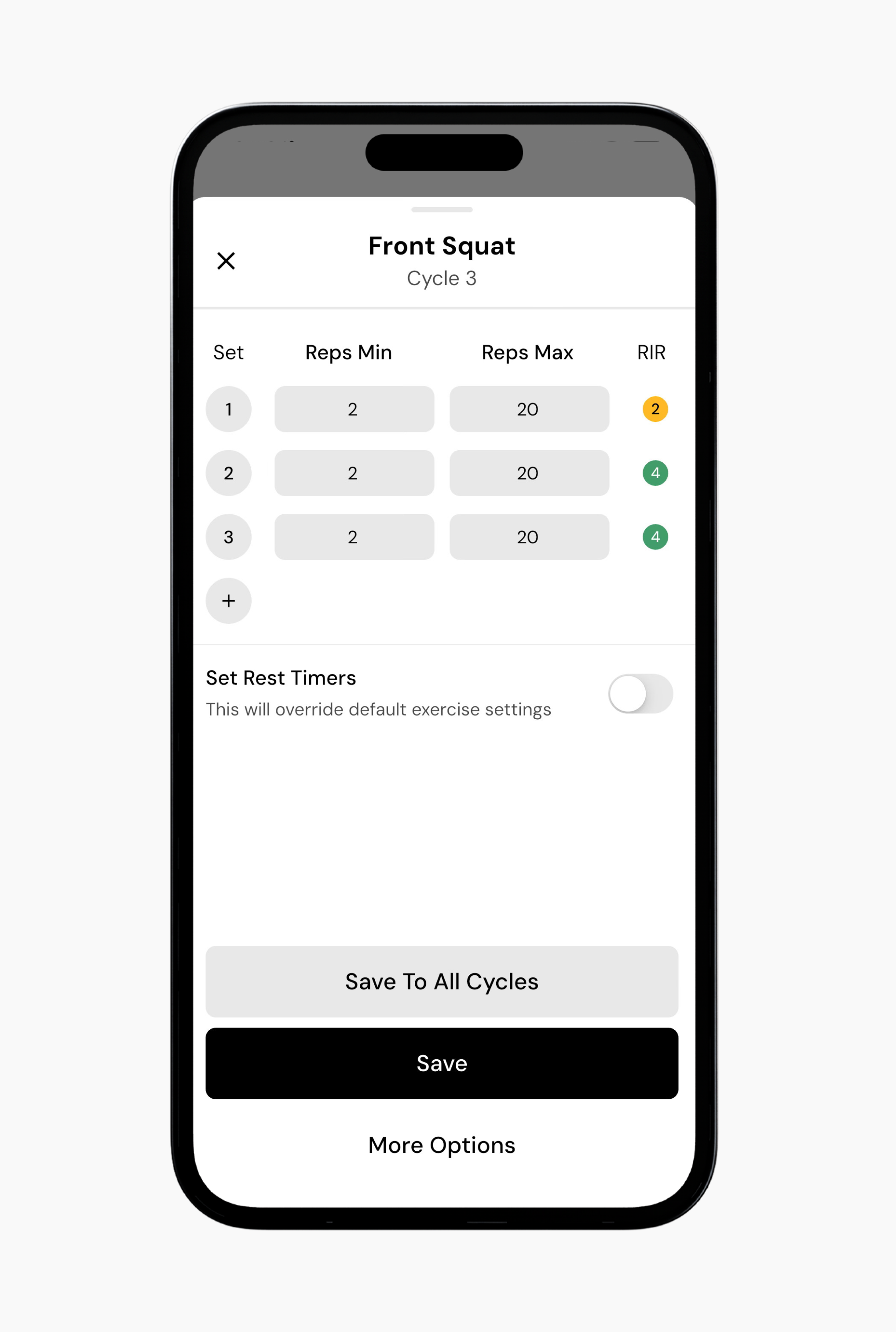
If you save the changes for that cycle only, you’ll see them affect only that cycle.
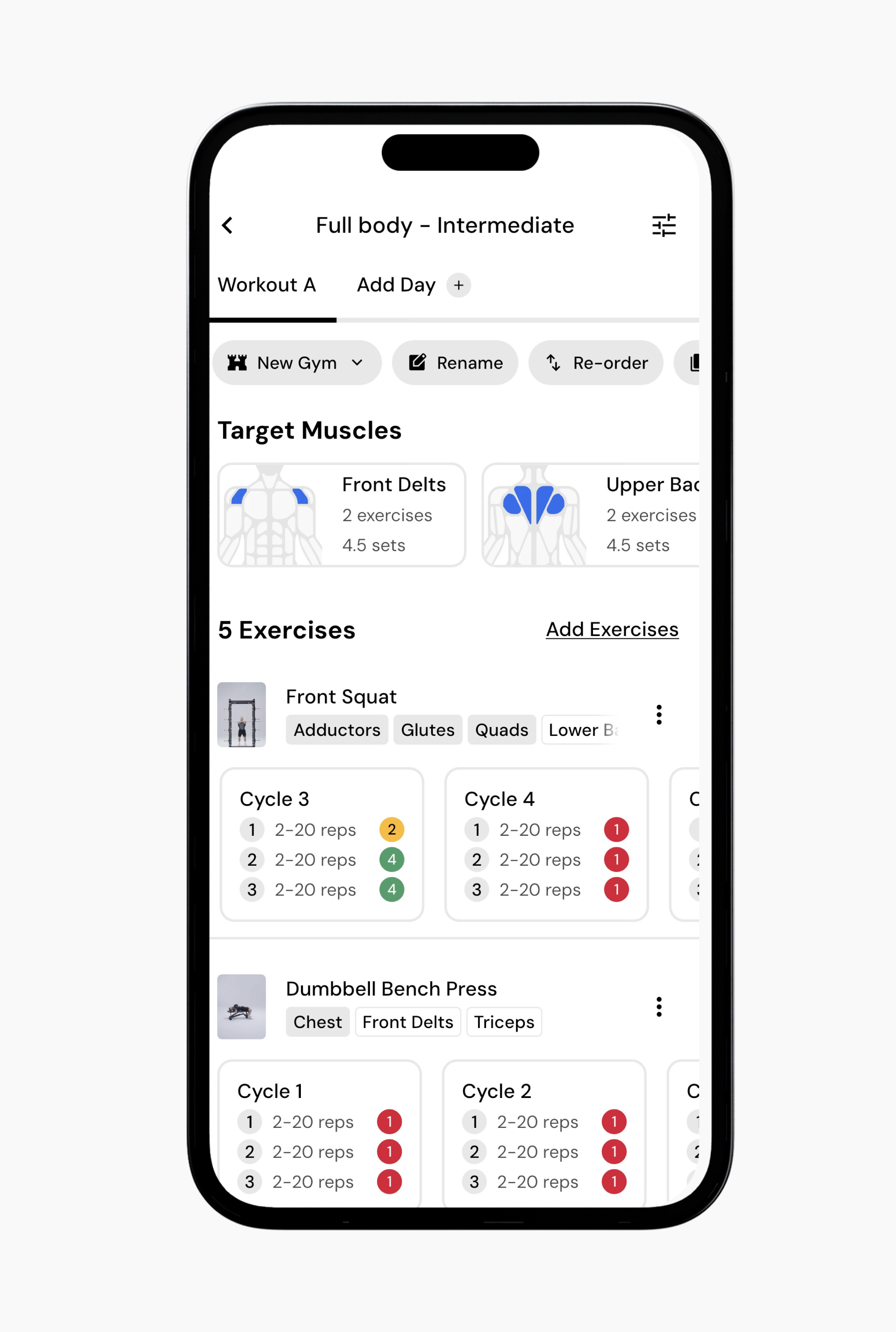
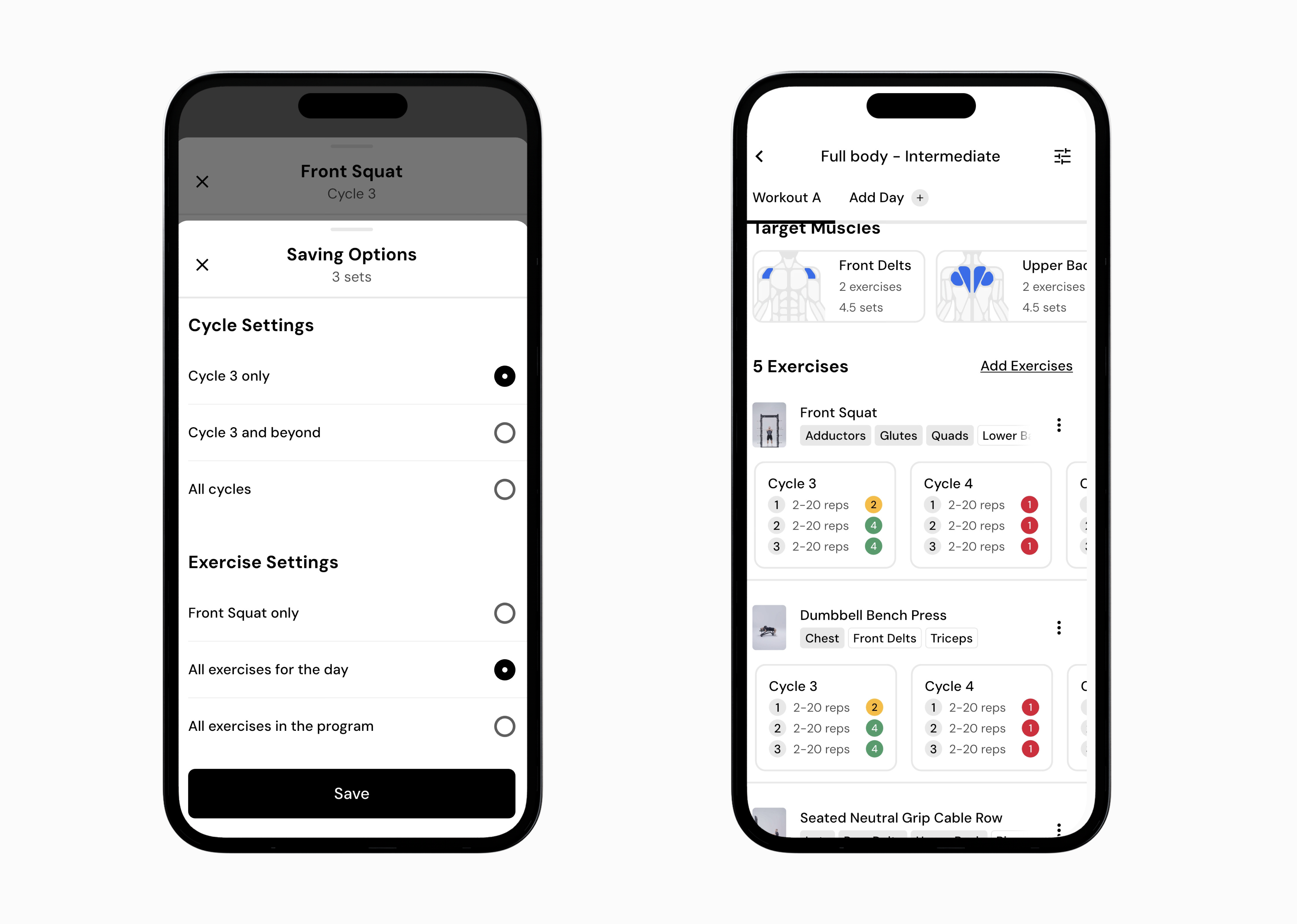
You can also apply those changes to all exercises for that day. This works well if you want to test a specific training approach, such as increasing effort or using a single week, without affecting the rest of your cycles.
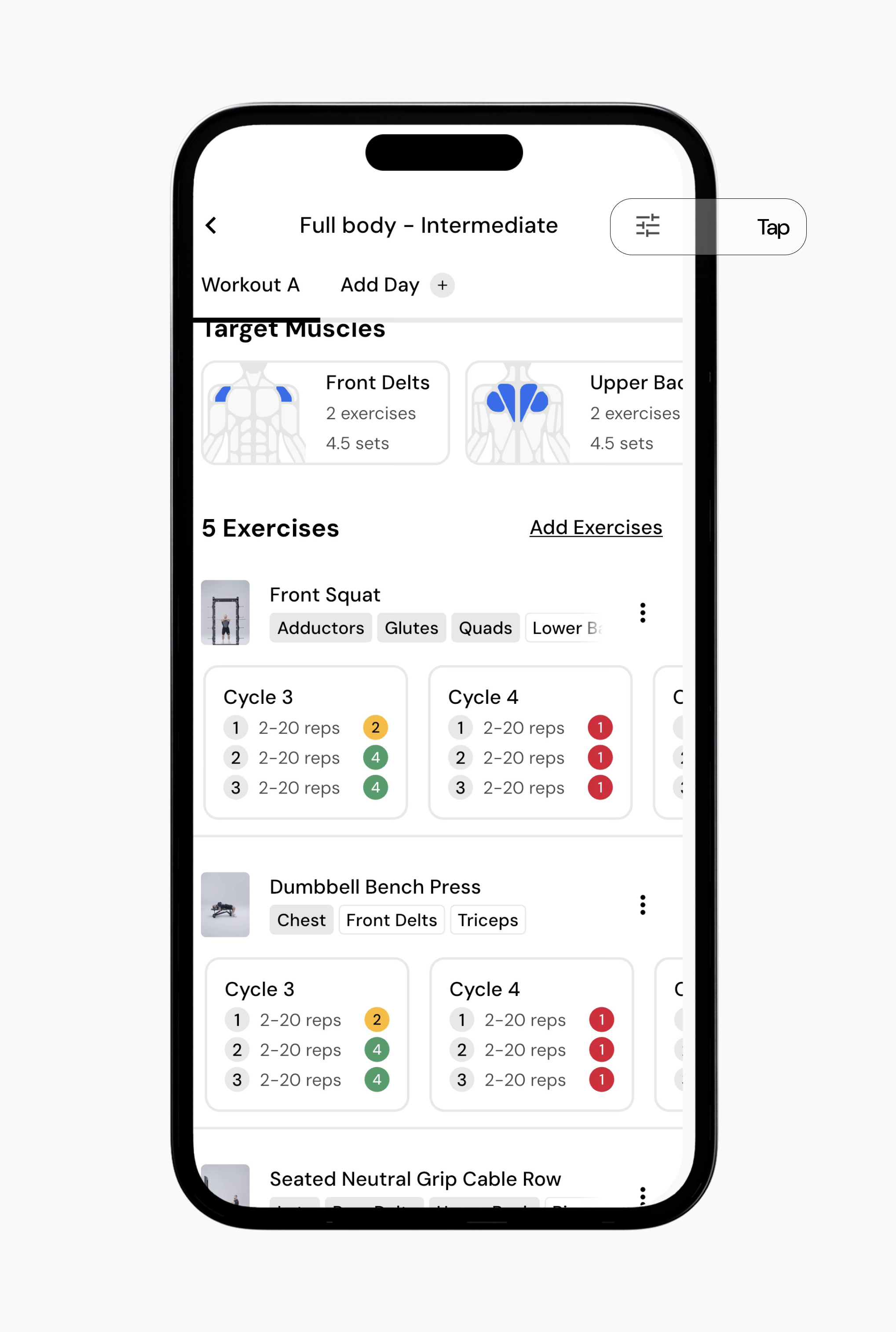
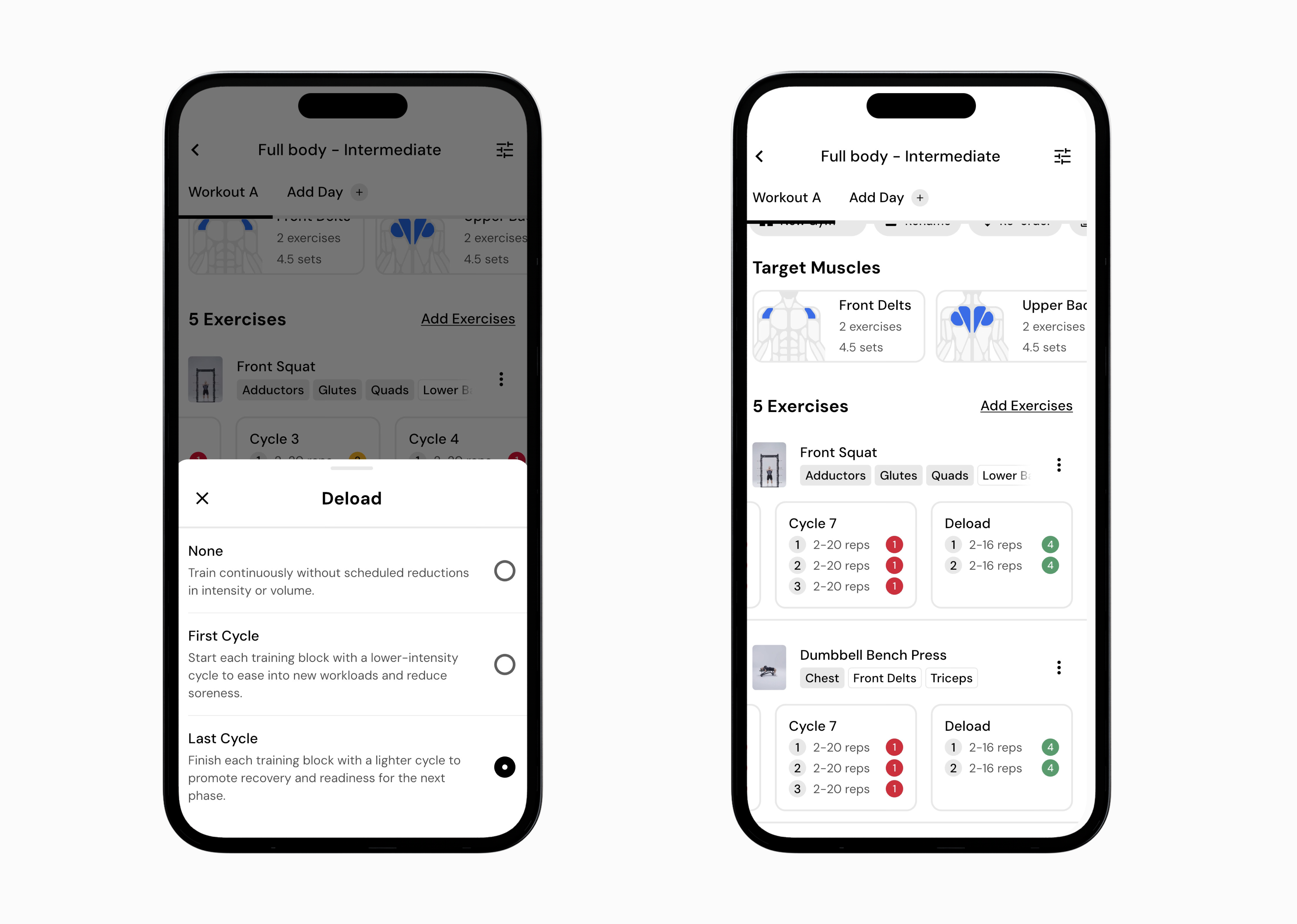
As with the generated program, you can also specify deloads in your program. Just tap the settings icon in the top-right corner.
And select if you want to deload at the beginning or end of your cycle.
Utilizing all of this, you can get into the weeds of your training program regarding specifics and customizations.
When you edit an exercise’s targets, you can choose how broadly those changes apply:
Current cycle only: Applies the changes to that one cycle (week).
All cycles for that exercise: Sets consistent targets for that movement across the entire program.
All exercises for the day: Saves for all exercises in that current cycle, but none before or after.
All exercises and all cycles: Applies the same sets, reps, and RIR to every exercise in the program. This option updates all exercises and cannot be undone, so use it carefully.
Now that you know how to customize exercise targets, you might enjoy one of these articles next:
Setting RIR for exercises in a program
Change minimum and maximum reps for exercises in a program
Change sets for exercises in a program
