Build from scratch lets you manually create a program with full control over exercise and progression settings.
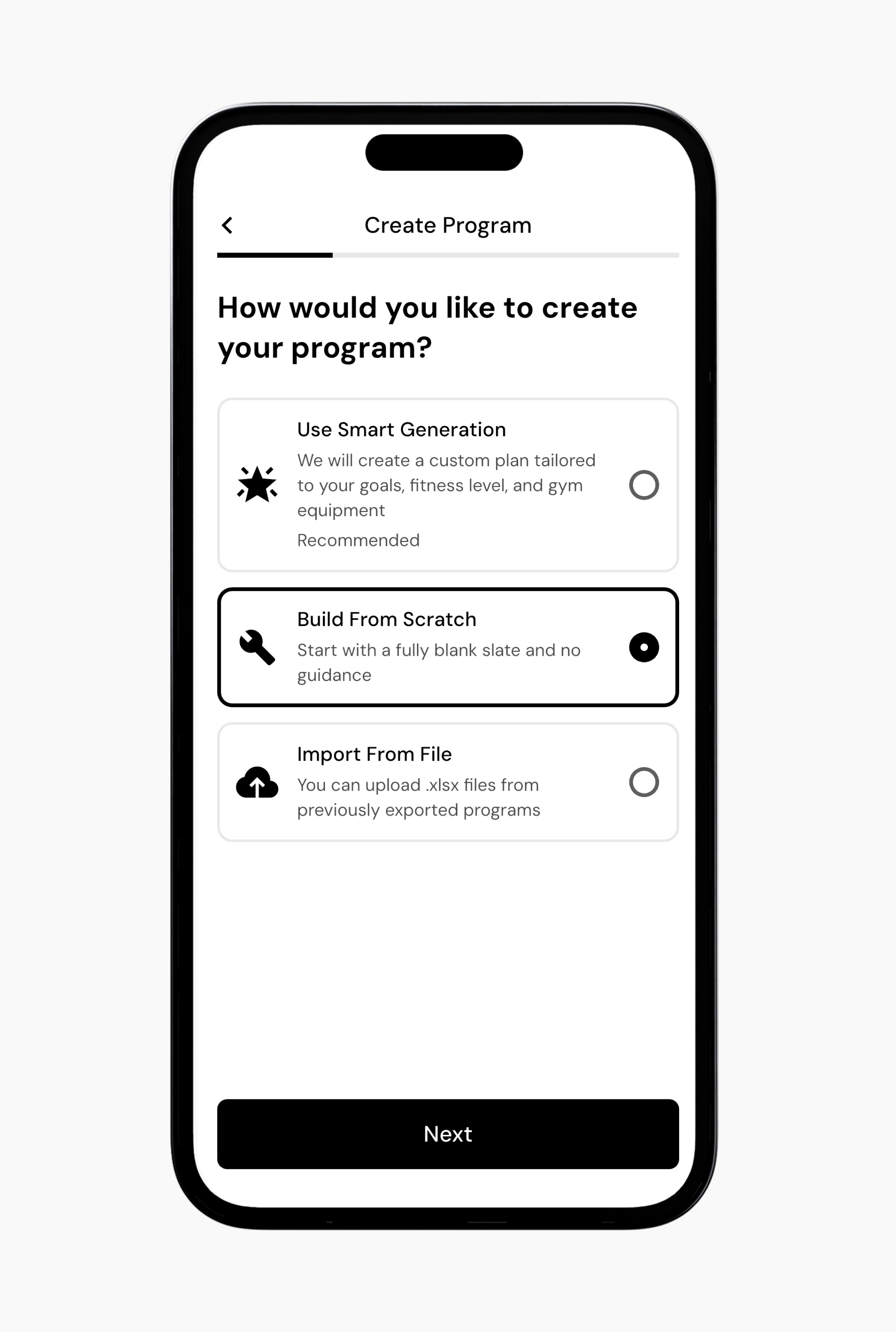
Go to the Workout tab.
Tap the + button in the top-right corner, or tap the + button in the center of the bottom navigation.
Tap New Program, then tap Next.
Select Build from Scratch.
Enter a program name, then select an icon and color.
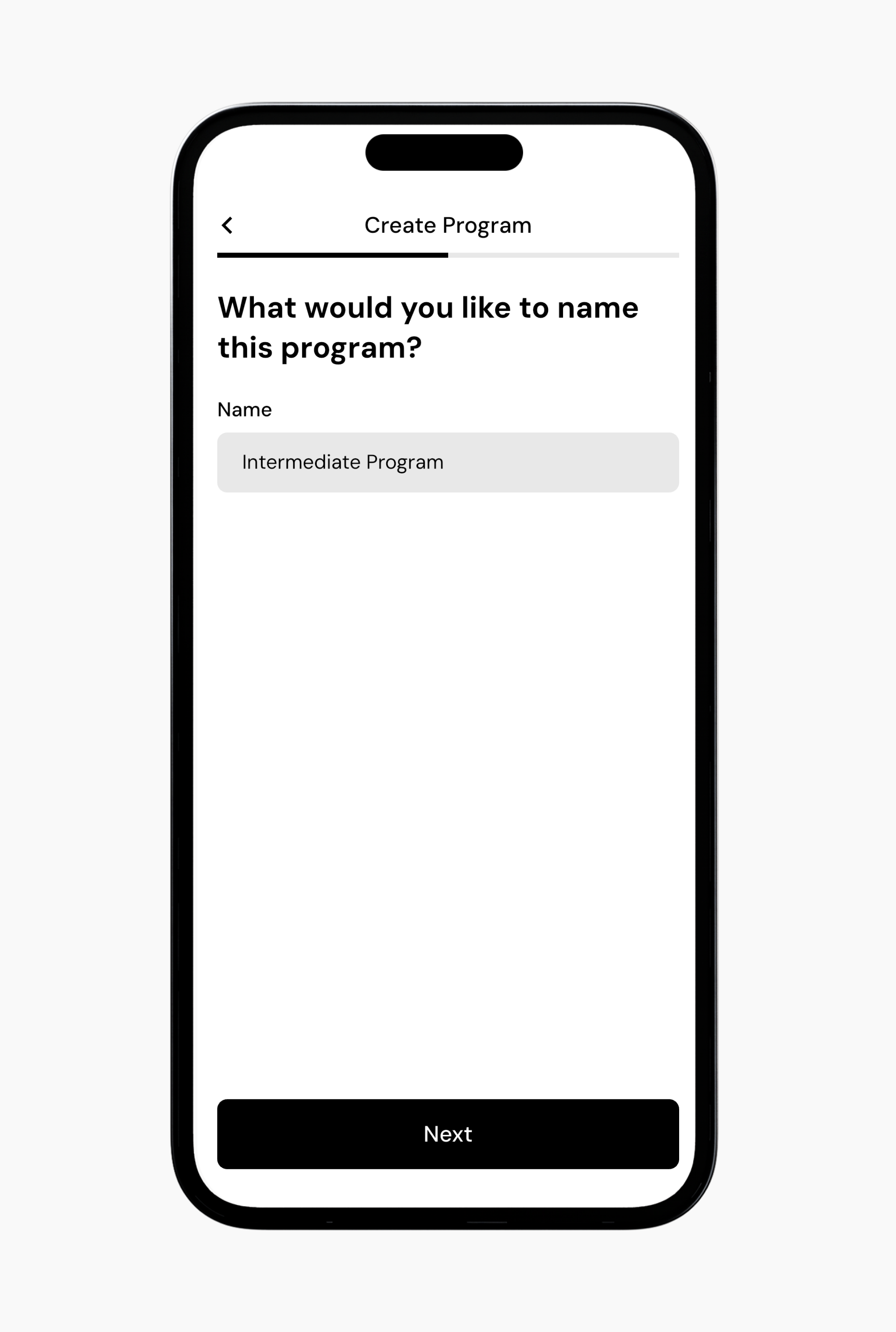
You will be taken to your program page to begin building the program.
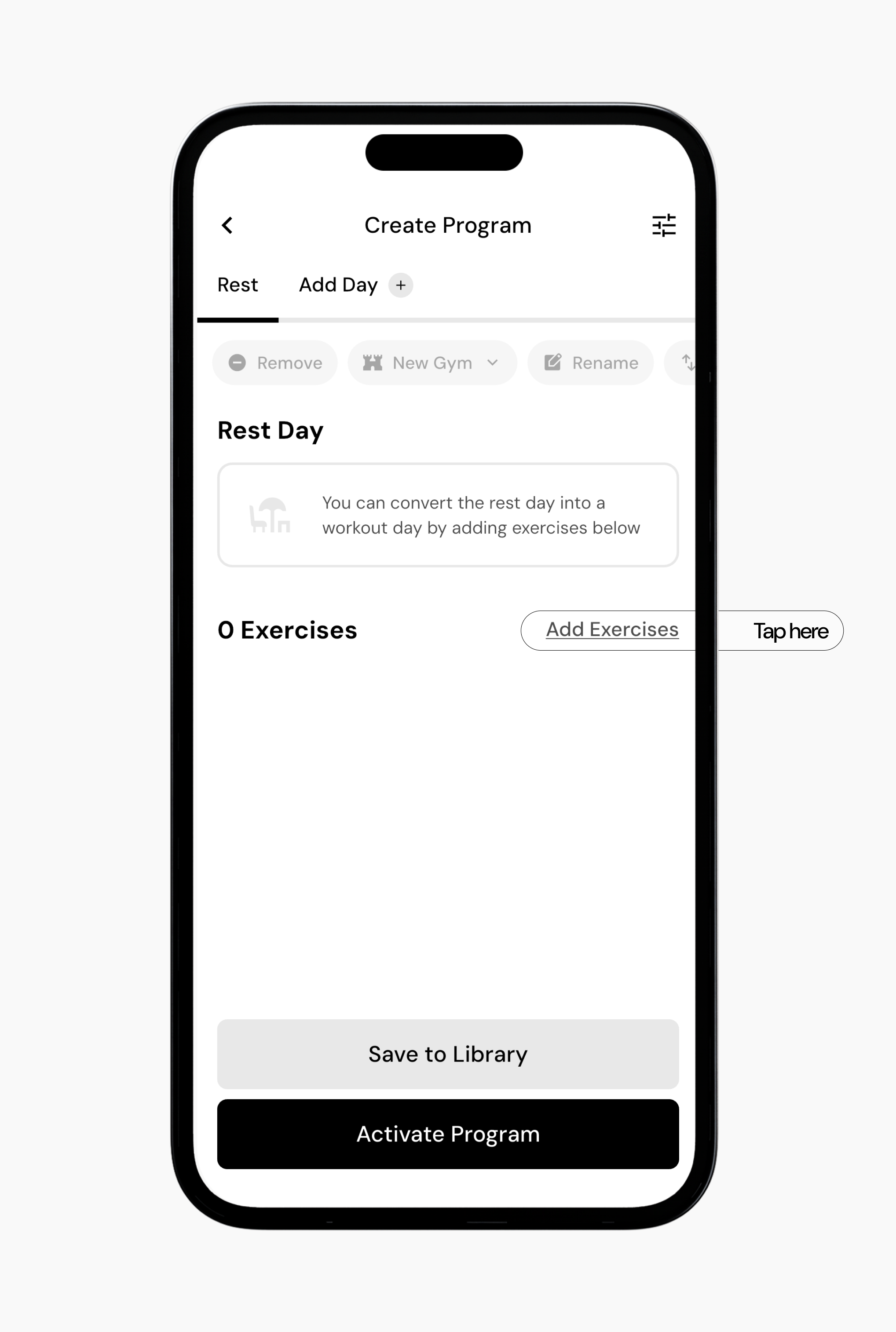
Note: Any day without exercises defaults to a rest day. A day becomes a training day only after you add exercises.
Select the workout day you want to edit.
Tap Add Exercises to the right of the exercise list.
You will be taken to the exercise database. From here, you can search by exercise name or browse by muscle group, training type, equipment, and other filters.
Search for an exercise, then tap the + button to add it.
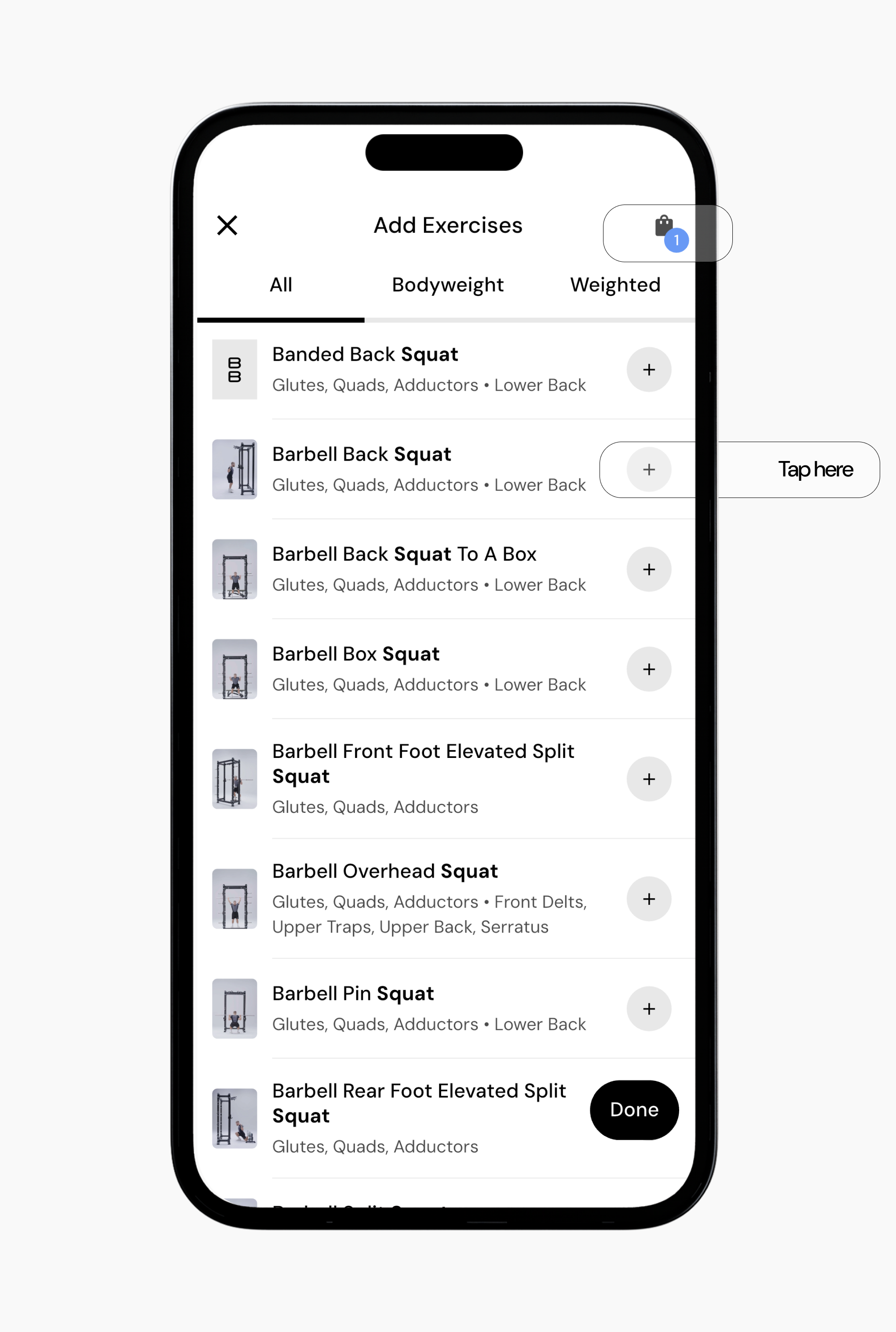
As you add exercises, the bag icon in the top-right corner updates to show how many exercises you have selected.
When finished, tap the bag icon to review your selections for that workout day.
Note: The exercises added here apply only to the current workout. This workout repeats at the same point in each program cycle, for example, as Workout A each week, but it does not carry over to other workouts, such as Workout B. To add exercises for another training day, add a new day and repeat this process, or duplicate the workout.
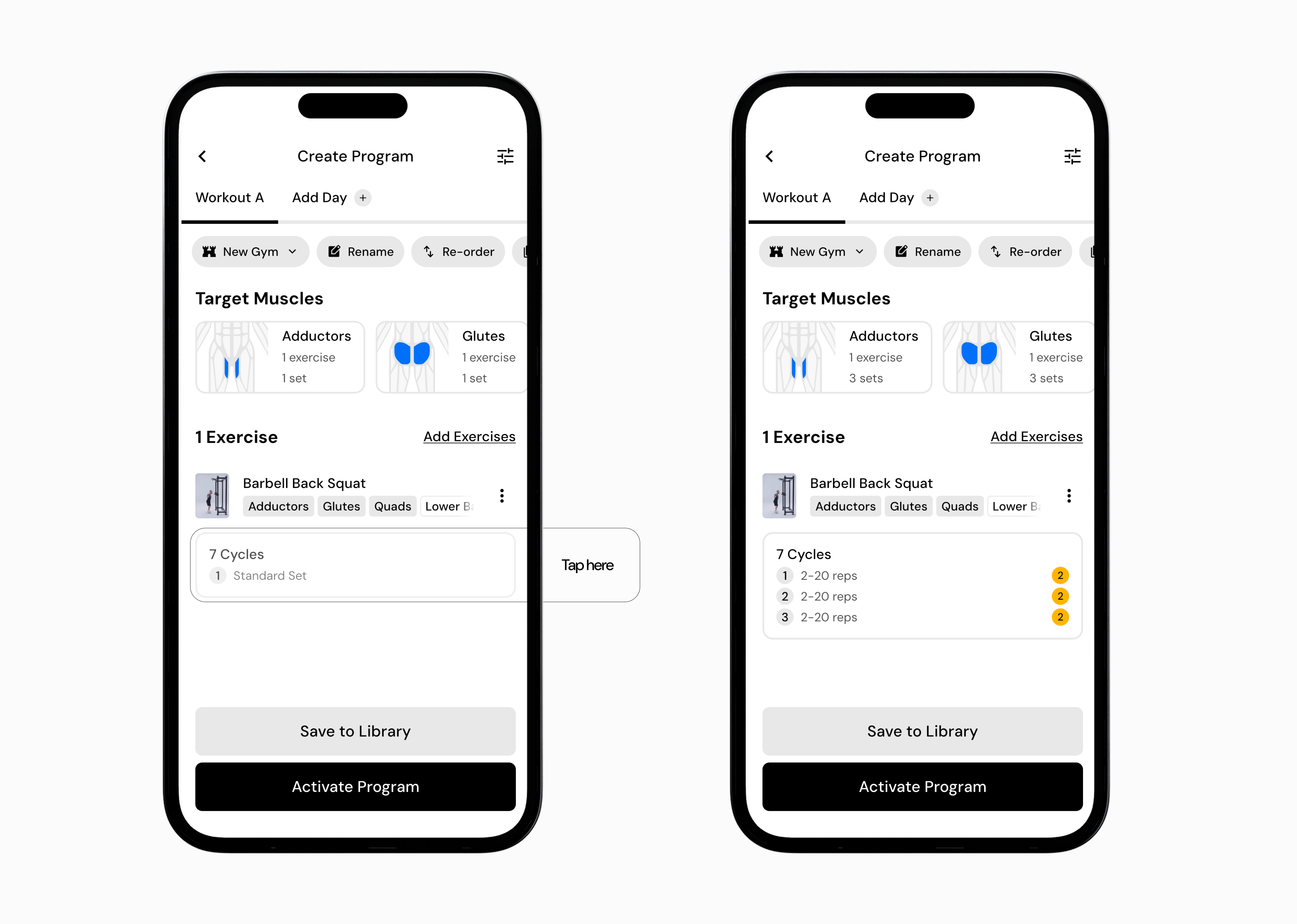
Once exercises are added, set the desired sets, rep ranges, and RIR for each exercise.
Tap the rectangle below an exercise to edit its settings.
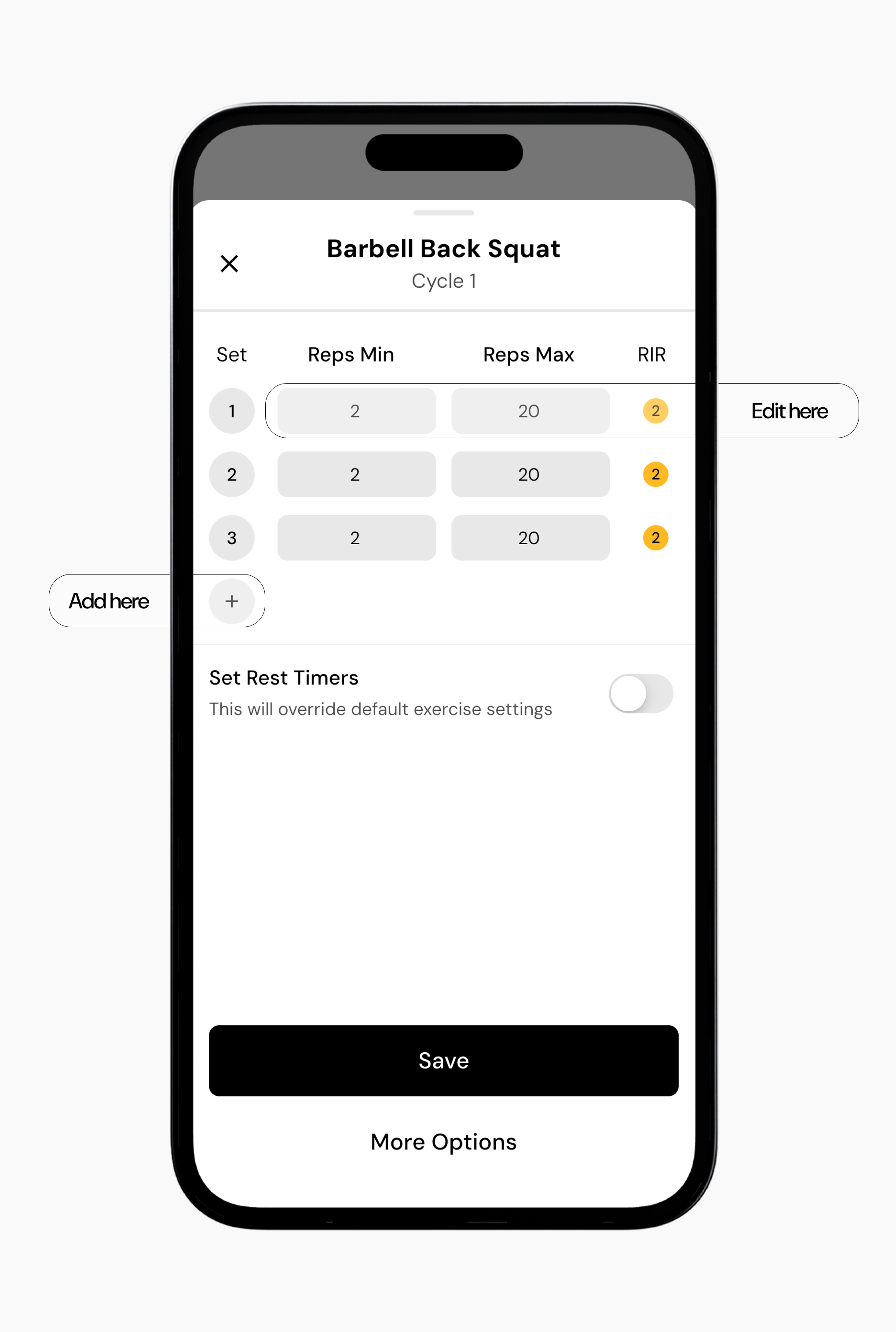
From this screen, you can adjust sets, rep ranges, RIR, and rest timers.
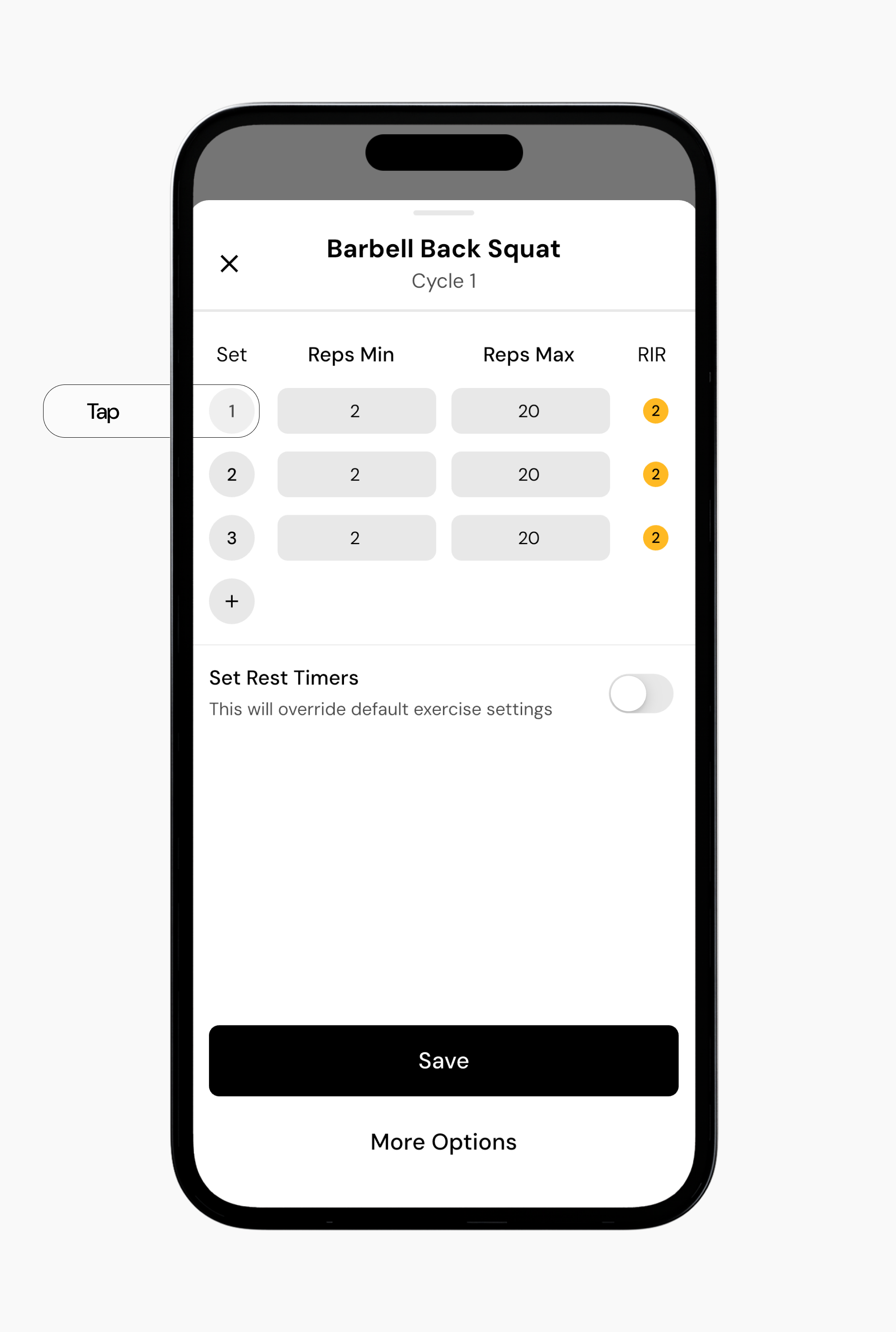
Tapping a set number lets you change the set type, such as standard, drop set, myo set, or failure set. By default, the build from scratch programs start with seven cycles.
To add another day, tap the Add Day + at the top of the screen.
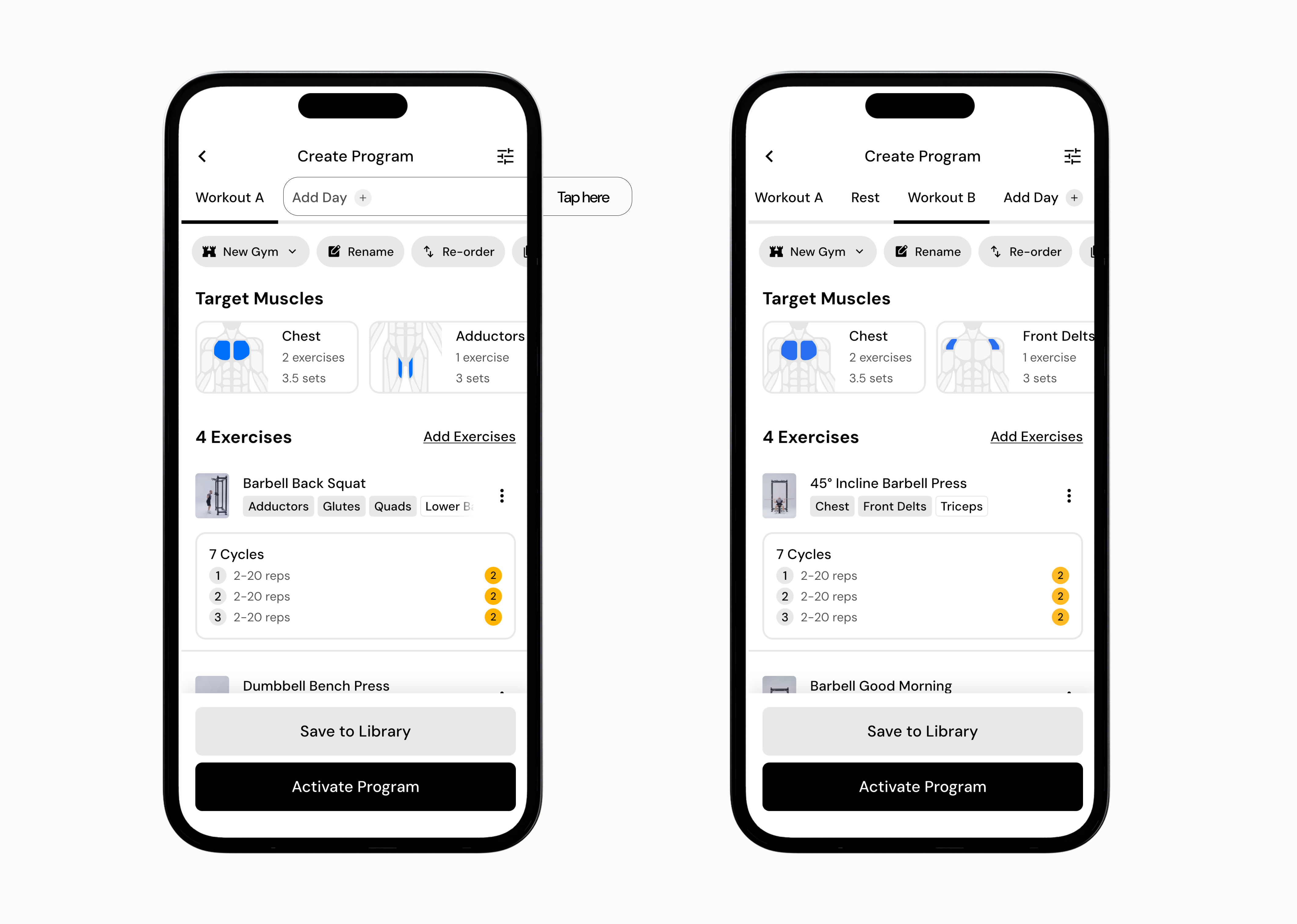
Leave the day empty to keep it as a rest day.
To make it a training day, add exercises and repeat the setup process.
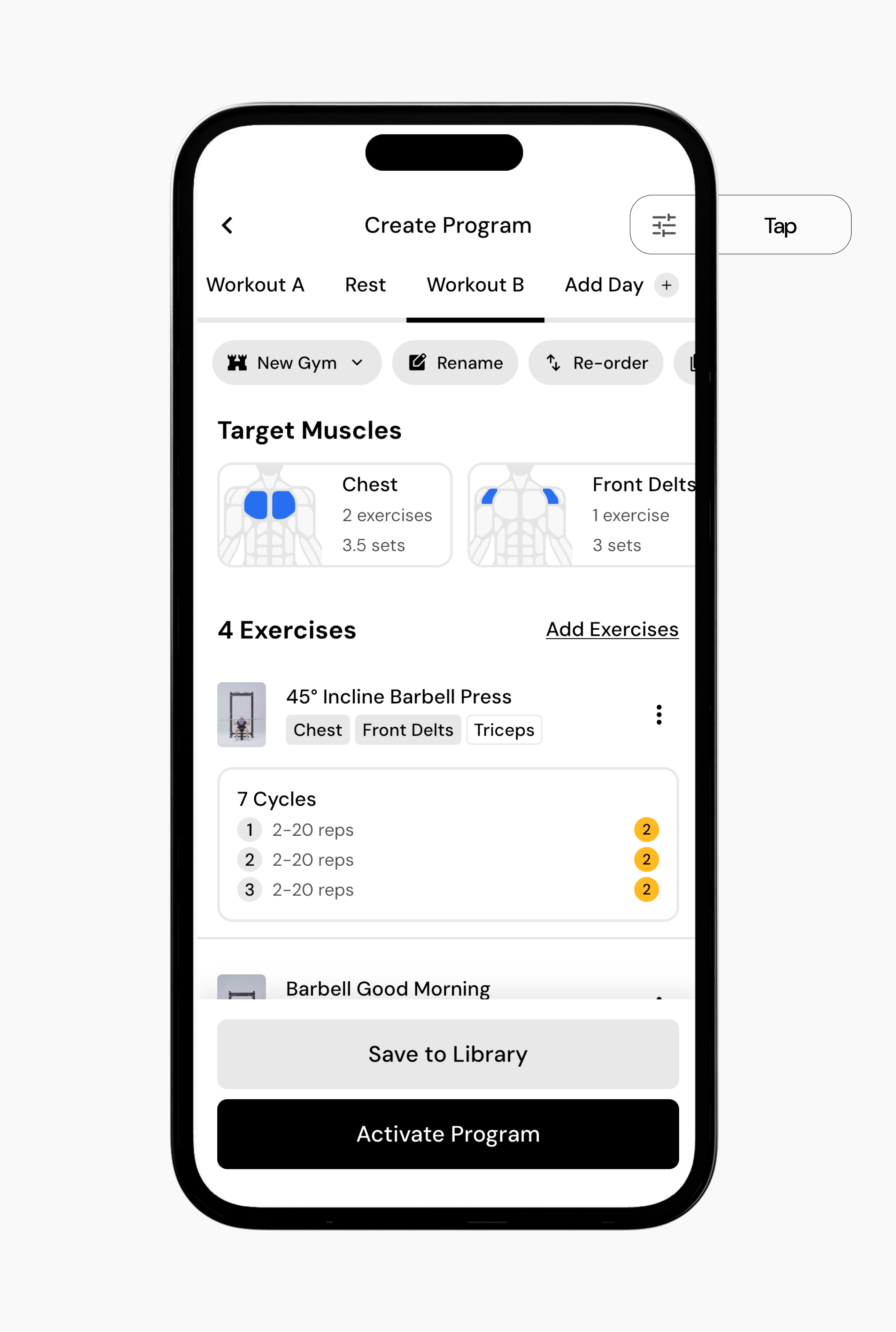
You can also enable periodization for the entire program, allowing more customized edits to each cycle and a more personalized approach to intensity and volume over the course of your cycles.
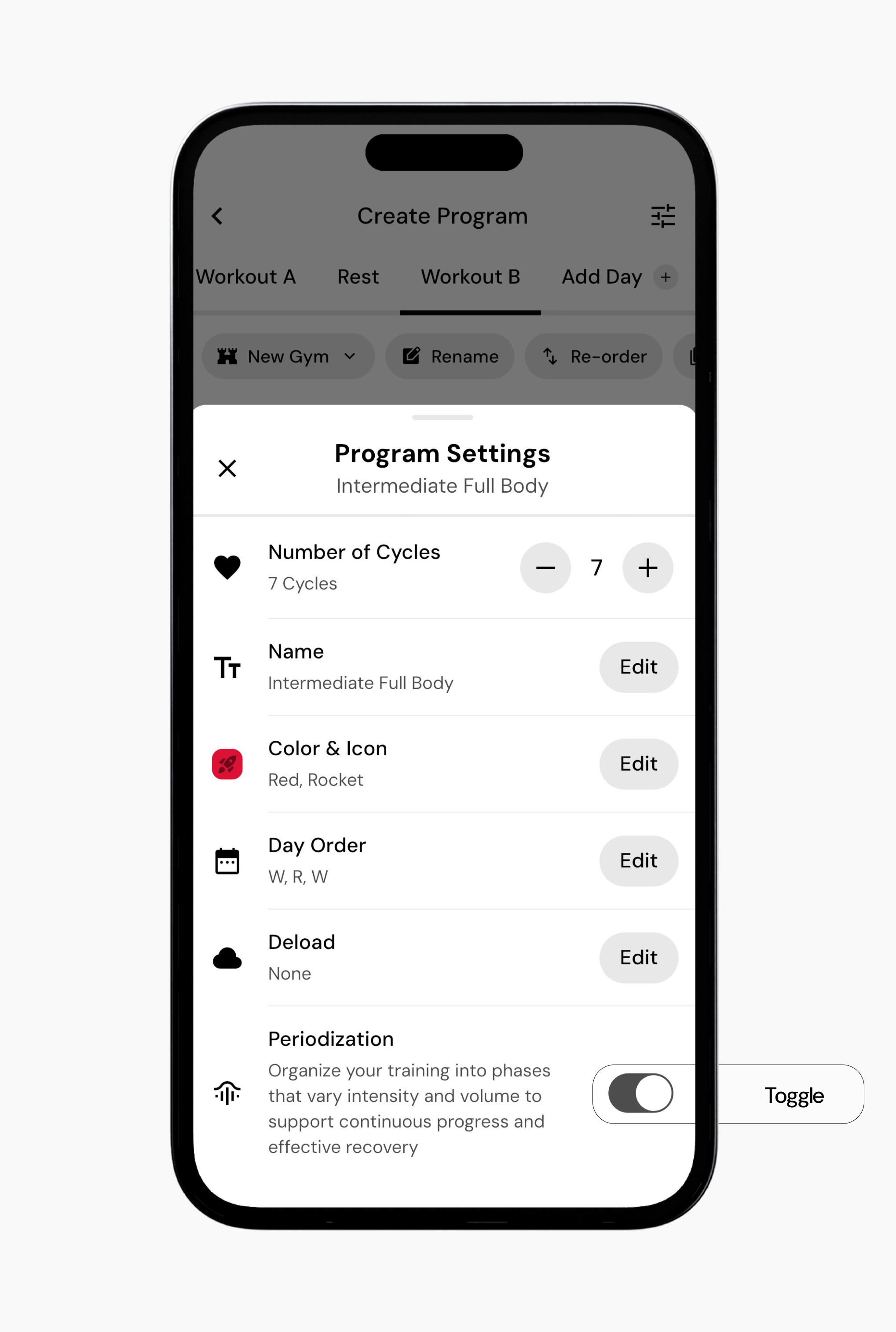
To enable periodization, tap the settings icon in the top right corner.
Toggle on periodization.
From here, you can see your cycles are now populated for the rest of your program.
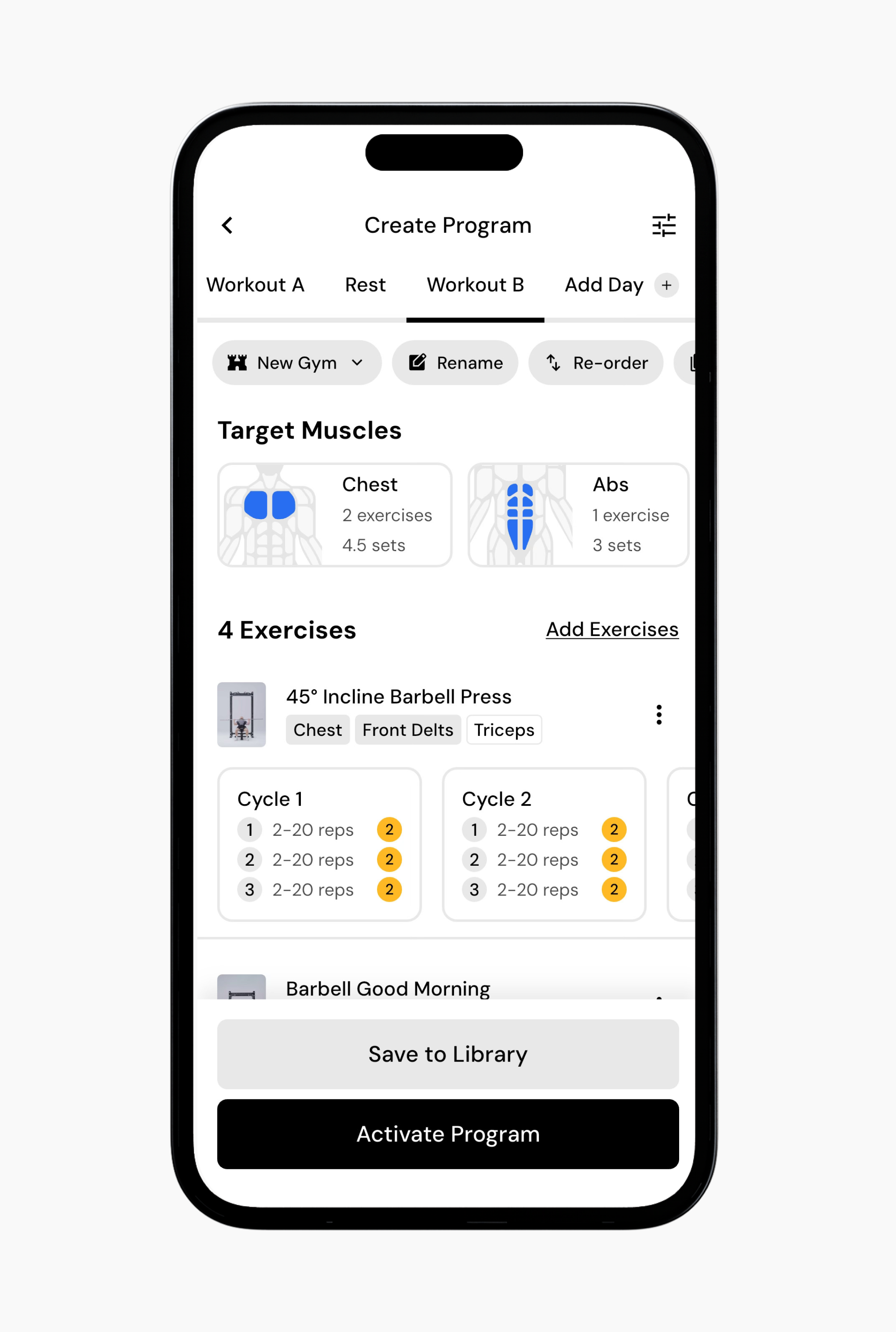
You can also open additional options to apply the same settings to all exercises for the day or the entire program.
When you are finished building all the days in your program, you can Save to Library or Activate Program to make it your active program.
Now that you’ve learned how to create a new program from scratch, you might enjoy one of these articles next:
Using smart progressions
Swap exercises
Set up your gym profiles
