
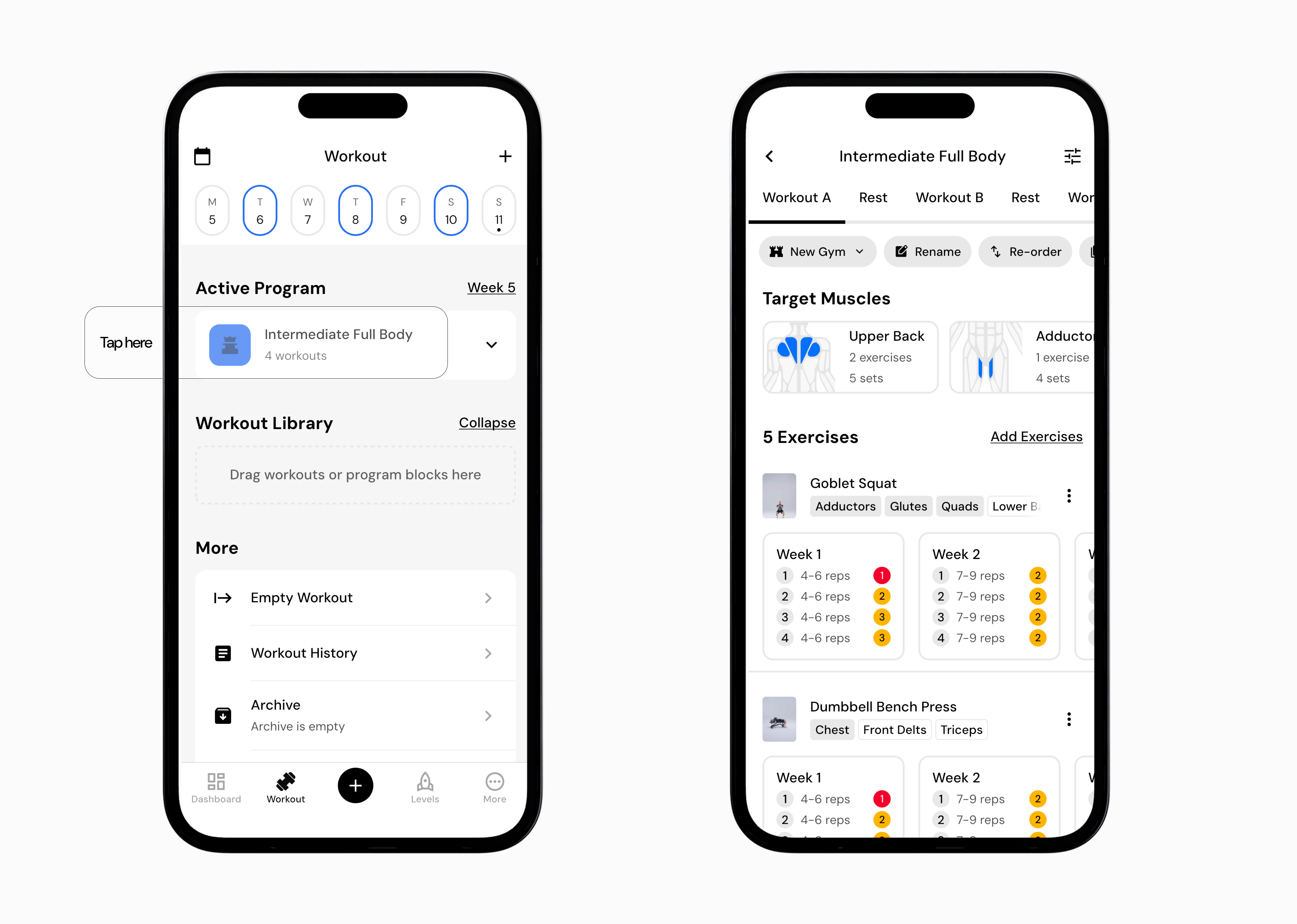
Go to the Workout.
Tap your active program (for example, Intermediate Full Body). Note: Do not open the program using the right arrow. Tap directly in the middle of the program to view the full program schedule with all exercise cycles.
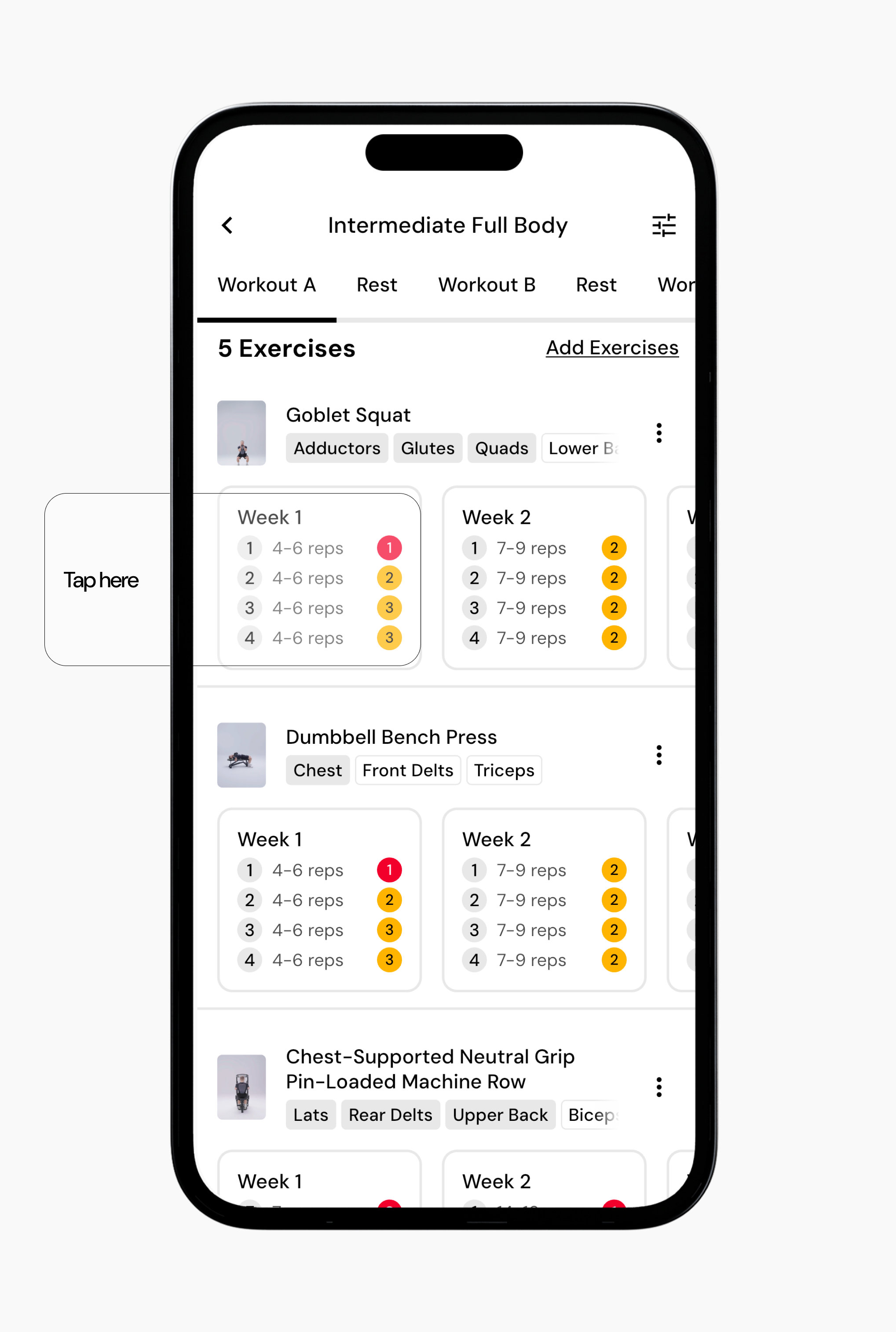
Scroll to the exercise you want to change.
Tap inside the exercise details area where cycles, sets, reps, and RIR are shown.
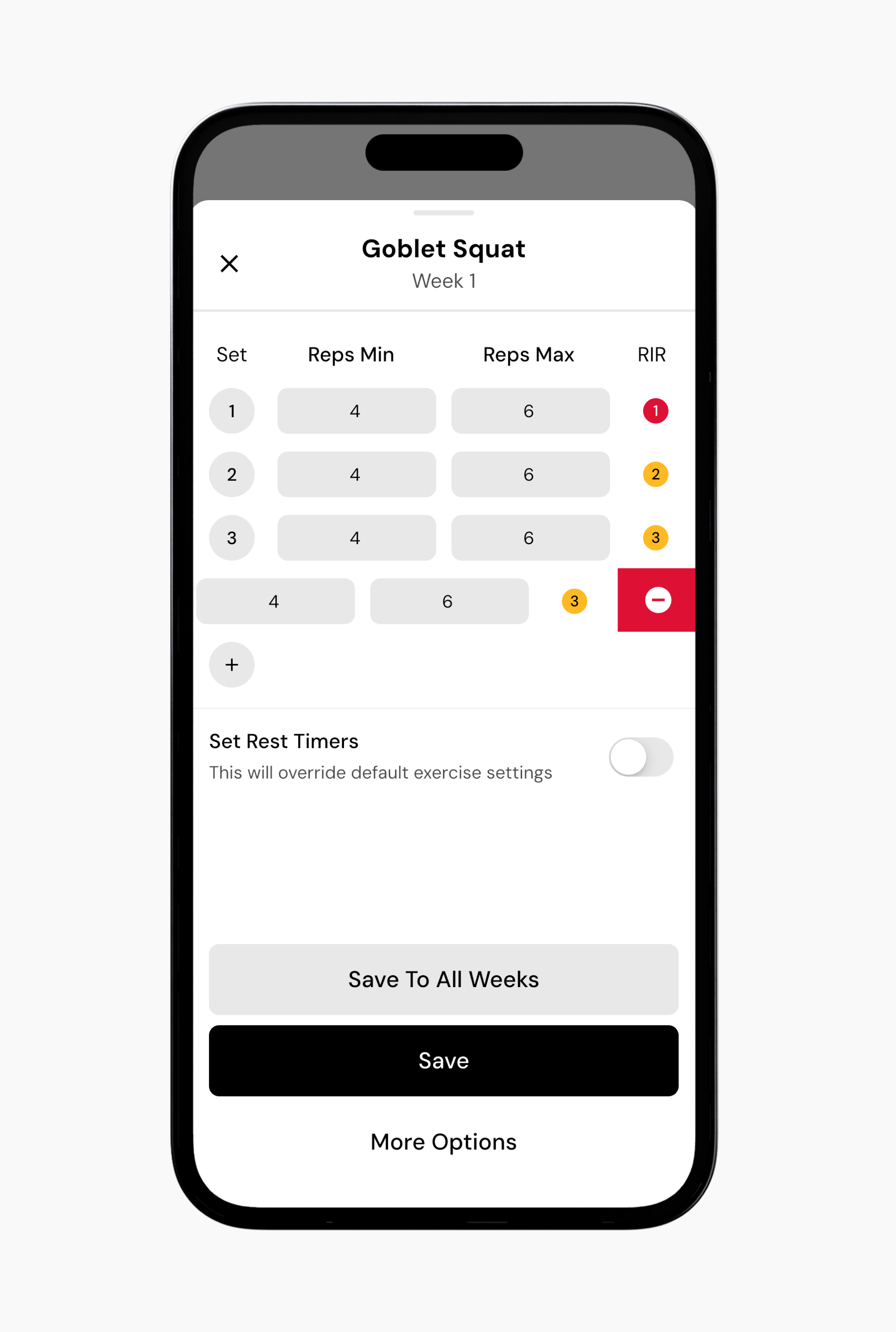
To remove sets: swipe the set to the left.
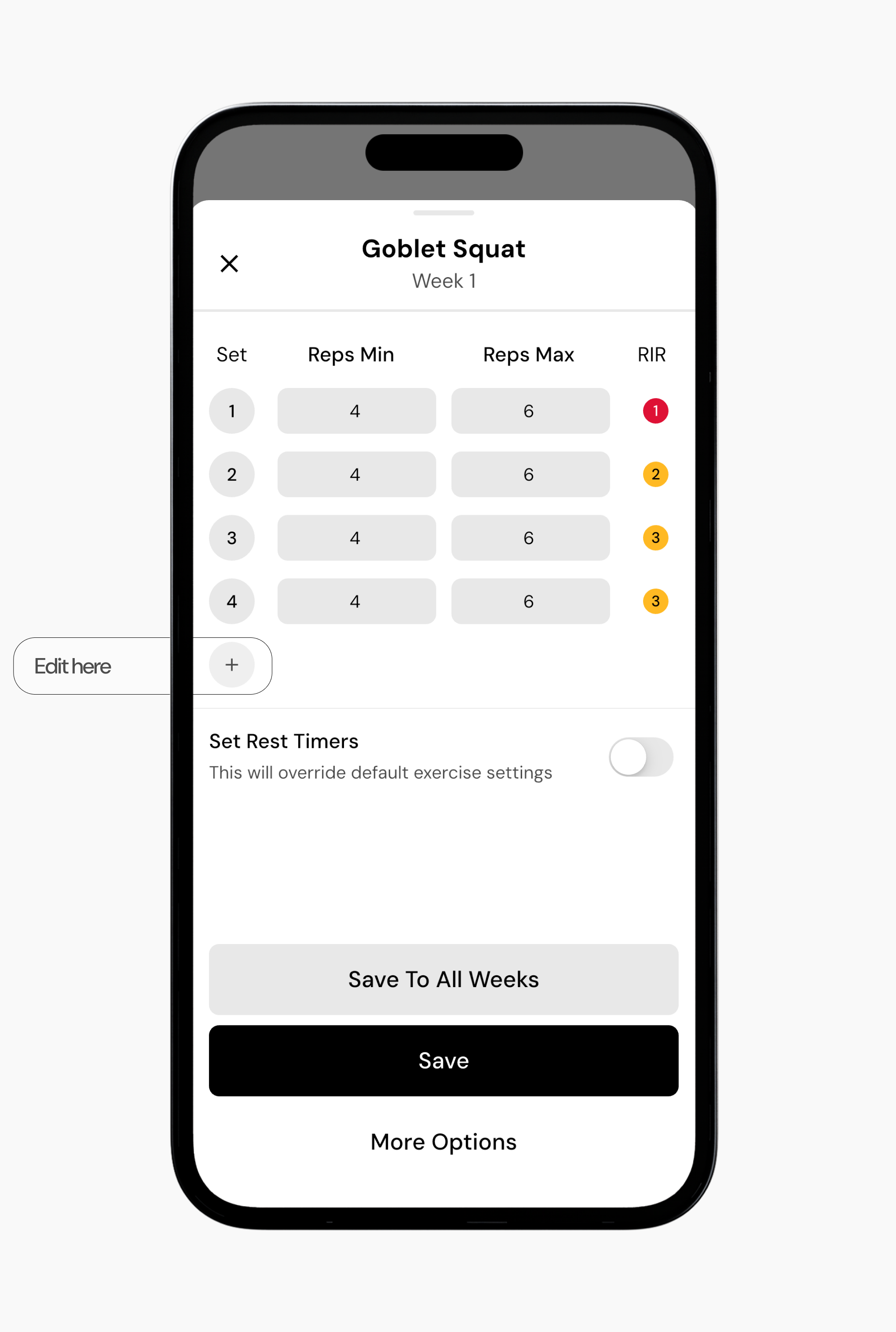
To add sets: tap the + button on the left side.
When you’re done you have a few options of how to save your changes.
Option 1: You can save these changes for only that workout cycle and simply tap the Save button.
Option 2: You can save these changes across all cycles and tap Save To All Cycles.
Note: If you choose to save these changes for all cycles, the app will also update minimum and maximum reps and RIR for all cycles. Make sure this is what you want before saving.
Option 3: If you want to apply the same reps to all exercises and all cycles, tap More Options.
Note: If you choose to save these changes for all cycles and all exercises, the app will also update the minimum and maximum reps and RIR for all cycles and exercises. Make sure this is what you want before saving.
Read next:
Now that you’ve learned how to change sets for exercises in a program, you might enjoy one of these articles next:
Change Minimum or Maximum Reps for Exercises in a Program
Setting RIR from Exercises in a Program
Viewing Sets and Volume Over Time