During onboarding, you create and select a gym profile that acts as your default. You can also create additional gym profiles to match different training environments and make exercise selection more tailored during program and workout creation.
For example, you might train at a commercial gym during the week but at home on the weekends. You can create separate gym profiles that let you adjust equipment for each setting. You can also edit existing profiles to better reflect what your gym actually has, such as removing free weight racks, adding a Smith machine, or updating available weight increments, bands, or loadable accessories.
To create a new gym profile
Go to More > Feature Settings > Gym Profiles.
Tap Add New Gym Profile.
Choose an icon and name for the profile.
Select a prefill equipment setup as a starting point.
Tap Save.
Edit the equipment by tapping the pencil icon next to your gym profile.
To edit an existing gym profile
Option 1:
Go to More > Feature Settings > Gym Profiles.
Tap the pencil icon next to the gym profile you want to edit.
Select or deselect the equipment you want to be available.
Option 2:
Go to the Workout tab.
Start a workout.
Tap the three horizontal lines in the top-left corner of the screen.
Select Gym Settings.
Select or deselect the equipment you want to be available.
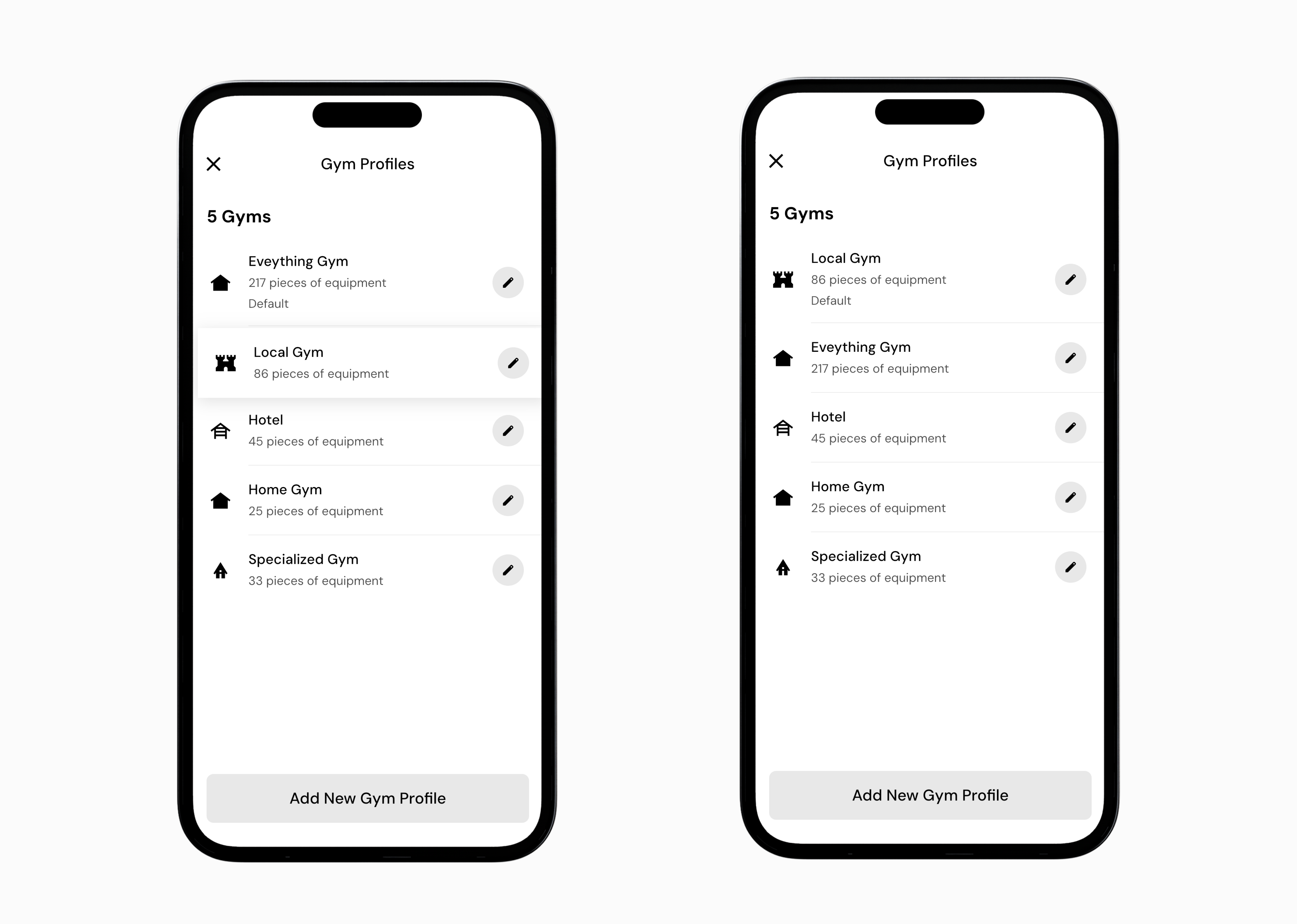
To set a Gym Profile as your default:
Go to More > Gym Profiles.
Press and hold the Gym Profile you’d like to make the default.
Drag it to the top of the list.
The Gym Profile at the top of the list will be used as your default profile.
You can configure which exercises are recommended during program creation and which exercises appear as options while using the smart-substitutions feature. To do so:
Go to More > Feature Settings > Gym Profiles.
Tap the pencil icon next to the gym profile you want to edit.
Tap the three-dot icon in the top right corner of the screen to pull up the More Gym Options menu.
Here, you’ll have two options:
Allow Exercises lets you make specific exercises available for use, even if the required equipment is not marked as available in that gym profile.
Disallow Exercises lets you prevent specific exercises from being recommended, even if the required equipment is marked as available in that gym profile.
To add an exercise to either list, tap Add next to the option you’d like to configure, then search for and select the exercise.
Now that you’ve learned how to set up your gym profiles, you might enjoy one of these articles next:
How To Create Custom Exercises
Set or Swap Training Programs
Swap Exercises
