If you’re not sure how to start a workout, you can read about that here. Once you start a workout, a logging screen opens. This screen is designed to keep everything you need visible while you train.
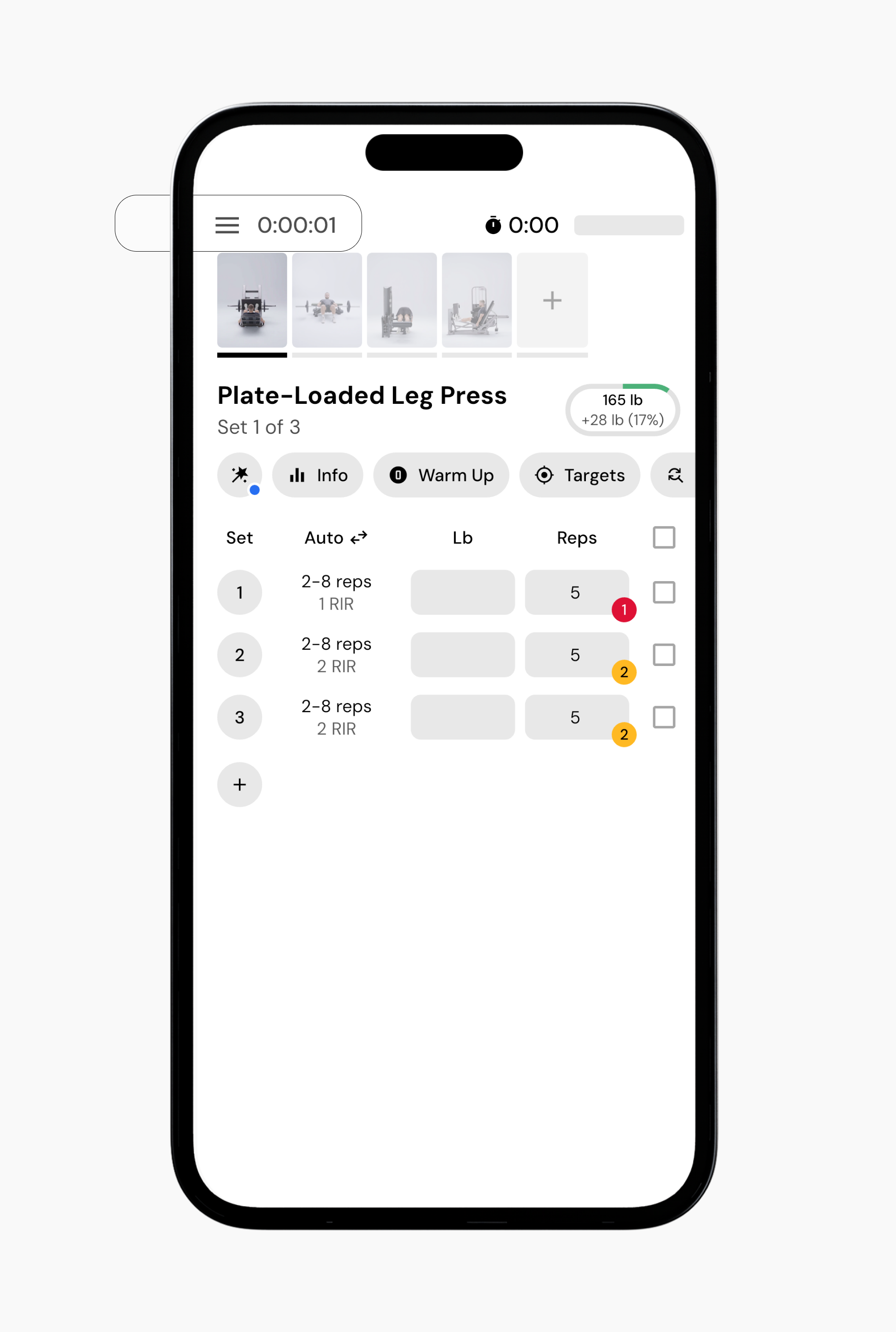
At the top of the screen, you’ll see two timers:
The duration timer on the left starts at zero and tracks the duration of the workout.
The rest timer on the right starts after you complete a set.
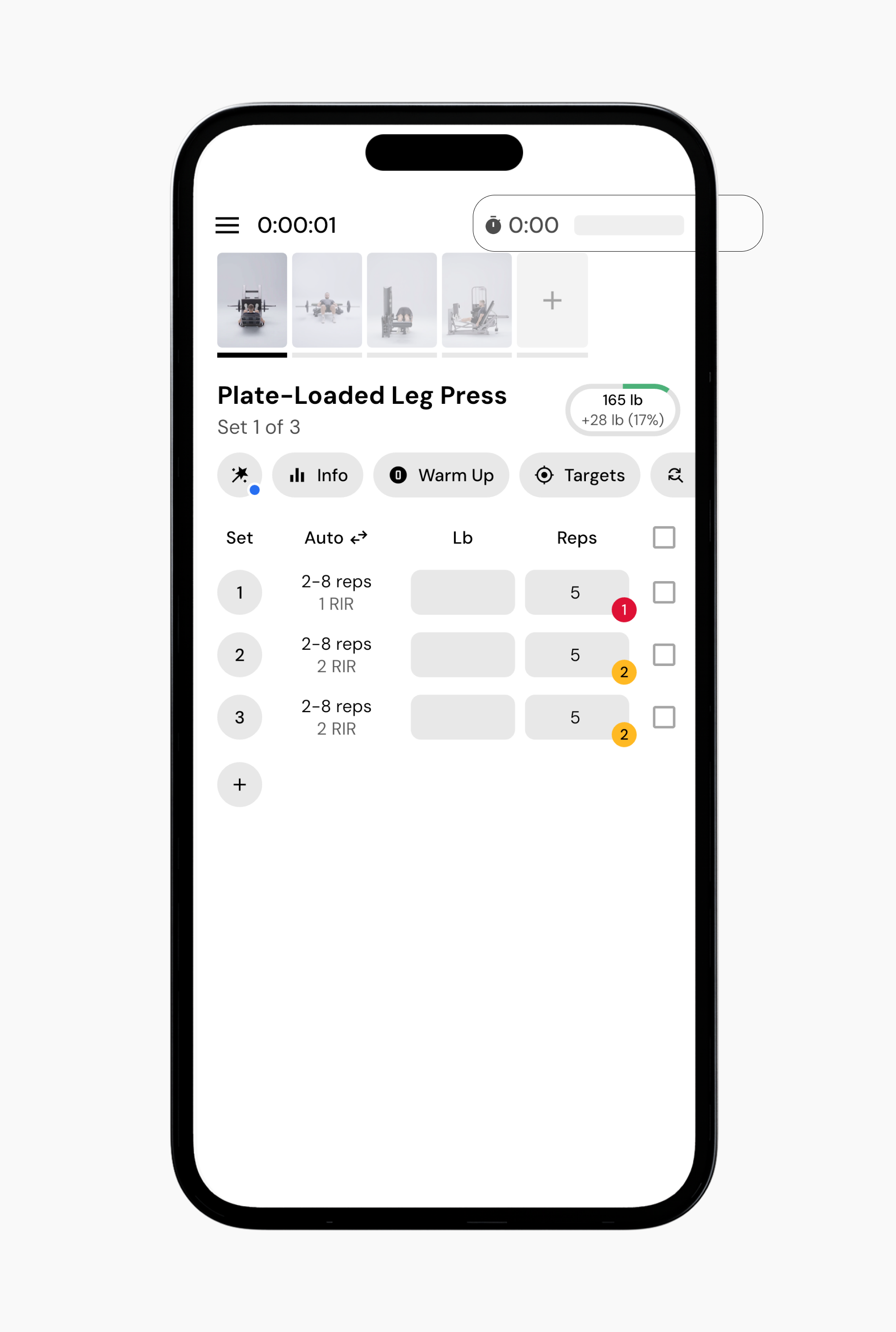
Tap the rest timer in the top-right corner to add or subtract 10 seconds.
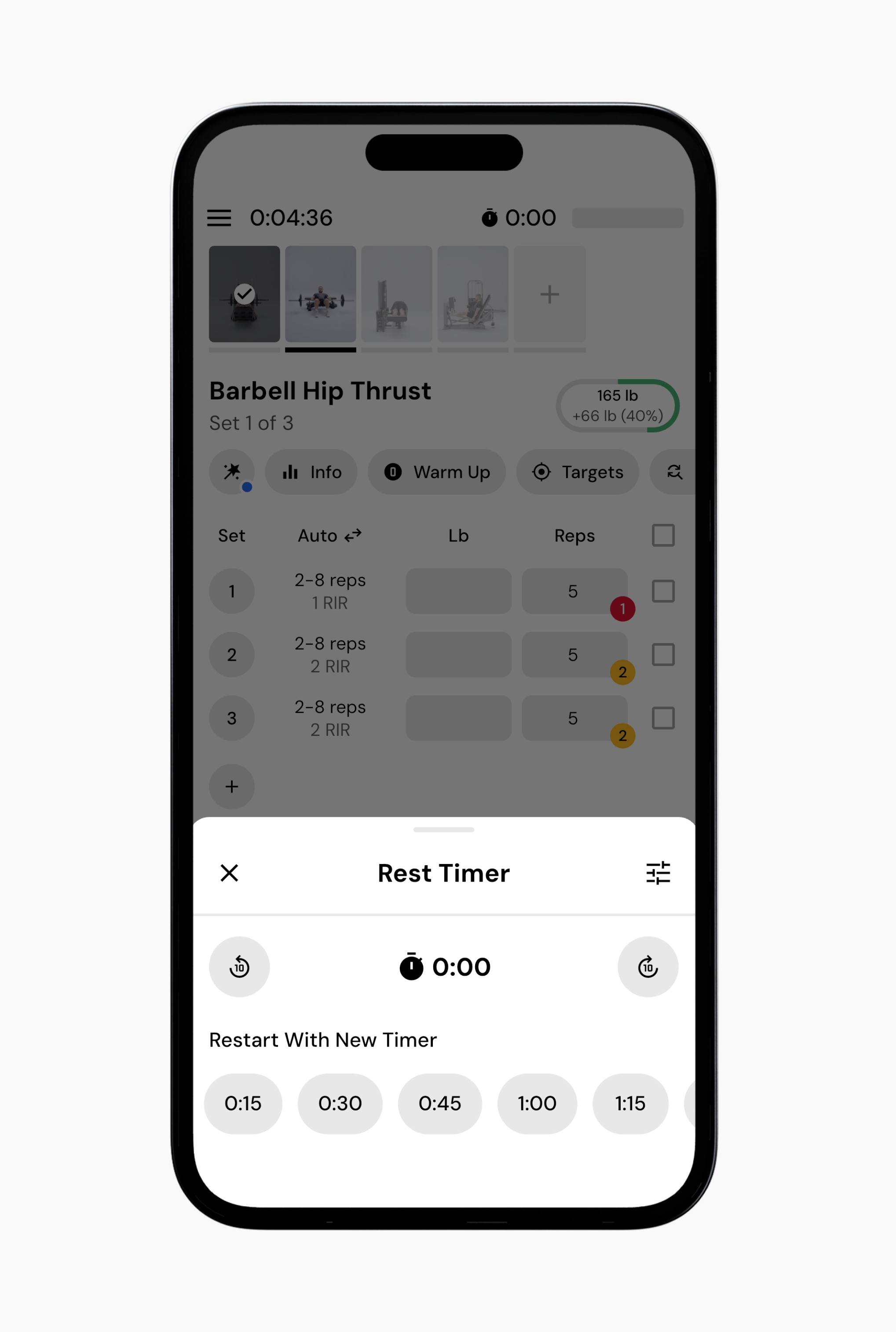
Restart the timer using preset intervals, including 15-second increments up to three minutes.
Below the timers, you will see the exercise you are currently performing, along with an action bar that provides quick access to exercise-related options.
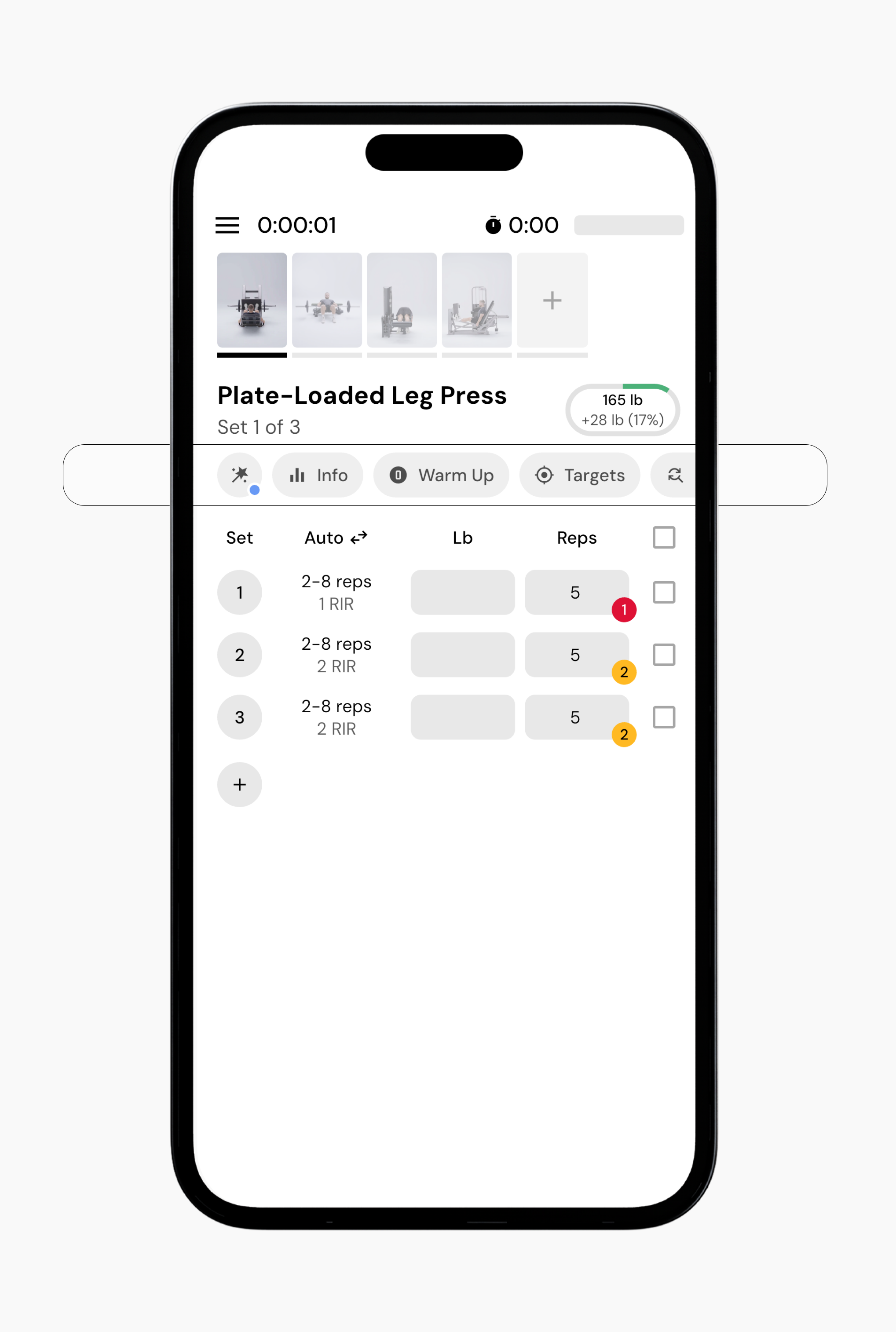
The first exercise in your workout is highlighted automatically.
Directly below the header, you will see the exercise name and current set, for example, “Weighted Chest Dip, Set 1 of 4.”
The exercise table displays one row per set, with columns for the following:
Set number.
Previous Performance, or No Previous if it is your first time performing the exercise.
Weight.
Reps.
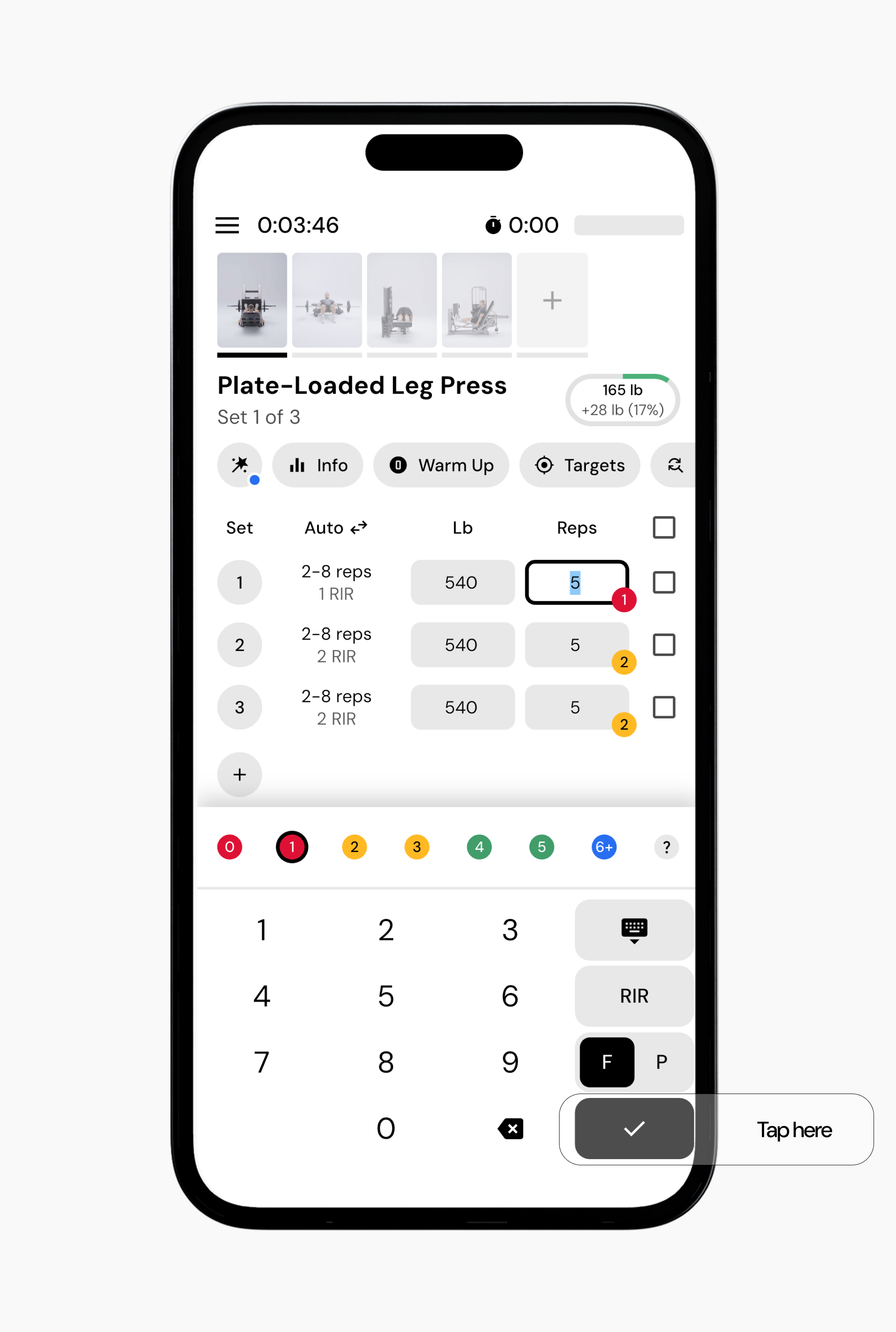
After completing a set, enter the weight and reps you performed, then tap the checkmark to mark that set as complete. If you accidentally log a set, simply uncheck the box.
While you are in a workout, the top-left corner of the screen shows the workout options menu, indicated by a three-line menu icon. Tapping this icon opens a menu that slides up from the bottom of the screen.
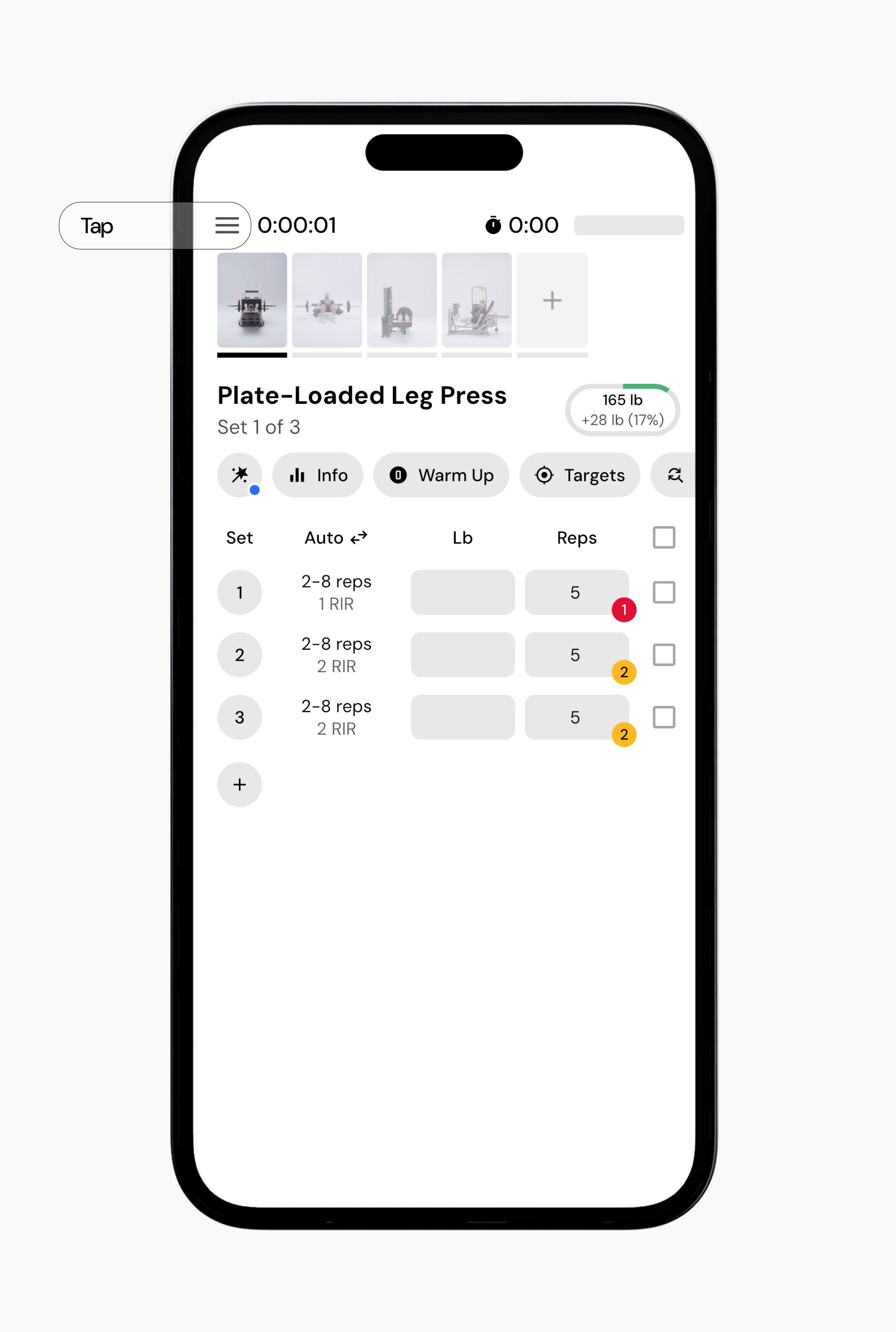
The menu includes the following options:
Pause workout: Temporarily stops the workout timer.
Minimize workout: Keeps the workout active while allowing you to navigate the rest of the app. The duration timer continues counting.
Complete workout: Ends the workout immediately and saves the progress made during the session.
Workout settings: Opens the workout settings page. This is the same page found at More > Feature Settings > Workouts.
Gym settings: Opens your gym configuration page. This is the same page accessed through More > Feature Settings > Gym profiles > Select gym > Edit gym.
Discard workout: Ends the current workout without saving any progress.
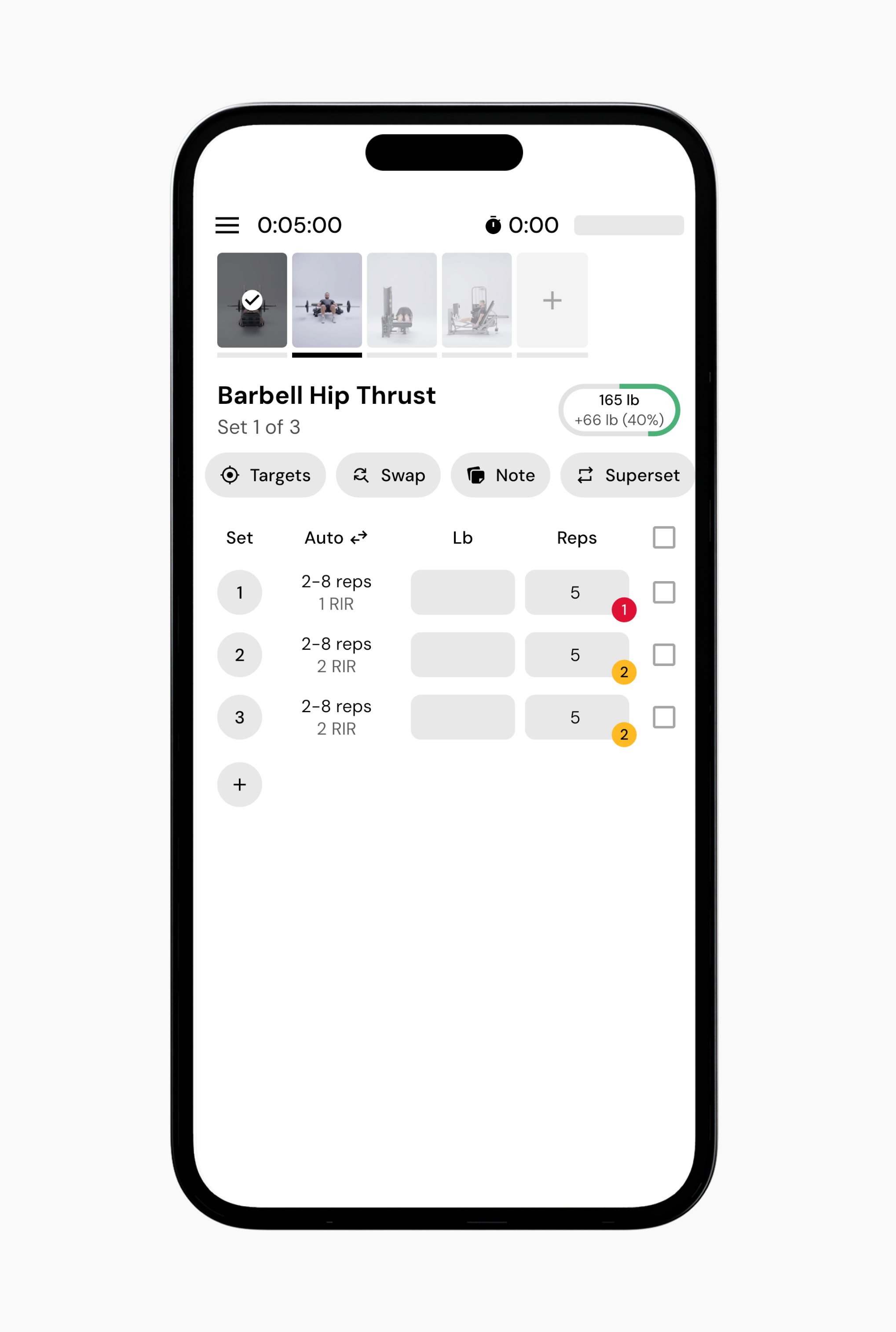
Once all sets for an exercise are marked complete, the app automatically advances to the next exercise in the workout. This behavior can be adjusted in More > Feature Settings > Workouts if you prefer to control progression manually.
When you finish logging your last set and tap Complete Workout, you’ll be taken to the workout summary screen. This screen provides a quick overview of what you just completed and takeaways from the session.
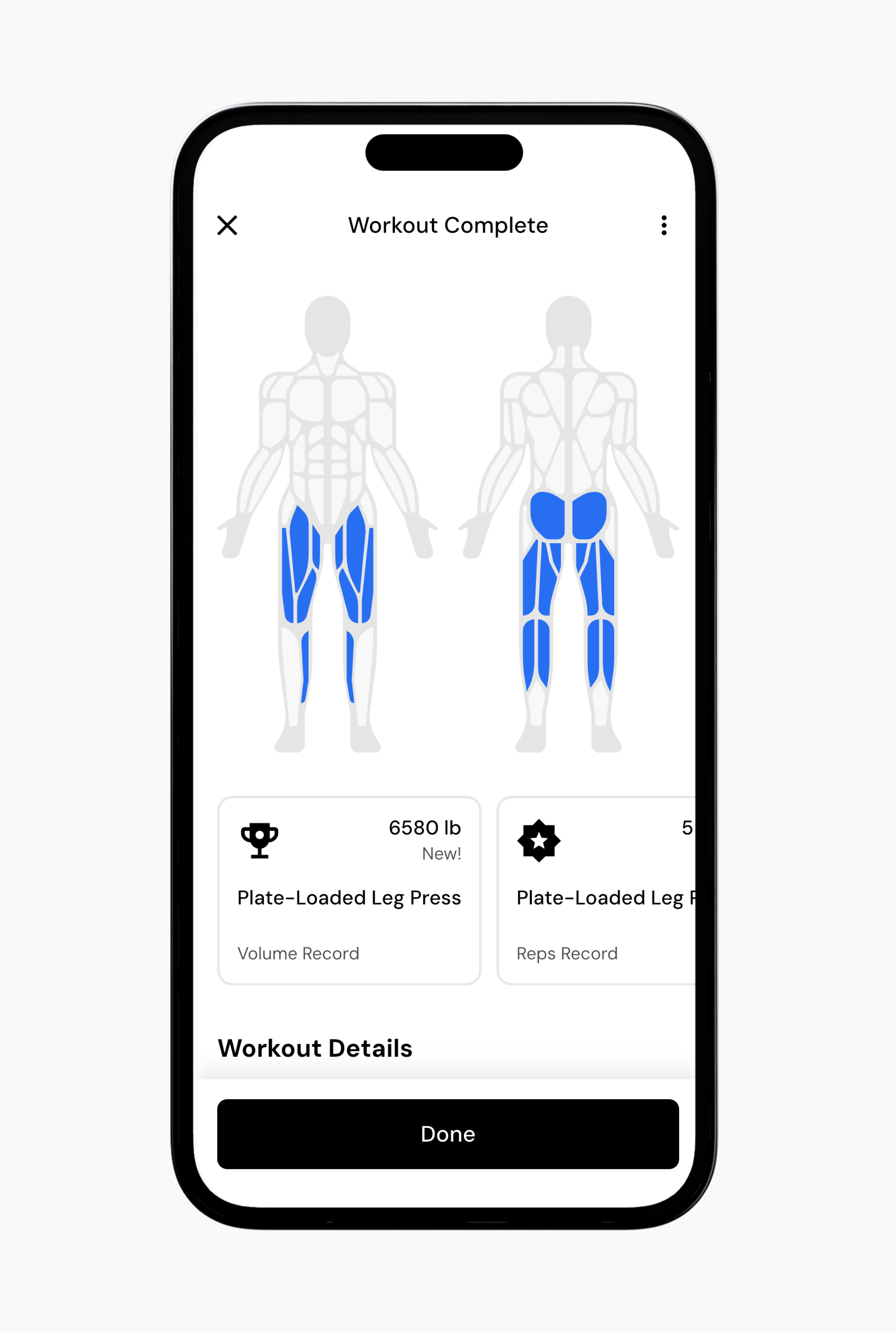
You’ll see a front and back body map highlighting the muscle groups trained during the workout. This reflects what you actually logged.
If you set any records during the session, such as volume, reps, or estimated strength, they will appear here. Workout Details You can review key session details, including:
Total workout volume
Workout duration
Start time
You’ll also see a breakdown of each exercise, showing the sets, reps, and weights logged for that workout. From here, you can also review or edit entries if
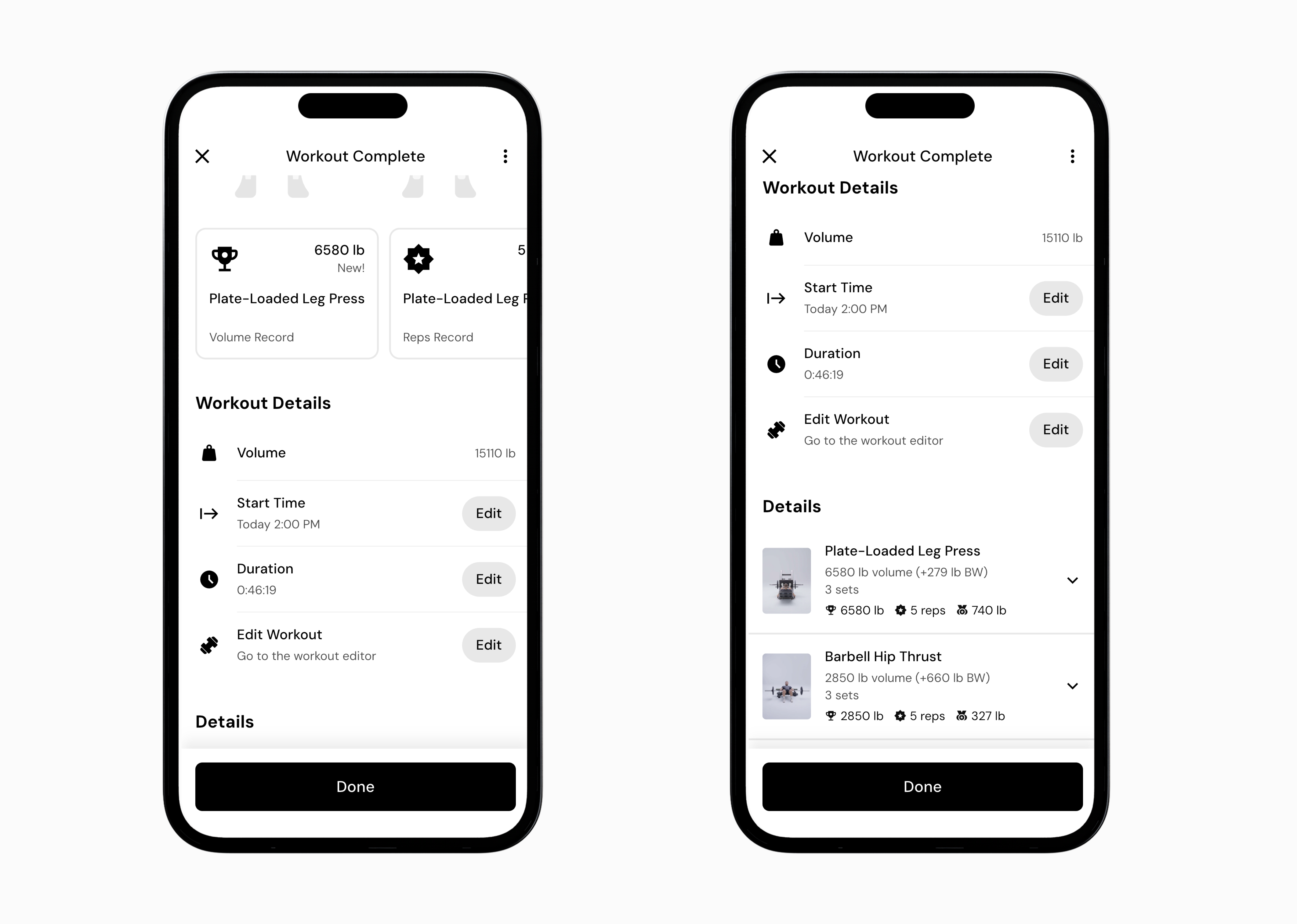
Once everything looks good, tap Done to exit the summary. Your workout is saved, and performance data is logged.
Read next:
Now that you’ve learned how to log a workout, you might enjoy one of these articles next:
Changing RIR During Logging
Logging Different Types of Sets
Changing Rest Time During a Workout
