Smart warm-ups can help improve performance by manually calculating warm-up weights and reps for your session. They also help ease you into heavier sets without overdoing it. The app achieves this by automatically scaling warm-up sets based on the exercise and your current working loads.
Warm-ups will be automatically added to each exercise in your workouts based on the scheme. So, by default, they are turned on.
Option 1:
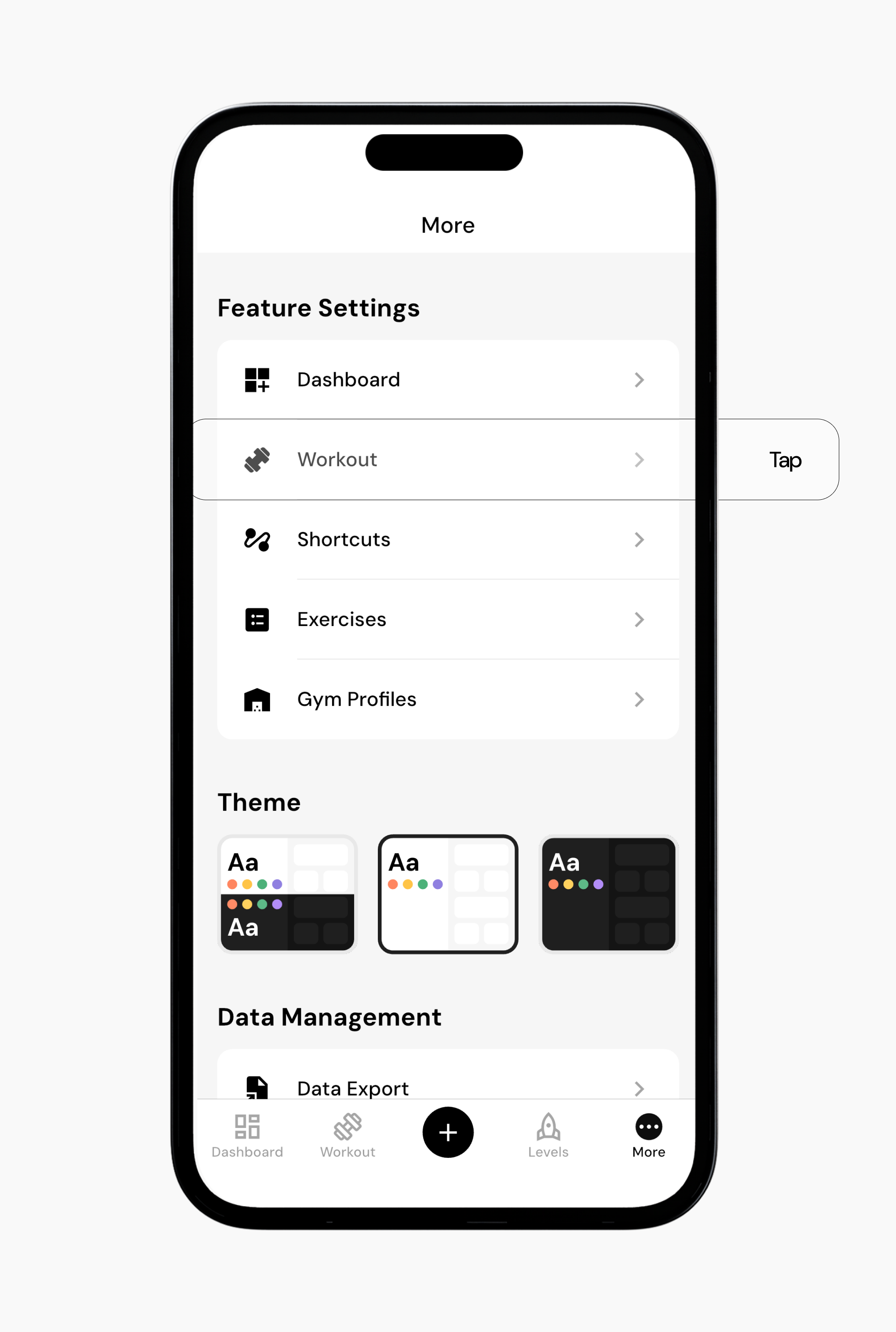
Go to More > Feature Settings > Workouts
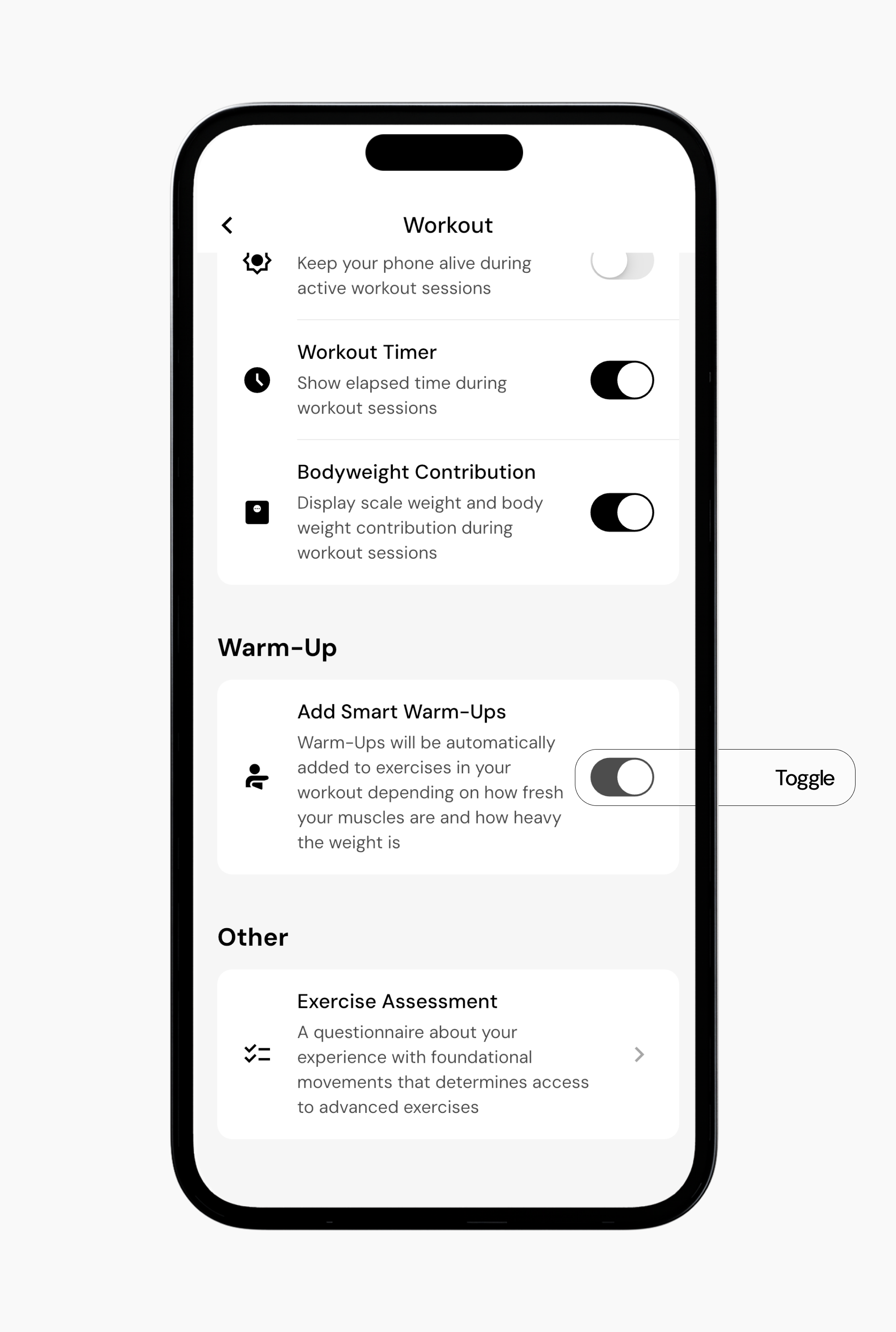
Scroll down to Add Smart Warm-Ups and toggle it on or off depending on your preference.
Option 2: During a workout
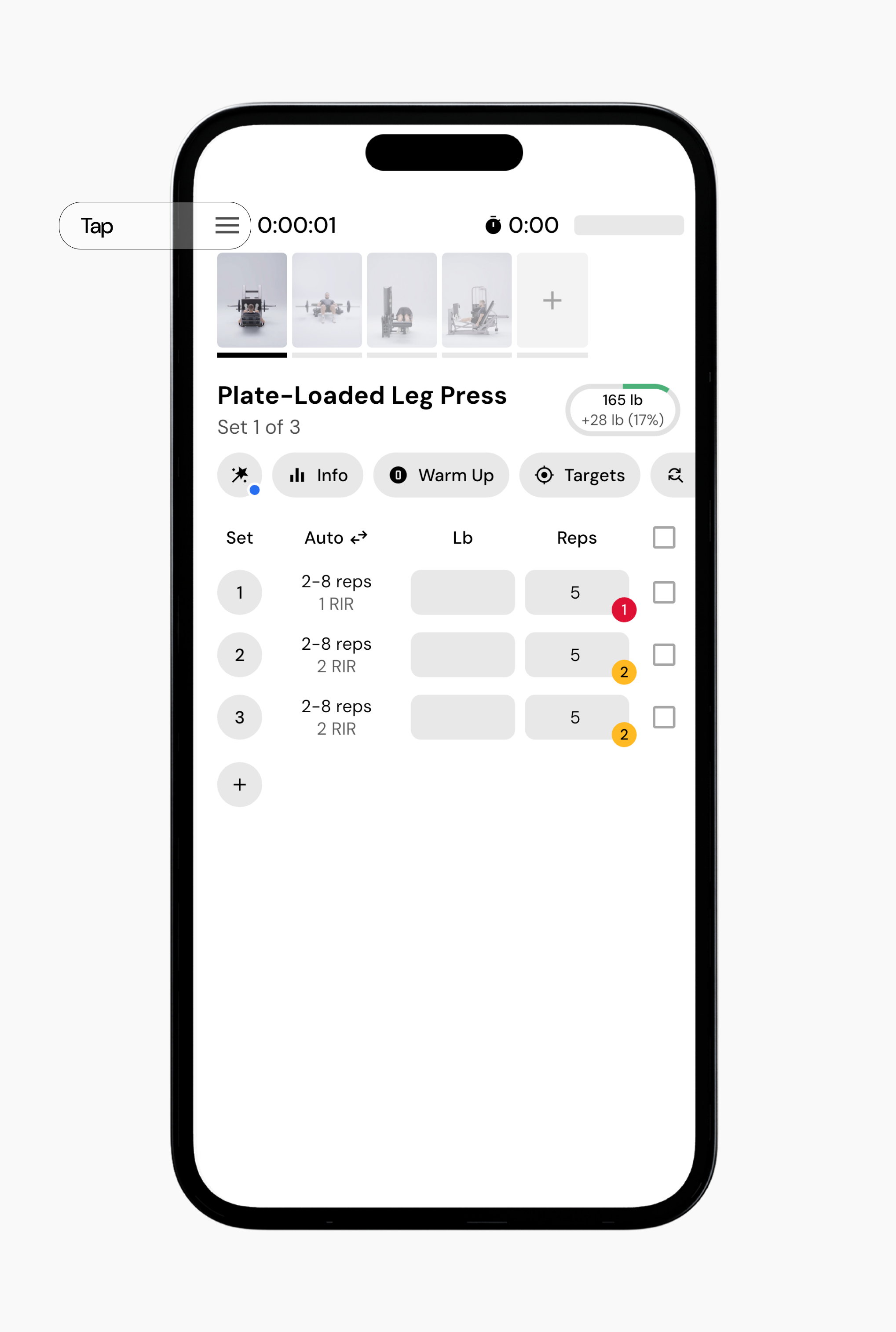
While in an active workout, tap the three horizontal lines in the top-left corner of the screen.
Select Workout Settings.
Under Warm-Up, toggle Add Smart Warm-Ups on or off.
Option 3: Add a Warm-Up set during a workout
During a workout, tap the exercise you want to add a warm-up to from the top navigation bar.
In the action bar, under the exercise title, tap Warm Up.
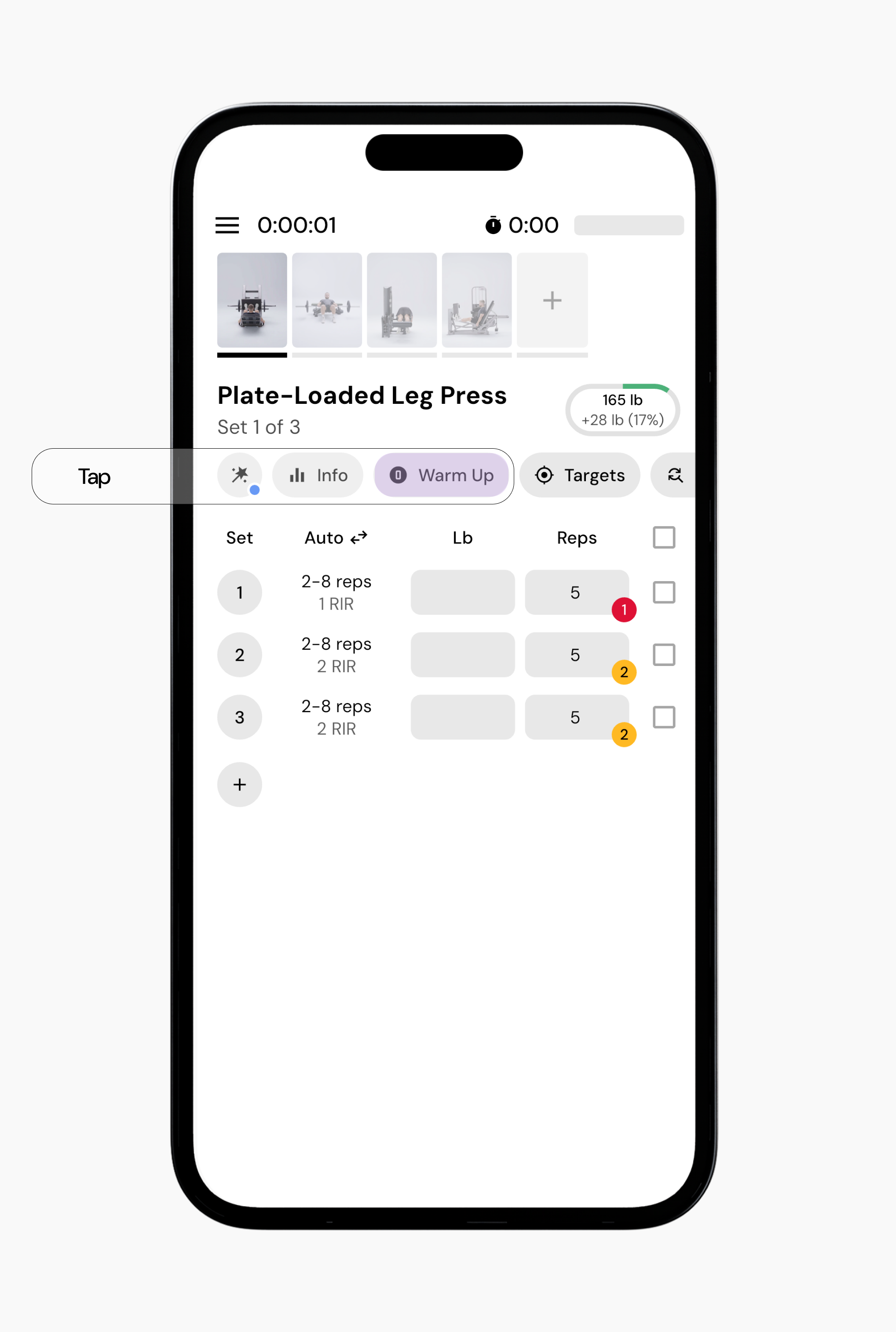
Select the Add a Warm-Up set option.
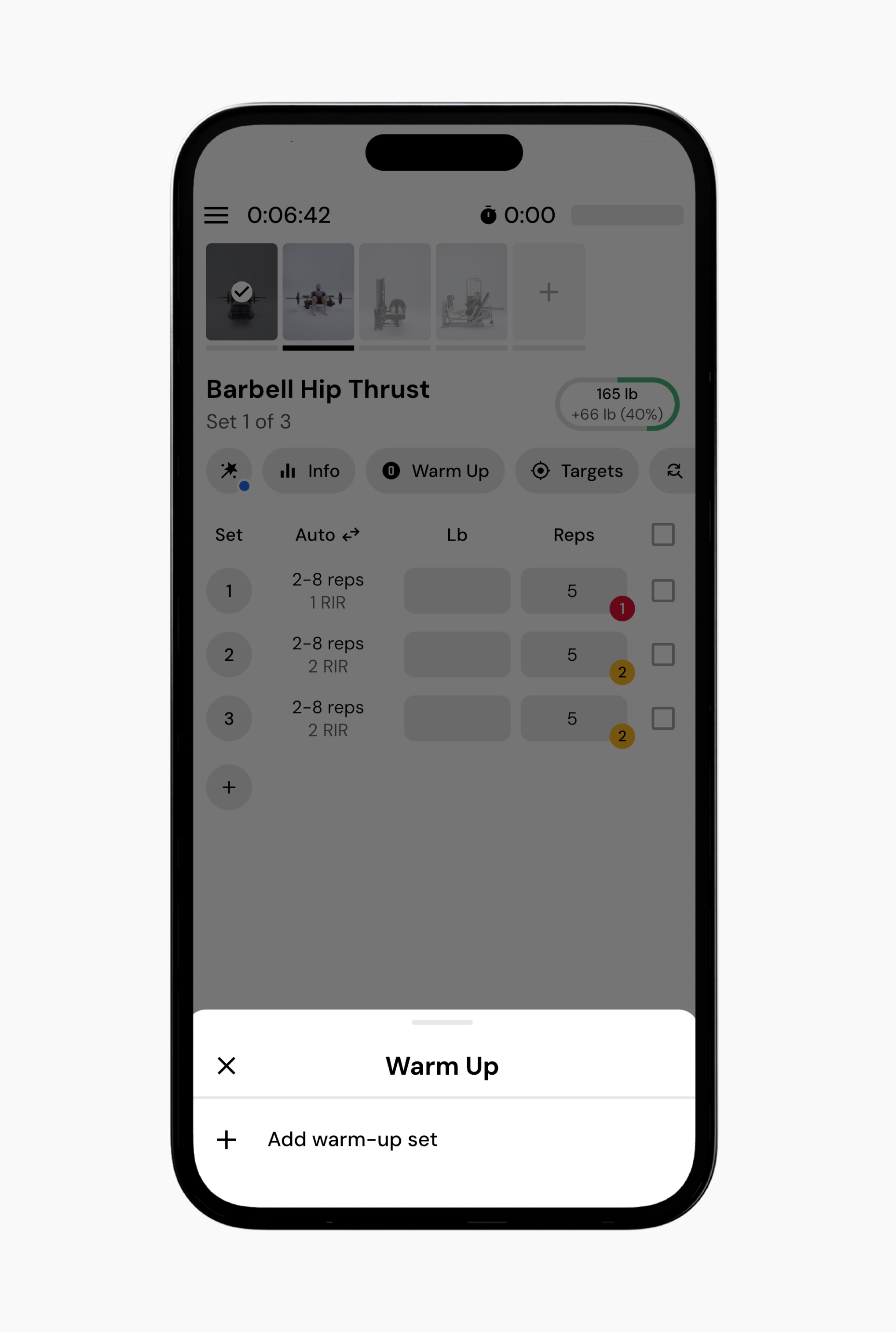
Swipe left on the warm-up set, then tap the red button to remove it.
Now that you’ve learned how to remove or add smart warm-ups, you might enjoy one of these articles next:
Understanding Smart Progressions
How to Log a Workout
Workout Settings and Preferences
