Smart warm-ups can help improve performance by manually calculating warm-up weights and reps for your session. They also help ease you into heavier sets without overdoing it. The app achieves this by automatically scaling warm-up sets based on the exercise and your current working loads.
Warm-ups will be automatically added to each exercise in your workouts based on the scheme. So, by default, they are turned on.
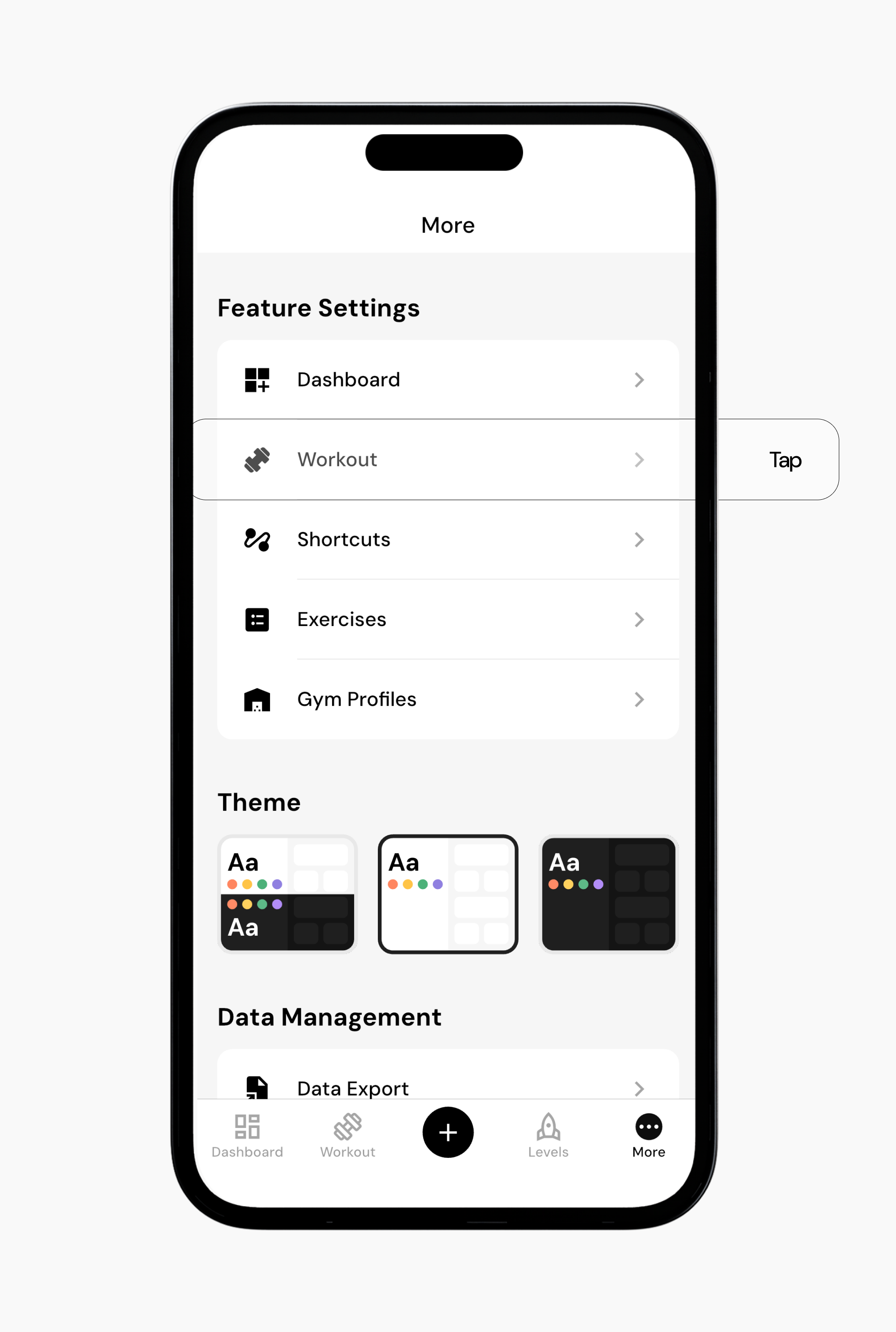
Go to More > Feature Settings > Workouts
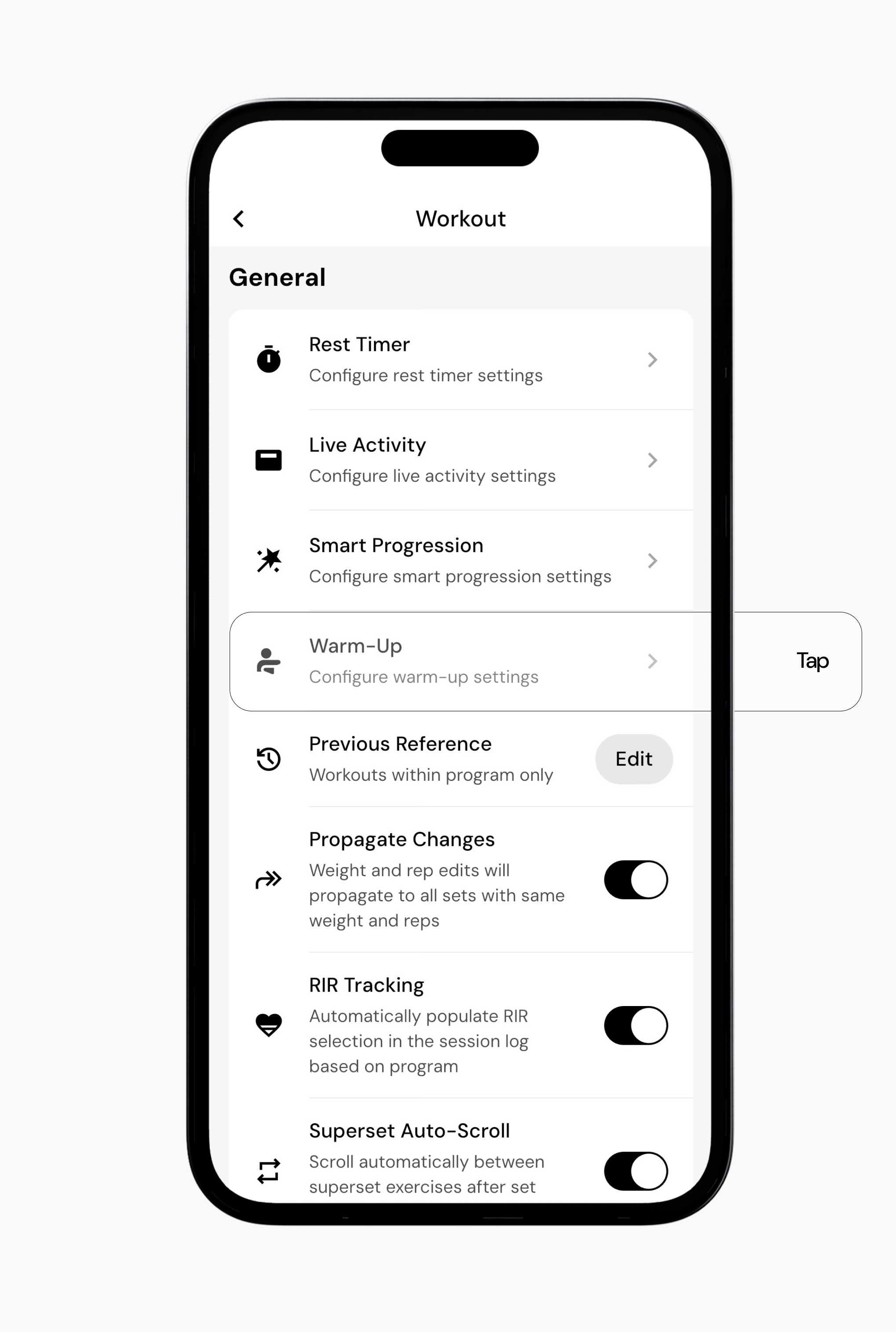
Under ‘General’, tap on Warm-Up
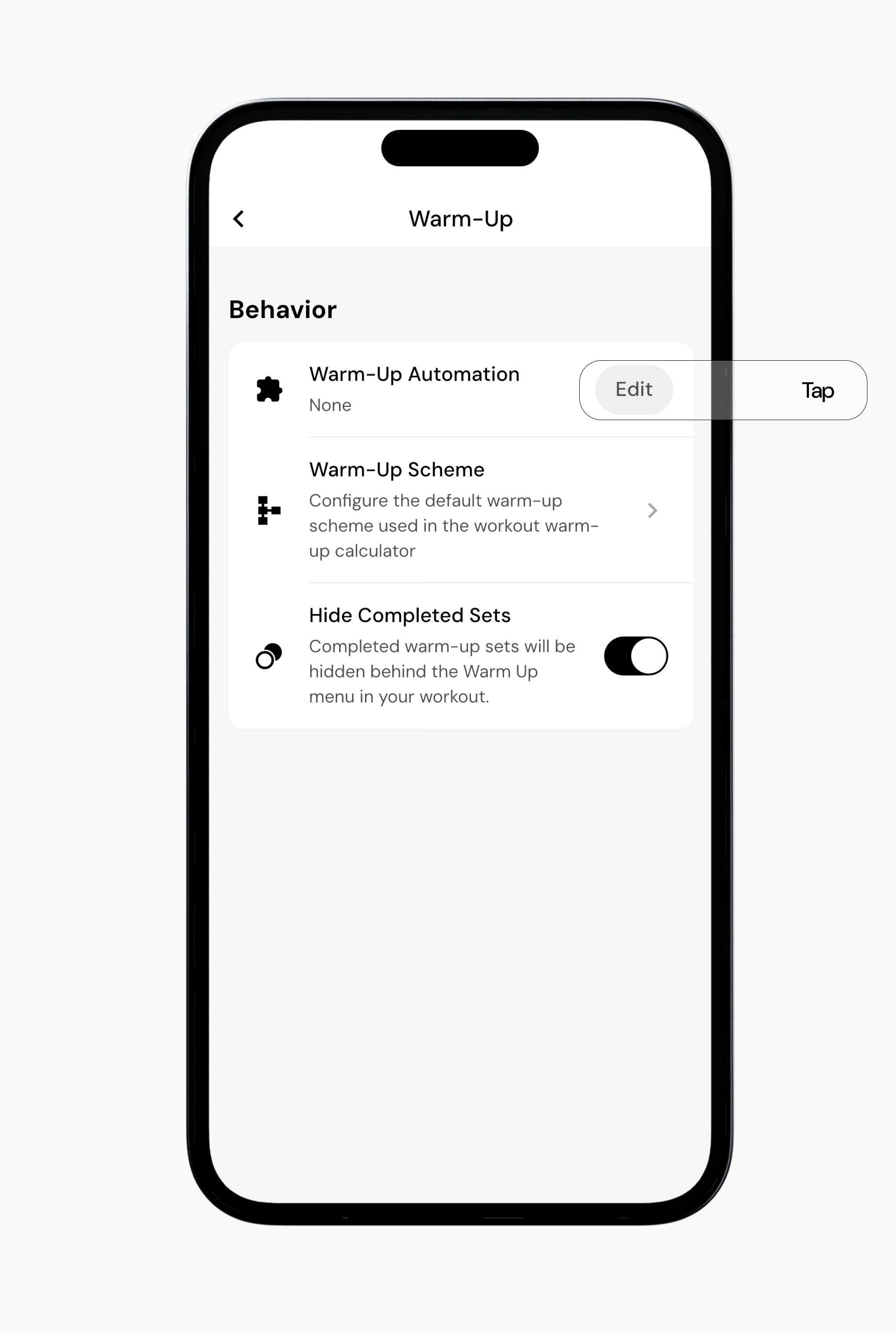
Under ‘Behavior’, tap Edit next to Warm-Up Automation.
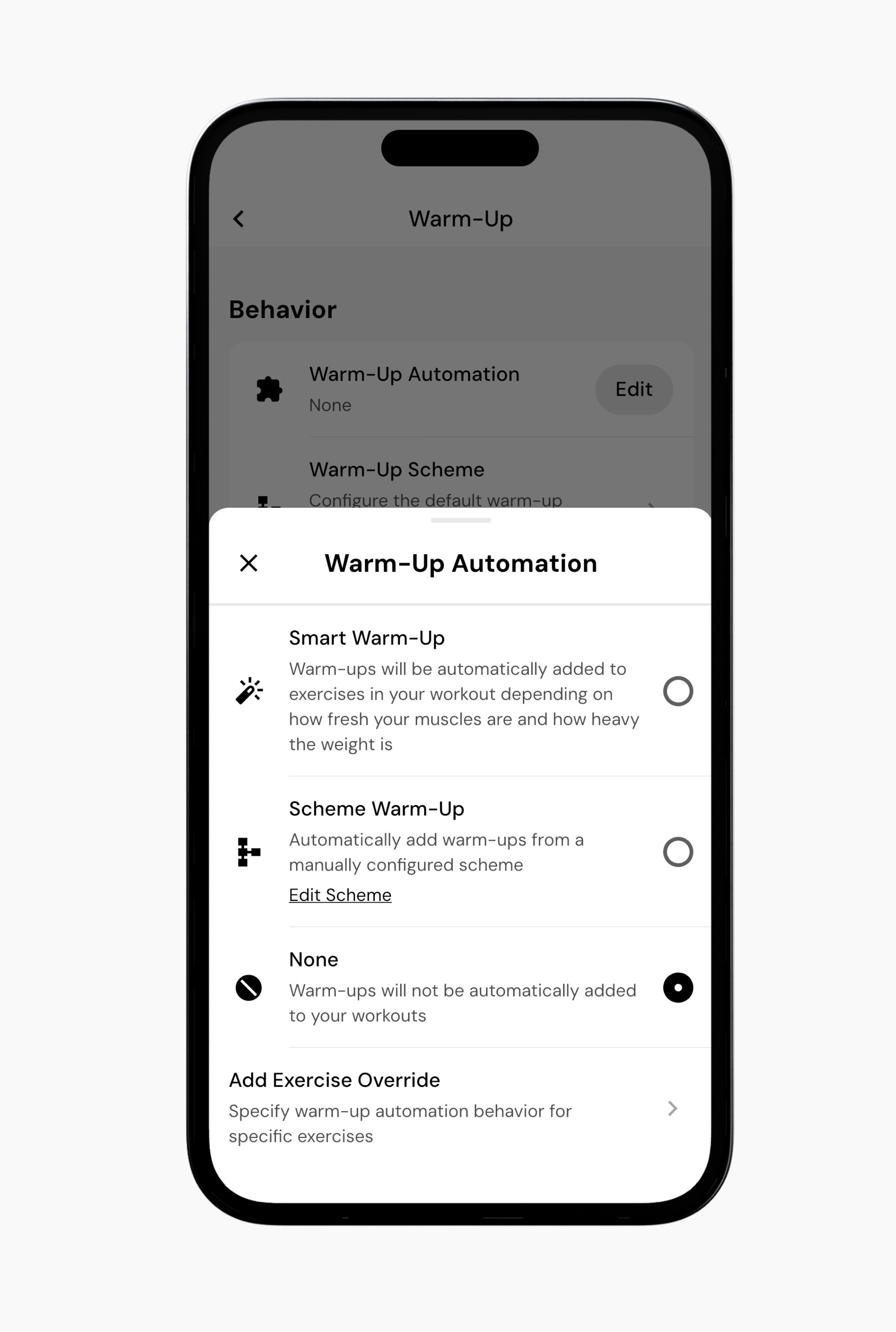
Select Smart Warm-Up if you want warm-up sets to be automatically added based on the weight you’re lifting.
Your warm-ups will now be automatically added to exercises in your workouts.
Option 2: During a workout
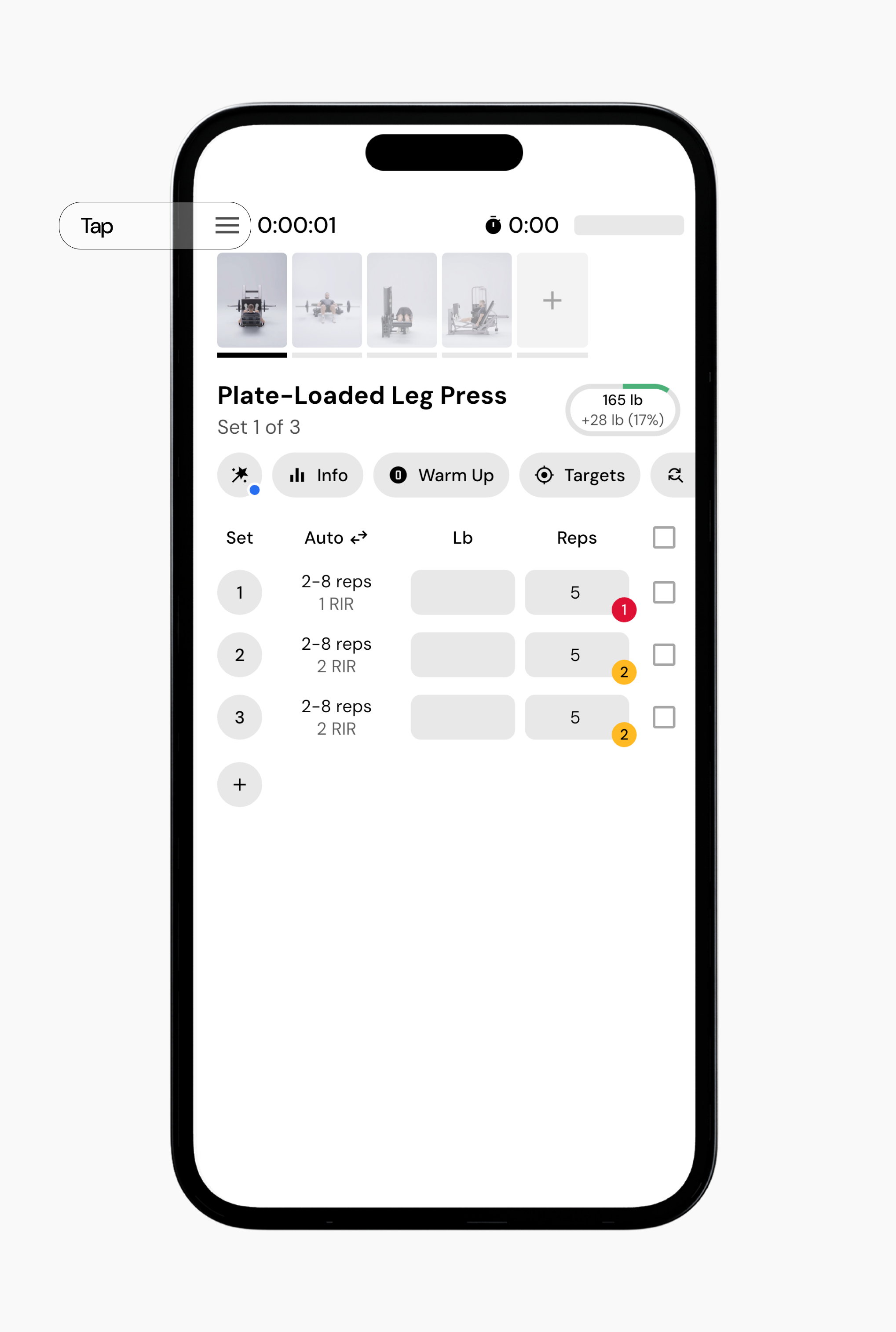
While in an active workout, tap the three horizontal lines in the top-left corner of the screen.
Select Workout Settings.
Under Warm-Up, toggle Add Smart Warm-Ups on or off.
Option 3: Add a Warm-Up set during a workout
During a workout, tap the exercise you want to add a warm-up to from the top navigation bar.
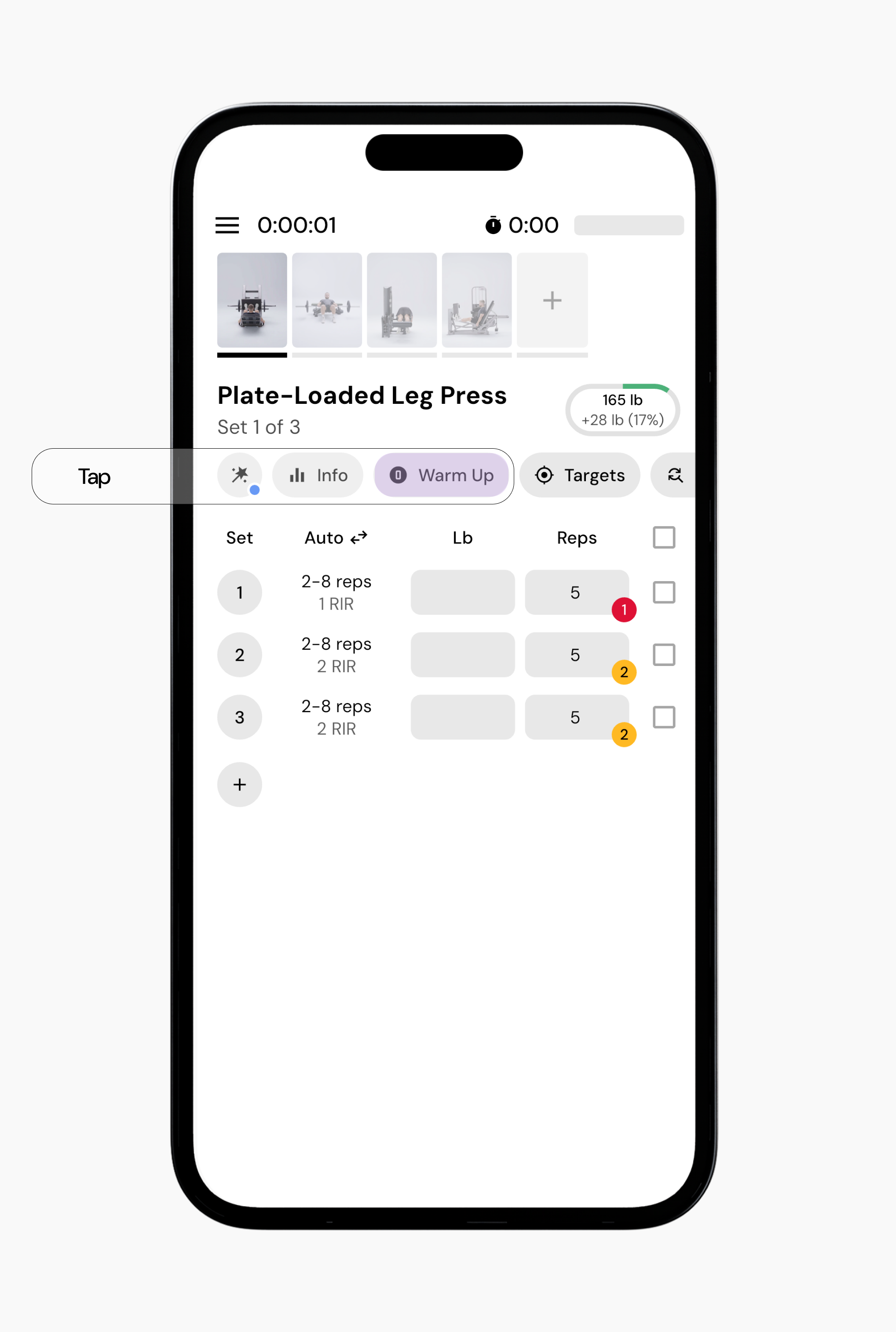
In the action bar, under the exercise title, tap Warm Up.
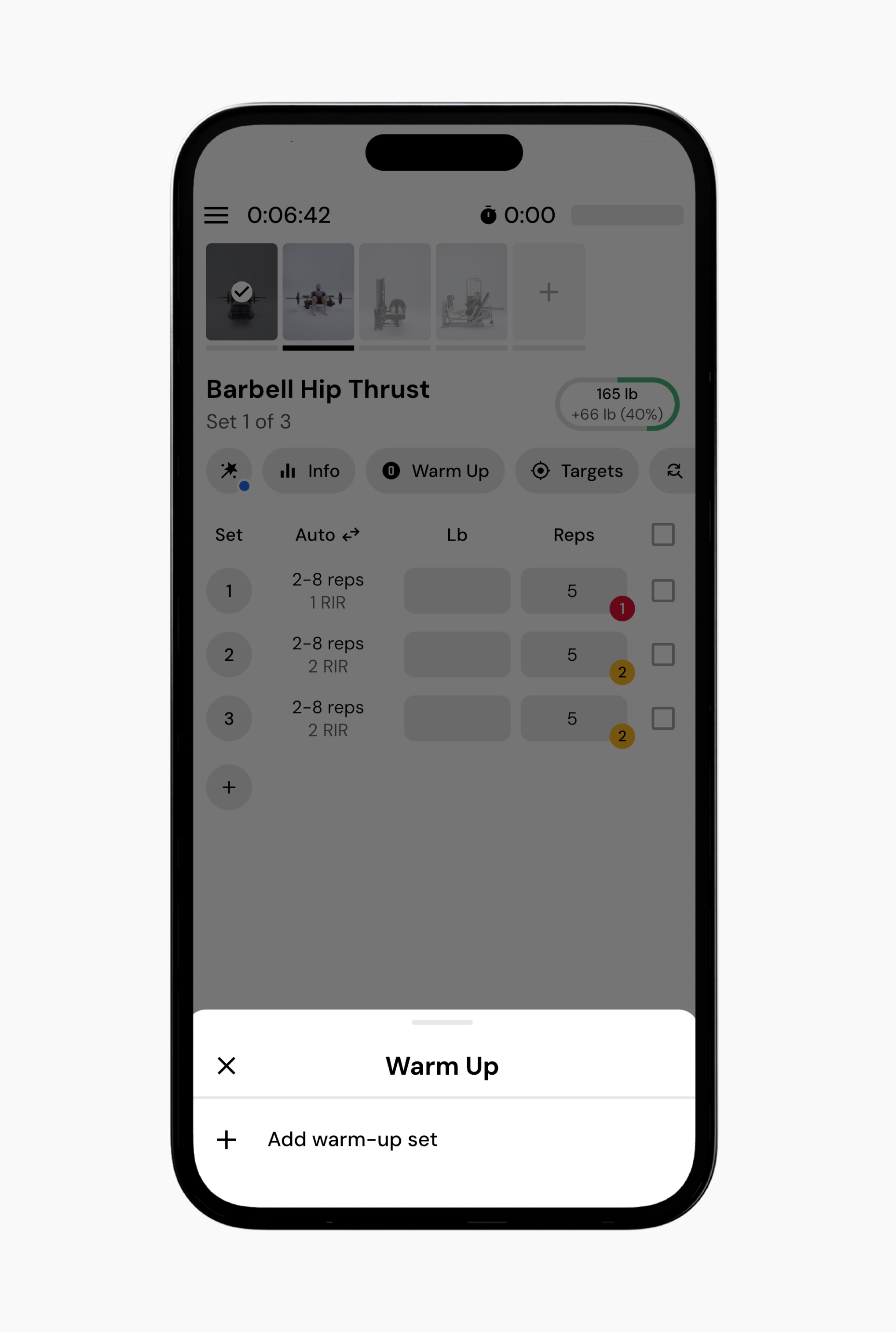
Select the Add a Warm-Up set option.
Swipe left on the warm-up set, then tap the red button to remove it.
The Warm-Up Scheme feature lets you configure the default warm-up scheme used by the workout warm-up calculator. To get there, go to More > Workout > Warm-Up > Warm-Up Scheme.
You also have the option to create warm-up schemes for specific exercises. These will take precedence over your default warm-up scheme settings.
While in the Warm-Up Scheme menu, tap Add next to Add Exercise Scheme
Search for and select the exercise you’d like to configure
Enter the warm-up scheme values, then tap Done to save
Warm-up schemes can be customized based on percentages, reps, and reference sets. For example, you might set one warm-up at 40% of your target set, another at 60%, and a final warm-up at 80% for 3 reps before your working sets begin.
You can also adjust the warm-up scheme for an exercise while you are in a workout.
During a workout, tap the exercise you want to adjust from the top navigation bar
In the action bar under the exercise title, tap Warm Up
Select the Scheme toggle
Make adjustments to the warm-up scheme, then tap the X icon when you’re done
Note: Changes made here update the warm-up scheme for that exercise going forward.
You can remove individual warm-up sets from the workout at any time.
Note: You can remove individual warm-up sets from the workout at any time by tapping the remove button in the warm-up menu, as shown below. Removing a warm-up set does not change your saved warm-up scheme.
You can choose whether completed warm-up sets remain visible in your workout or are hidden behind the Warm-Up menu.
Turn Hide Completed Sets on or off under:
More > Workout > Warm-Up
Now that you’ve learned how to remove or add smart warm-ups, you might enjoy one of these articles next:
Understanding Smart Progressions
How to Log a Workout
Workout Settings and Preferences
