
You can change your program schedule based on how many training and rest days you want in each cycle.
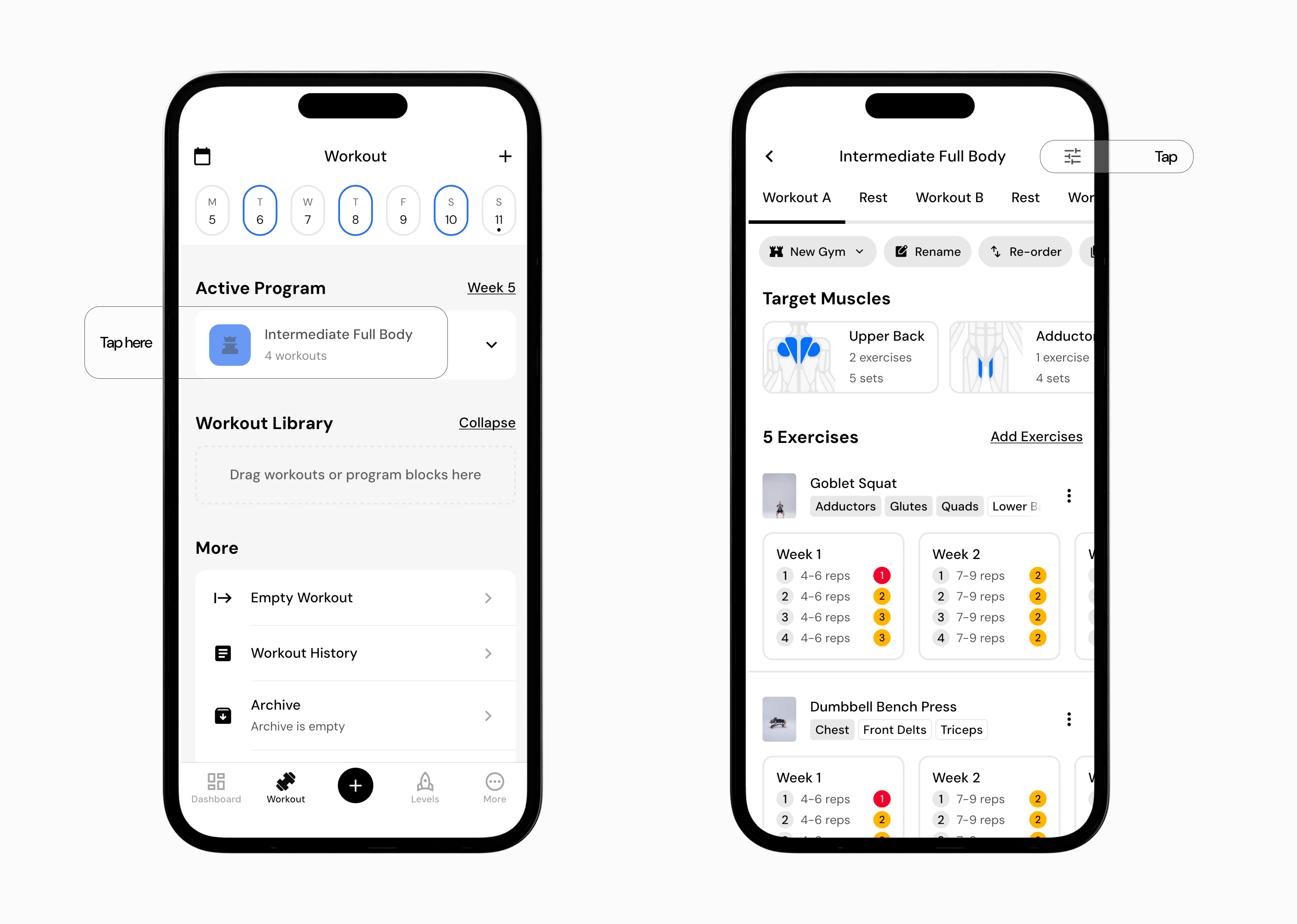
Go to the Workout tab.
Tap the program you want to edit.
Tap the program settings icon in the top-right corner.
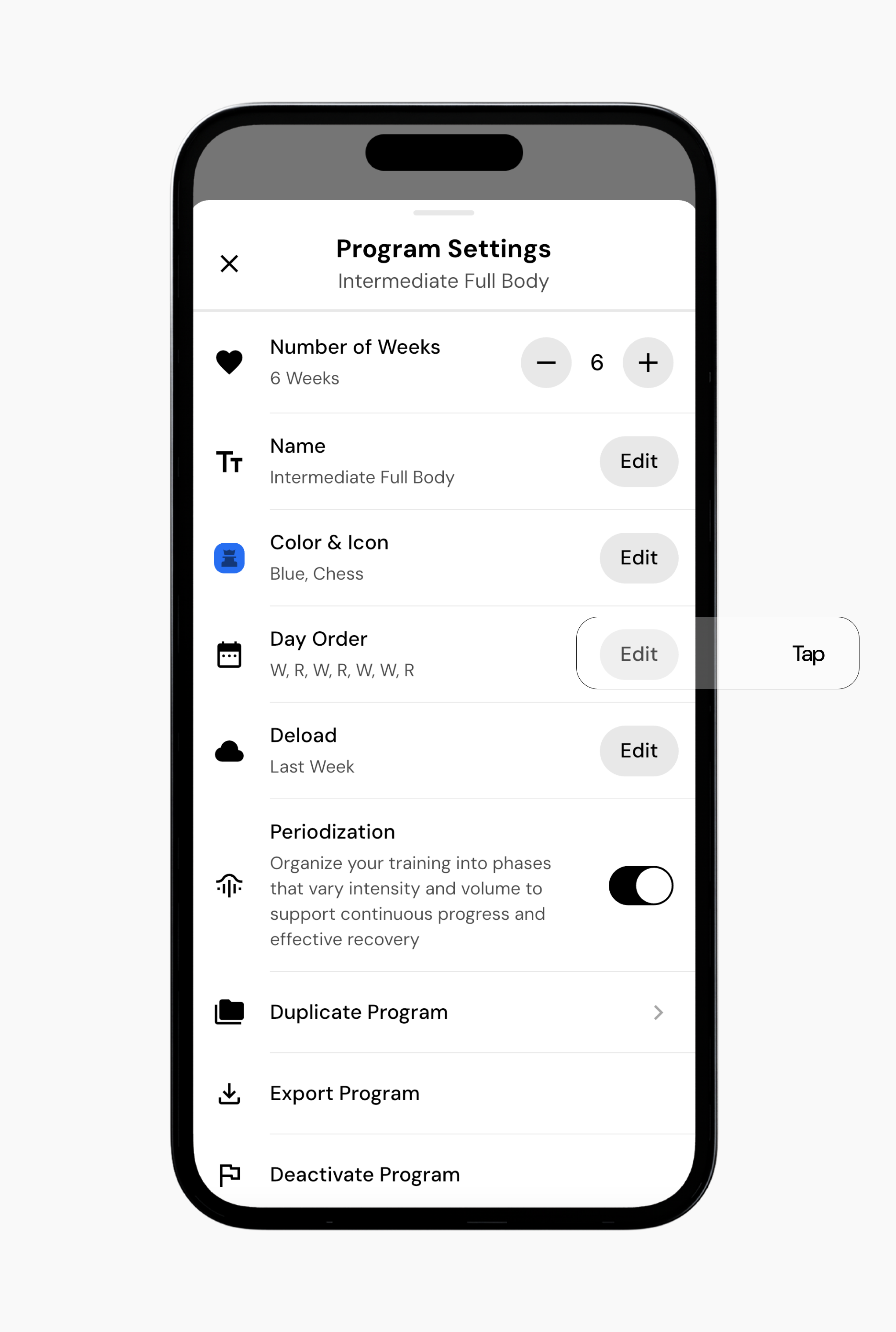
Scroll down to Day Order and tap Edit.
Reorder your active workout days by dragging and dropping. By default, only existing workout days can be moved.
If you want to add another workout day, first add that workout to your program, then return to the schedule to arrange it.
If you want a 7-day schedule, make sure your program includes 7 total days, including workout days and rest days.
You can schedule up to 14 unique training days within a single cycle.
When finished, tap Save.
Read next:
Now that you’ve learned how to change your program schedule, you might enjoy one of these articles next:
Change Number of Cycles in a Program
Starting a New Program
Viewing Workout History