
You can skip an exercise for a specific cycle when building or editing a program. This allows you to temporarily remove an exercise from one scheduled cycle without changing the rest of the program.
Skipping an exercise affects only that selected cycle, meaning the exercise will continue to appear in other cycles unless you choose to skip it there as well.
Examples of uses would be:
You are following a program that has weekly variations
You need a temporary change without removing the exercise from the program
You don’t want to permanently remove or swap the exercise: you just want it omitted from one or a few cycles within the program
How to skip an exercise for a cycle
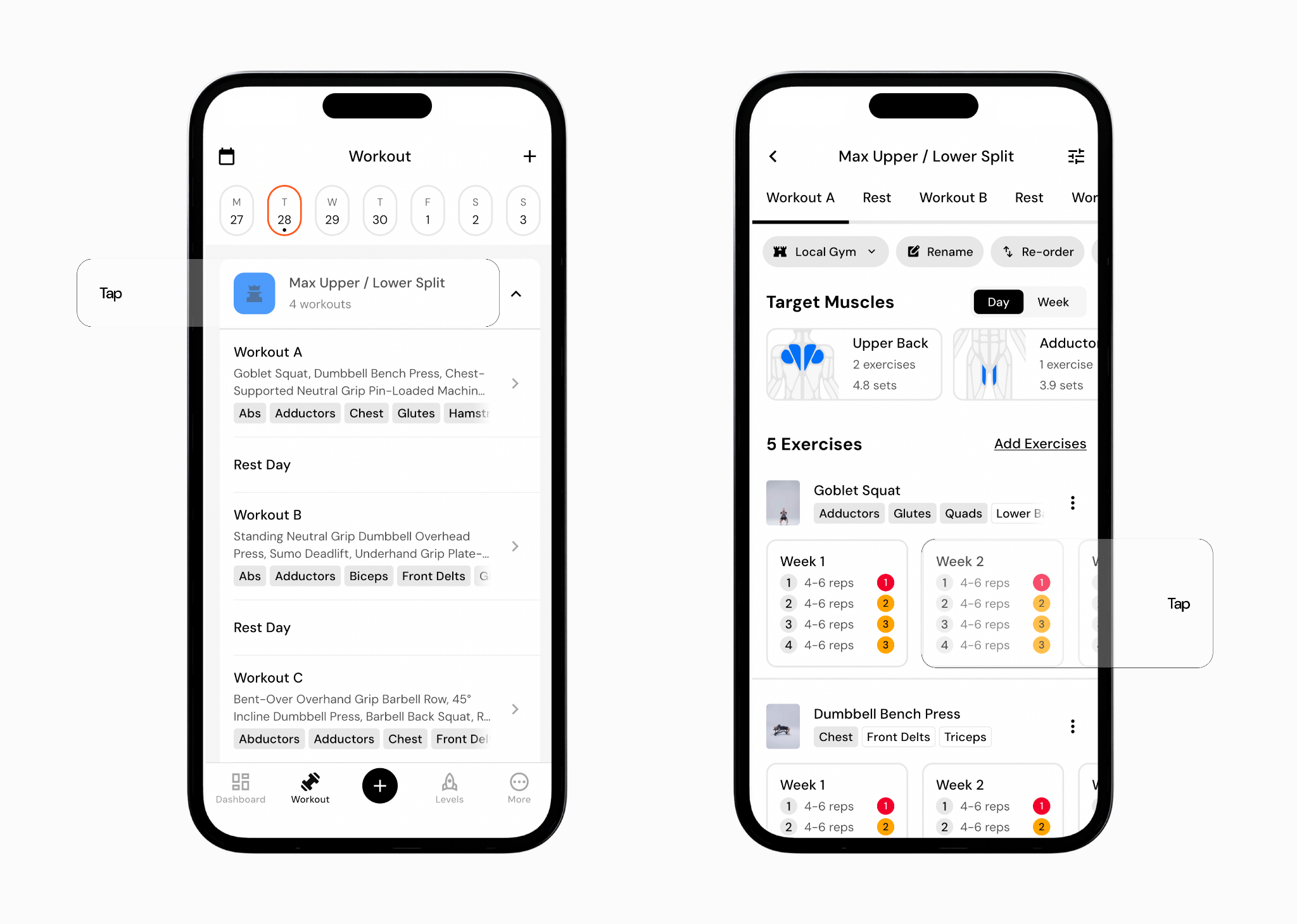
Go to the Workout tab.
Open the program you want to edit.
Navigate to the workout (for example, Workout A) that contains the exercise you want to skip.
Select the cycle for the exercise you want to skip (for example, Cycle 2 of your training program).
Toggle Skip Exercise on.
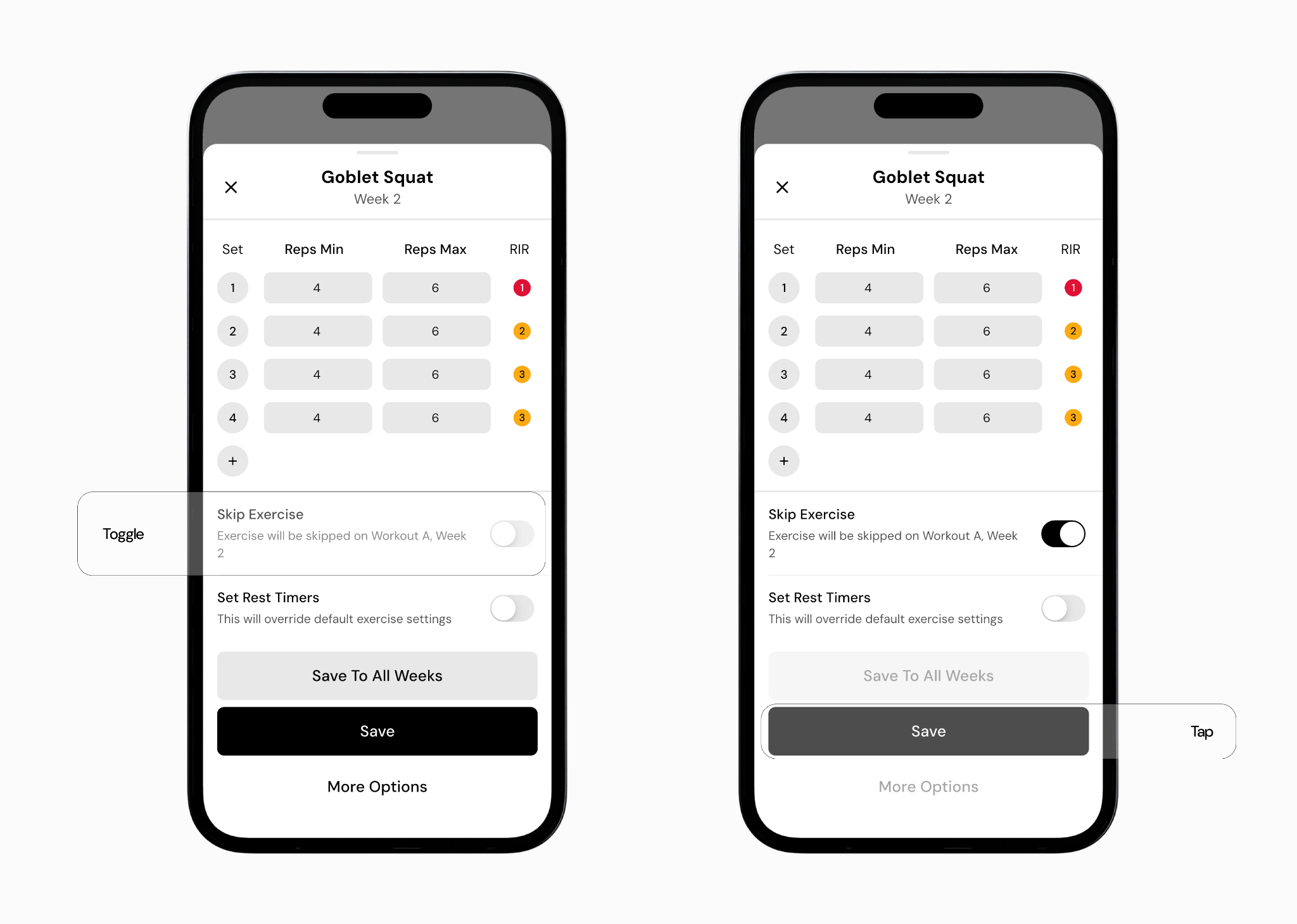
Save your changes.
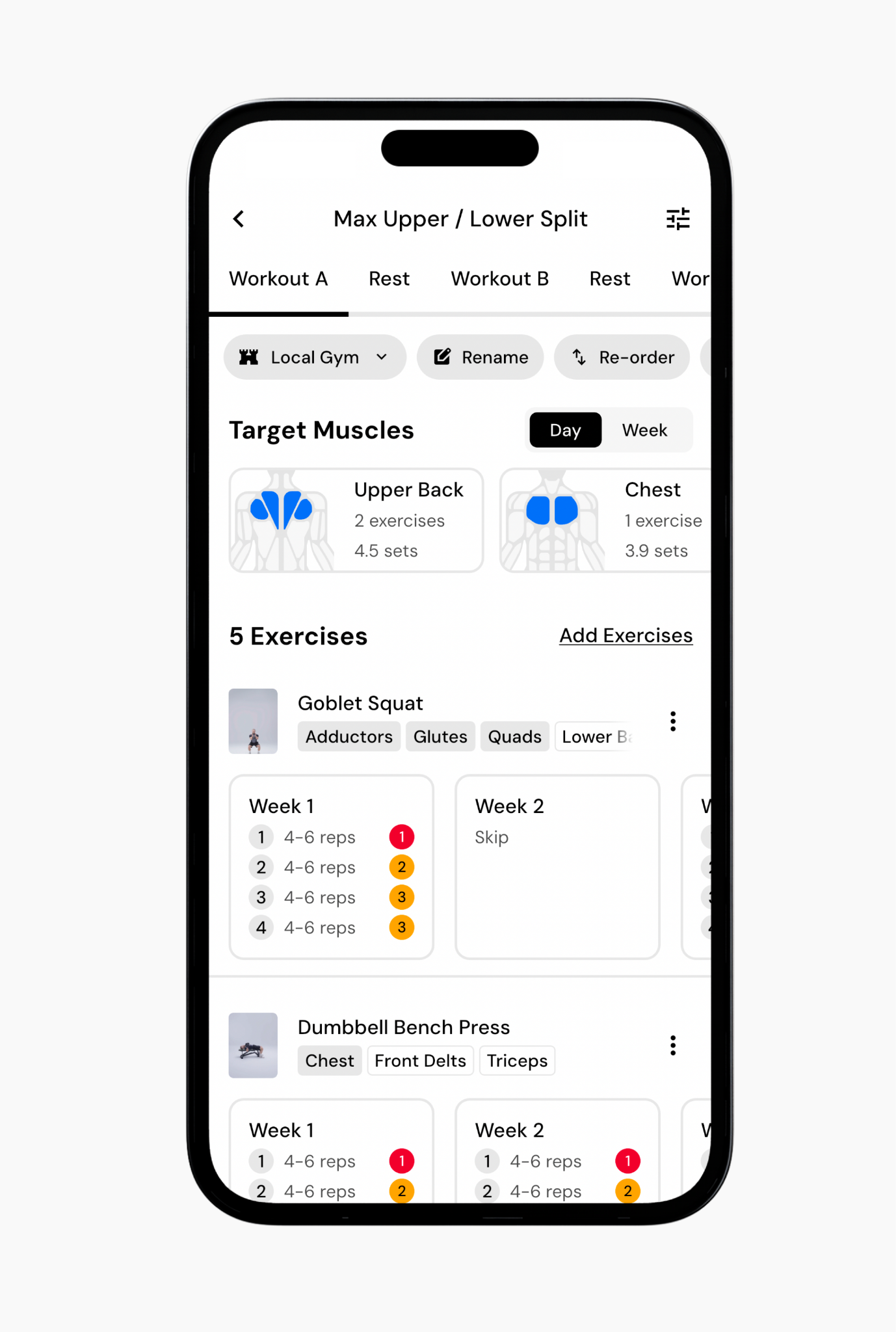
The exercise will no longer appear in that cycle week, but it will continue to appear in your other cycle weeks. You can repeat this process if your program alternates weeks or if you want to skip other exercises in specific cycles.
Read Next:
Now that you’ve learned how to skip an exercise without removing it from your program, yyou might enjoy one of these articles next:
Adding or Removing Exercises to a Program