
To import a recipe using AI:
Tap the + button near the bottom of the screen.
Tap New Recipe.
Select the Import with AI option.
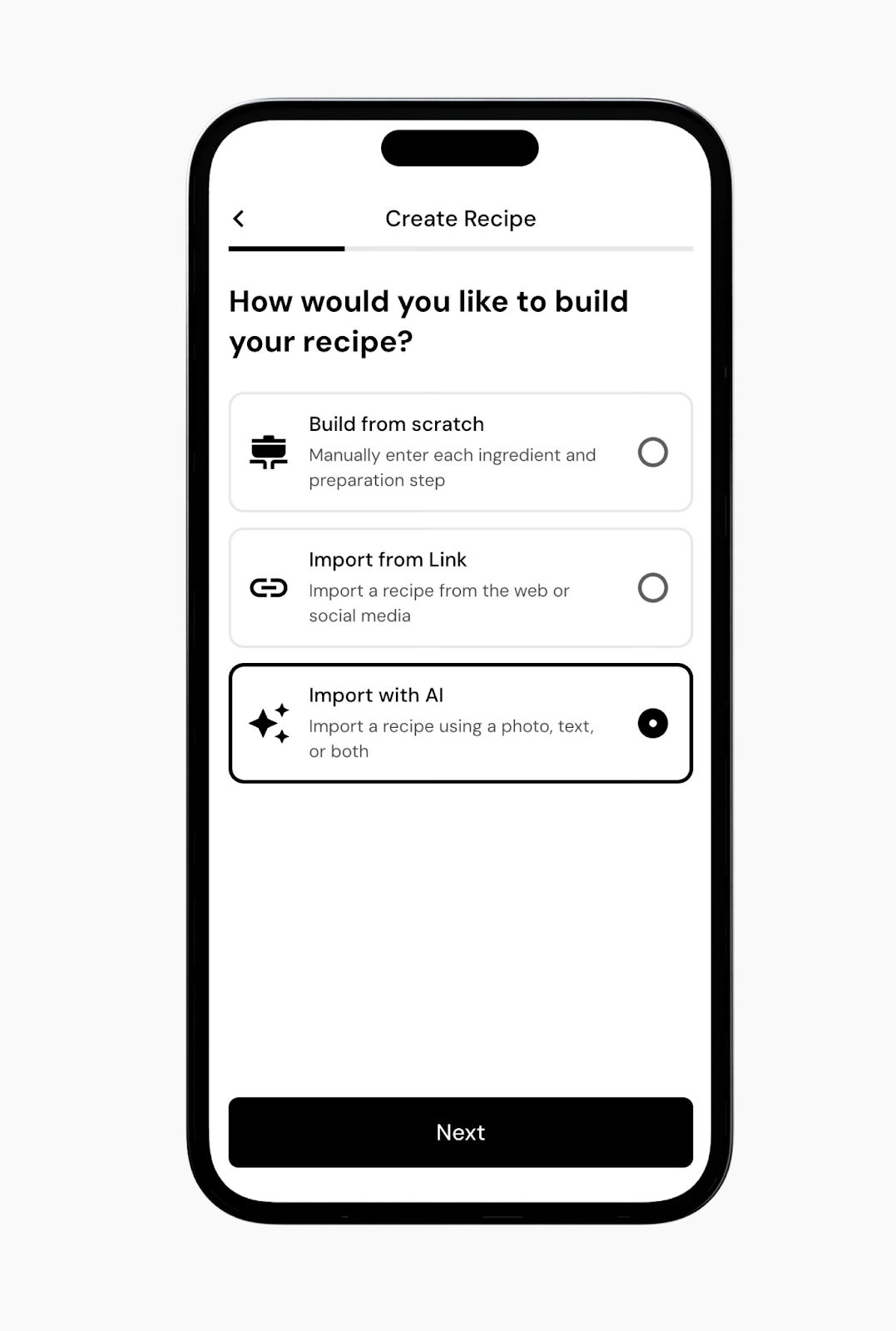
On the next page, choose how you’d like to import the recipe:
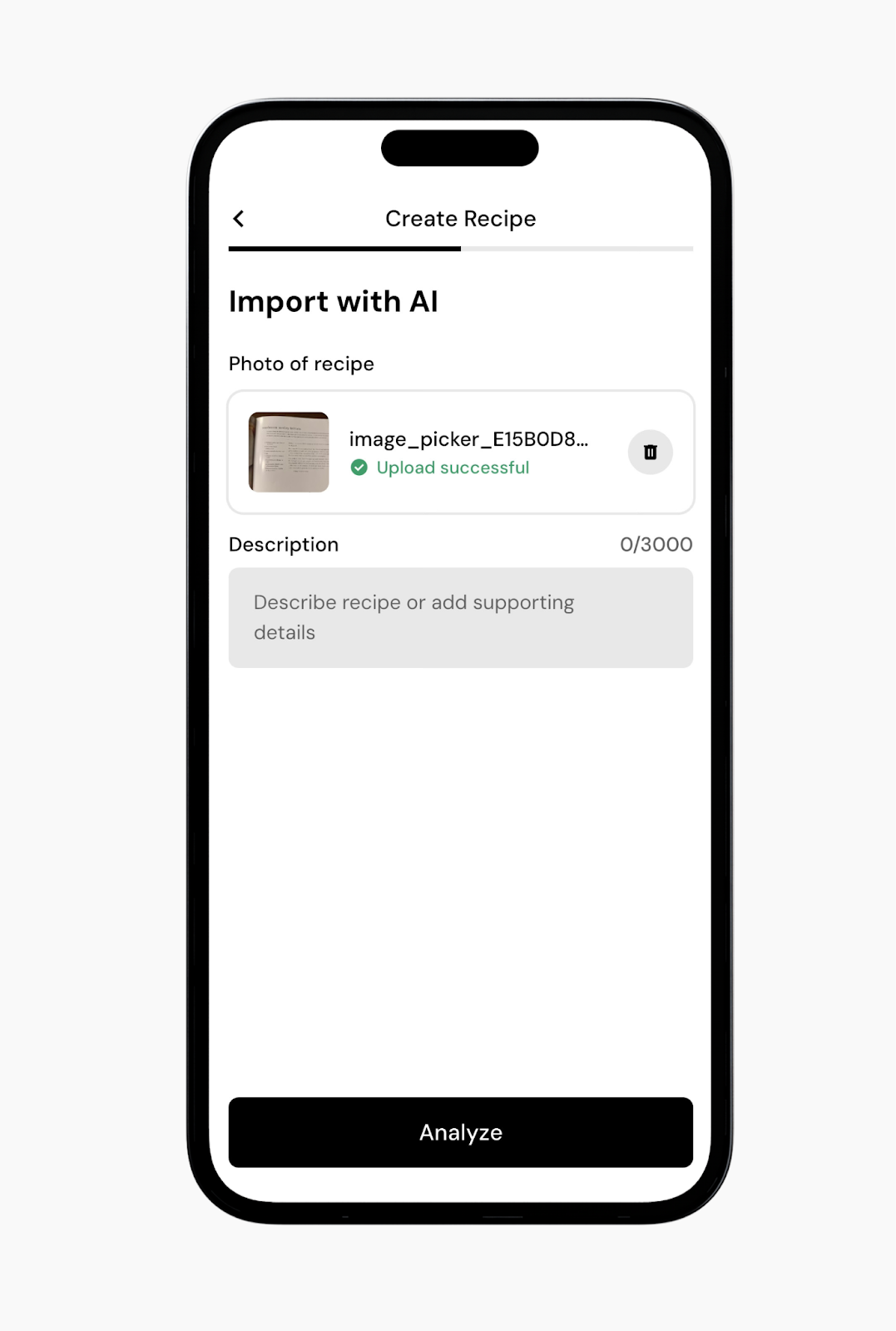
Upload a photo from your camera roll by tapping Upload.
Tap on the camera icon to take a photo of a recipe.
Enter a text description.
Use any of these options individually, or combine a photo with a text description
Once you’ve added your photo, description, or both, tap Analyze at the bottom of the screen.
After the recipe is analyzed, the app will populate all of the recipe details. You’ll be able to review the imported recipe and make any edits as needed.
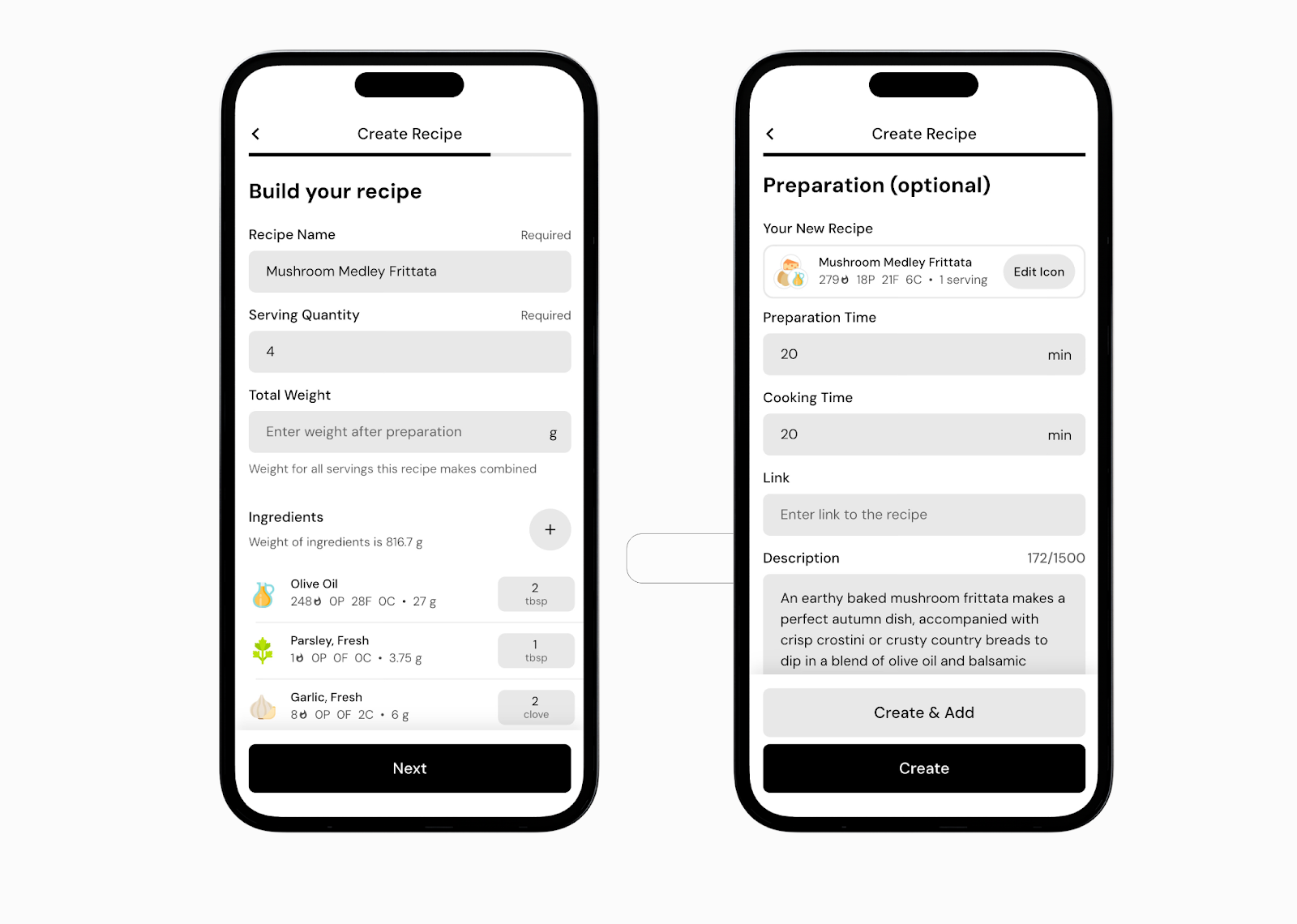
Tap Create to save the recipe to your food library, or tap Create & Add to save the item to your library and add it to your plate.
Tips and Tricks:
The text field can also be used to substitute ingredients from the recipe image.
Make sure the text in the image is clearly legible. Whether you’re using a recipe from a website, a screen, or something handwritten, the image quality and lighting should be good enough for the AI to read it accurately.
It can also work well for jotting down ingredients and measurements on a notepad while cooking, though it’s a good idea to include the recipe name on the paper as well.
Read next:
Now that you understand how import recipes with AI, you might enjoy one of these articles next:
Does Editing a Recipe or Custom Food Item Affect My Food Log History?