
Here, you can ensure your Dashboard displays the data you want to see first when you open the app.
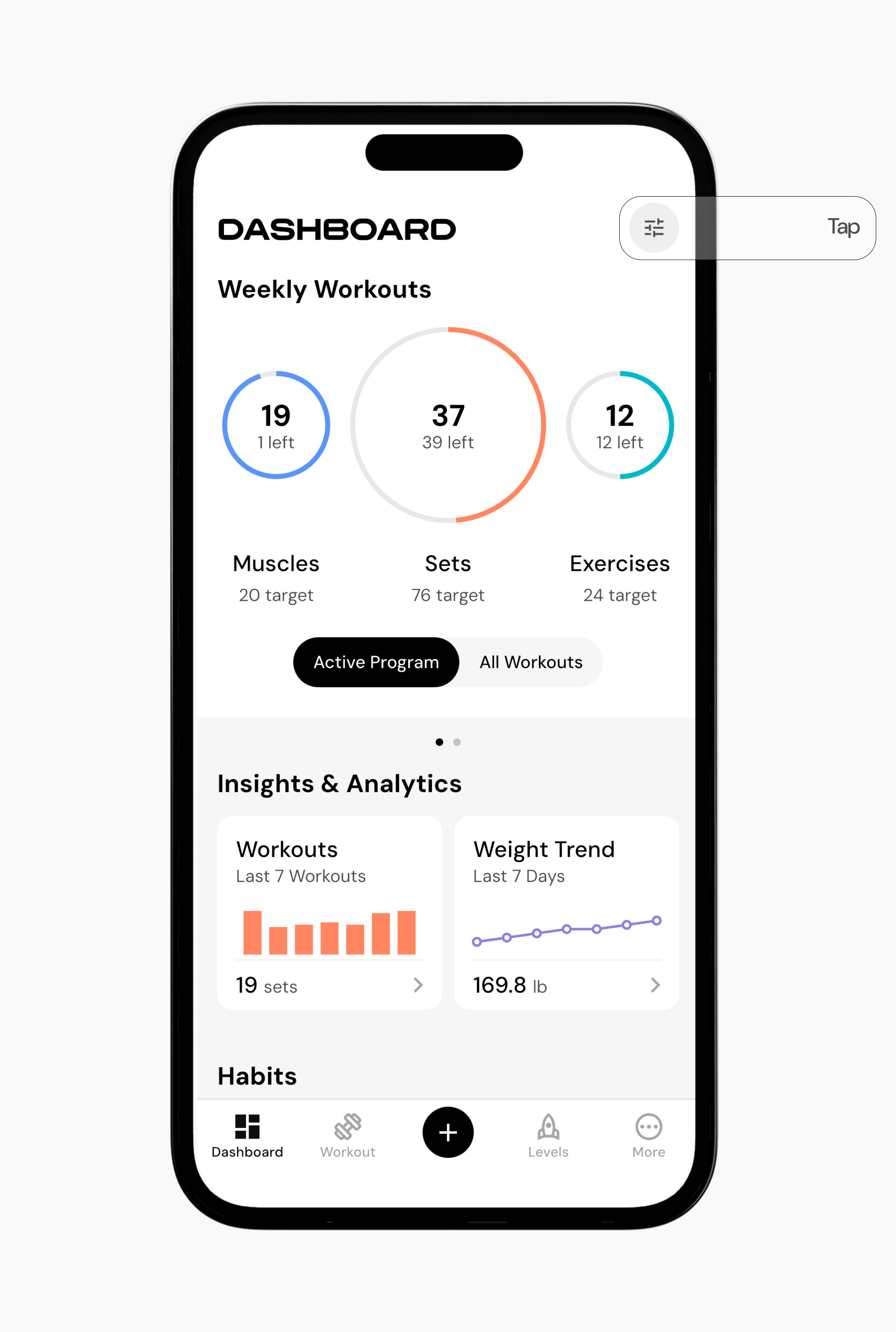
To Customize Your Dashboard
On the Dashboard page, in the top right corner tap the settings tab and it will take you to Customize Dashboard.
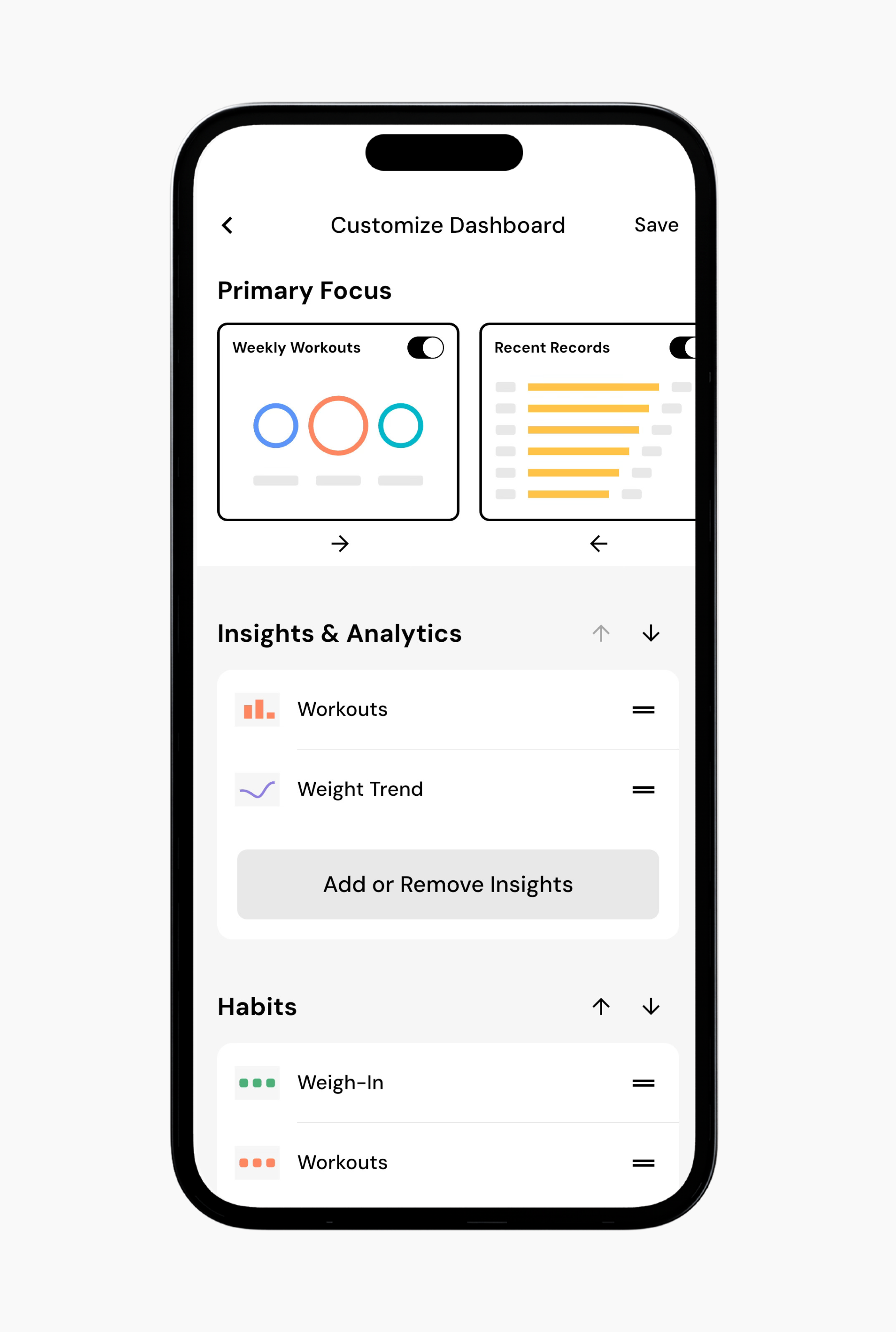
Use the up and down arrows to move tiles to your preferred location.
Tap Save in the top-right corner to save your changes.
Add or Remove Widgets
In the Customize Dashboard menu, tap Add or Remove Insights under each section.
Toggle on or off the details you want displayed in your dashboard tiles.
Tap X or Done to go back
Tap Save in the top-right corner to save your changes.
You can also swipe left on a widget and tap the remove icon to remove it. To return to the original layout, tap Reset to Original App Defaults at the bottom of the screen.
Read next:
Now that you understand how to customize your dashboard, you might enjoy one of these articles next:
Customizing Workout Sections
Editing and Arranging Shortcuts
Editing Gym Profiles